



Before choosing what to buy, check how much gift card value remains and whether you can still redeem it. Start with the voucher PDF, then use the issuing store’s balance-checking option if available. If you cannot find a current balance, ask the store to confirm it before placing an order.
How to Check a Gift Card Balance in WooCommerce
The way you check a gift card balance in WooCommerce depends on the store’s setup. Some stores using Flexible Coupons PRO can show remaining usable value in the gift card purchase order. That does not mean every store has a public balance checker or that every recipient can access that order. See the Flexible Coupons PRO feature update for details.
Follow this sequence before you start shopping:
- Find your voucher code in the gift card PDF or the message supplied by the store.
- Read the printed value, expiration information, and voucher use conditions.
- Follow any balance-checking instructions provided by the store. If the gift card purchase appears in your account, open its order details.
- If no current balance is available, contact the issuing store and ask it to confirm the remaining amount and redemption deadline.
What a Customer Can—and Cannot—See
A Flexible Coupons PDF can contain the voucher code and value, plus an expiration date when the relevant feature and template field are configured. The information you receive therefore depends partly on what the store includes in its design. The coupon template documentation explains the available fields.
The store also has administrative coupon records containing information such as the coupon amount, usage limit, and expiry date. Those records are not a customer-facing balance page, but they give support staff a starting point for investigating a voucher. See the coupon management documentation.
Finding the Code on the PDF
Open the PDF and look for a label such as “Voucher code” or “Coupon code.” Flexible Coupons can insert the generated coupon code into the document through its template fields. Use that redemption code rather than substituting an order number or the voucher’s product name.
When copying it, check for extra spaces and characters that look alike. If the code is difficult to read, ask the store to confirm it privately. Avoid posting the complete voucher in a public review or support forum.
Reading the Printed Value and Expiry
Do not treat a saved PDF as a live balance statement. Flexible Coupons generates a newly downloaded PDF using current coupon data, but previously downloaded files and attachments in emails already sent remain unchanged. An older document may therefore differ from the store’s current record, as explained in the coupon editing documentation.
Check the currency and any printed expiration information. If the date is missing, ambiguous, or different from information elsewhere, ask the store to confirm the exact redemption deadline rather than assuming the voucher never expires.
Checking the Remaining Value After Partial Use
Spending part of a voucher across several purchases requires a reusable balance setup. Flexible Coupons PRO provides an “Allow to multiuse” option for this purpose; a gift card should not be assumed to support partial redemption simply because it displays a monetary value. See the product settings documentation.
For example, a reusable $100 voucher with $35 actually deducted would have $65 remaining, assuming no other redemptions or adjustments. Use the amount redeemed from the voucher—not the entire order total—when making your own comparison. For more context, see our guide to reusable gift cards and coupon conditions.
Check the Gift Card Purchase Order, If Available
In Flexible Coupons, the documented account route is My Account → Orders, followed by opening the order containing the purchased voucher. Depending on the installed features and configuration, a “PDF Coupons” table can show the coupon value, remaining usable value, expiration date, and a download option. The PDF coupon download documentation describes this account view.
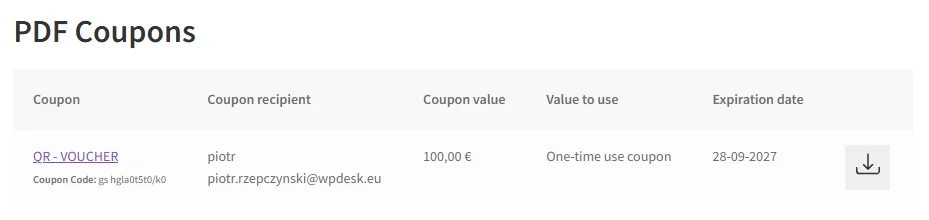
This documentation example shows “One-time use coupon” in the “Value to use” column. The table can present remaining usable value for coupons configured for multiple redemptions.
If you received the voucher as a gift and the purchase order is not available in your account, use the store’s recipient-facing instructions or contact support. Do not assume that creating an account will automatically attach someone else’s gift card purchase to it.
A missing table is not proof that the voucher has expired or been spent. Flexible Coupons documents different visibility conditions for the table and the download link beside an order item; product settings can affect whether a coupon appears in the table. See the table and download-link visibility conditions.
Can I Use a Gift Card If It Still Has a Balance?
A positive balance is only part of the answer. WooCommerce coupons can have product or category restrictions, minimum spending requirements, email restrictions, limits on combining coupons, and usage limits. A voucher may therefore be unsuitable for a particular cart even when it has value remaining. These settings are covered in the WooCommerce coupon management documentation.
When you are ready to buy, enter the code in the store’s coupon field and review the order summary before submitting the order. WooCommerce displays the applied discount there, along with a message if the coupon cannot be applied. The discount shown for that cart is not necessarily the voucher’s full remaining balance. See how WooCommerce coupons are applied.
Also check delivery charges. Standard WooCommerce coupons apply to cart items rather than shipping; free shipping requires the appropriate coupon and shipping configuration. An amount left to pay does not, by itself, indicate an incorrect gift card balance. The WooCommerce documentation explains these coupon settings.
What to Do When the Balance Looks Wrong
Before reporting a discrepancy, compare the same voucher across your PDF, previous order summaries, and any current balance display. Note the amount you expected and the amount actually shown.
Start with these checks:
- Confirm that you are reviewing the correct voucher code, especially if you have several gift cards.
- Compare the voucher amount applied to earlier purchases, rather than subtracting each order’s full total.
- Check whether you are reading an old email attachment instead of current account information.
- Record any relevant canceled or refunded orders and ask support how they affected the voucher.
- Copy the exact checkout error message if the code is rejected.
When to Contact the Store
Contact the store that issued the voucher when no balance-checking method is provided, the code is unreadable, the expiry information is unclear, or the displayed amount does not match your records. If a voucher is marked expired and you believe value should remain, ask the store to review the situation rather than assuming the funds are recoverable or lost.
To make the request easy to investigate, include the voucher code through a private support channel, the purchase order number if known, relevant redemption orders, and any error message. You can use this wording:
“Please confirm the remaining usable value and exact redemption deadline for my gift card. I expected [amount], but I can see [amount or error message]. The relevant order numbers are [numbers]. Please also confirm whether the voucher can be used across multiple purchases and whether any restrictions apply.”
What Stores Should Print on a Voucher to Prevent Confusion
For store owners, the most helpful PDF answers the recipient’s immediate questions: which code to use, what the voucher represents, when it can be redeemed, and where to check the current balance. Flexible Coupons provides template fields for the code and value, with an expiration-date field available in PRO. See the coupon template documentation.
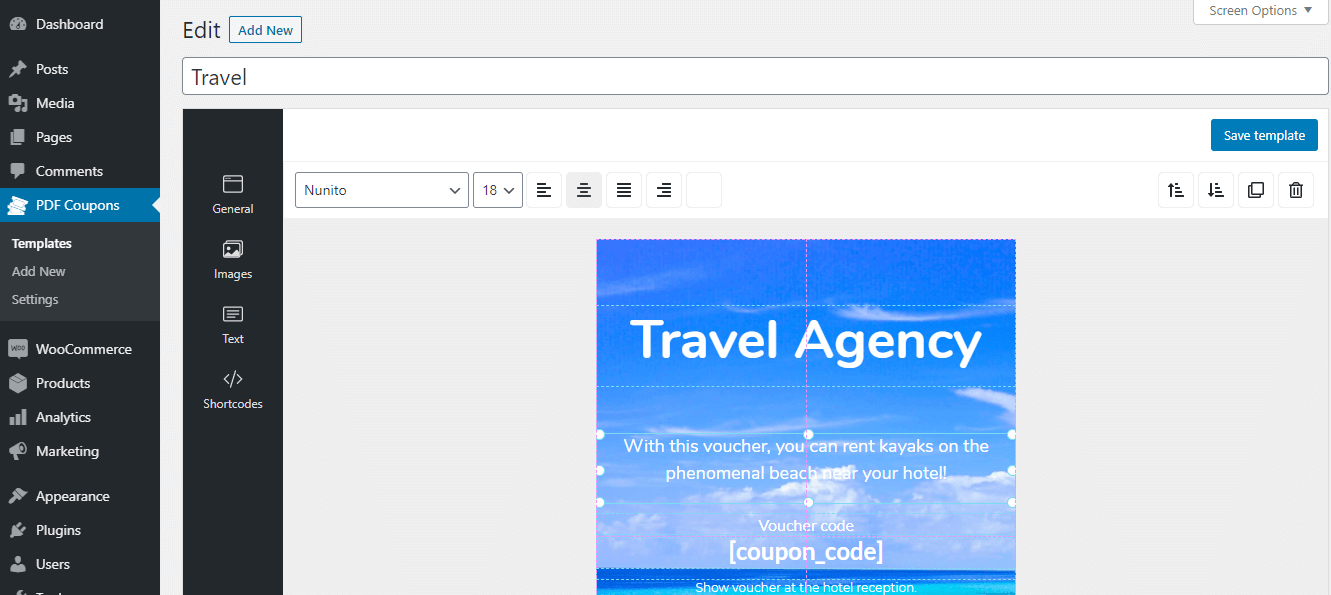
The template editor lets the store position the voucher code clearly within the PDF design. This is a store administration screen, not a page customers need to access.
Label the printed amount clearly, explain whether partial use is supported, and provide a support contact. Only promise an online balance lookup after testing recipient access. For expiration-field setup, follow our guide to displaying the expiration date on a PDF gift card.
Key Takeaways
Before deciding what to buy, use these practical checks:
- Locate the voucher code and read the value, expiry information, and redemption conditions.
- Look for the store’s documented balance-checking route rather than assuming one exists.
- Confirm that partial redemption is supported before planning several purchases.
- Compare current information with previous voucher deductions, not whole order totals.
- Ask the issuing store to confirm the balance and validity whenever the available information is unclear.
Summary
To check your WooCommerce gift card balance and validity, start with the PDF and follow the issuing store’s instructions. Use an account-based balance display when available, but keep a support-assisted route in mind. Before placing an order, confirm three things: the remaining usable amount, the redemption deadline, and whether your chosen items qualify.
