




Turn WooCommerce into an automated PDF certificate generator for symbolic adoptions, charity campaigns, course awards, and environmental initiatives. Collect personalized details, create branded certificates, generate unique codes, and deliver finished PDFs without manually preparing every document.
Why Build a WooCommerce PDF Certificate Generator?
A purchase connected with a cause, achievement, or experience often needs more than a standard order confirmation. Customers may expect a personalized document they can print, keep, or send as a gift. Examples include a symbolic animal adoption certificate, a tree planting certificate, proof of course completion, or a charity gift card.
Preparing these documents manually can work for a small number of orders, but it quickly becomes difficult to manage at scale. Staff must copy customer data, edit a file, export it to PDF, and send it to the correct recipient. A WooCommerce PDF certificate generator brings these steps into one repeatable workflow.
With the right configuration, your store can:
- sell symbolic products and charitable gifts through WooCommerce,
- collect the recipient’s name, dedication, and other certificate details,
- place order or product data inside a branded PDF design,
- generate a unique coupon or certificate code automatically,
- send the PDF to the purchaser or intended recipient,
- apply expiry rules when the document represents redeemable value,
- add QR-based validation when the certificate is also an event ticket or credential.
The result is a practical custom certificate builder that reduces repetitive administration while giving customers a polished document connected to their purchase.
What Can You Sell as a Personalized PDF Certificate?
A certificate product does not need to represent a conventional discount. Flexible Coupons can be used to create branded PDF documents for several business models, including:
- Symbolic animal adoptions: certificates containing the recipient’s name, animal name, species, and dedication.
- Tree planting initiatives: personalized documents acknowledging a sponsored tree or environmental contribution.
- Charity gift cards: a giftable PDF connected with a donation or supported campaign.
- Course completion certificates: documents populated with participant, course, and completion information.
- Service credits: printable vouchers for salons, spas, gyms, workshops, and other service businesses.
- Event tickets: PDF tickets with unique identifiers and, when the relevant add-on is used, QR codes.
- Award certificates: branded recognition documents generated from WooCommerce order data.
For another look at how branded documents can work as digital products, see our guide to PDF gift cards in WooCommerce.
Tools for Building a Custom Certificate Builder
The workflow described below uses Flexible Coupons PRO as the PDF generation and template engine. For advanced personalization, it can be combined with a product field plugin and the Custom Shortcodes add-on.
Flexible Coupons PRO
Flexible Coupons PRO lets you create and sell PDF coupons, gift cards, tickets, and service vouchers in WooCommerce. For this use case, the PDF can be designed as a certificate rather than a conventional discount voucher. The plugin handles the WooCommerce product connection, unique coupon generation, PDF template, and delivery workflow.
Flexible Product Fields PRO
Flexible Product Fields PRO can collect additional information on the product page. This may include the adopted animal’s name, a dedication, the participant’s name, or another value required on the final certificate.
Custom Shortcodes Add-on
The Flexible Coupons PRO – Custom Shortcodes add-on imports selected WooCommerce order, product, attribute, or field data into a PDF template. It is required when you want custom values collected outside the standard Flexible Coupons fields to appear dynamically on the certificate.
This distinction matters: creating the PDF product and importing arbitrary custom field values are separate tasks. The Custom Shortcodes add-on should not be confused with functionality included in the free version of Flexible Coupons.
Flexible PDF Coupons PRO WooCommerce
Design branded PDF coupons and use them as gift cards, certificates, service vouchers, or tickets. Extend the workflow with dedicated add-ons when you need custom shortcodes, scheduled delivery, multiple PDFs, or QR-code validation.
WP Desk
How to Create a WooCommerce PDF Certificate Generator
1. Create the Symbolic Product in WooCommerce
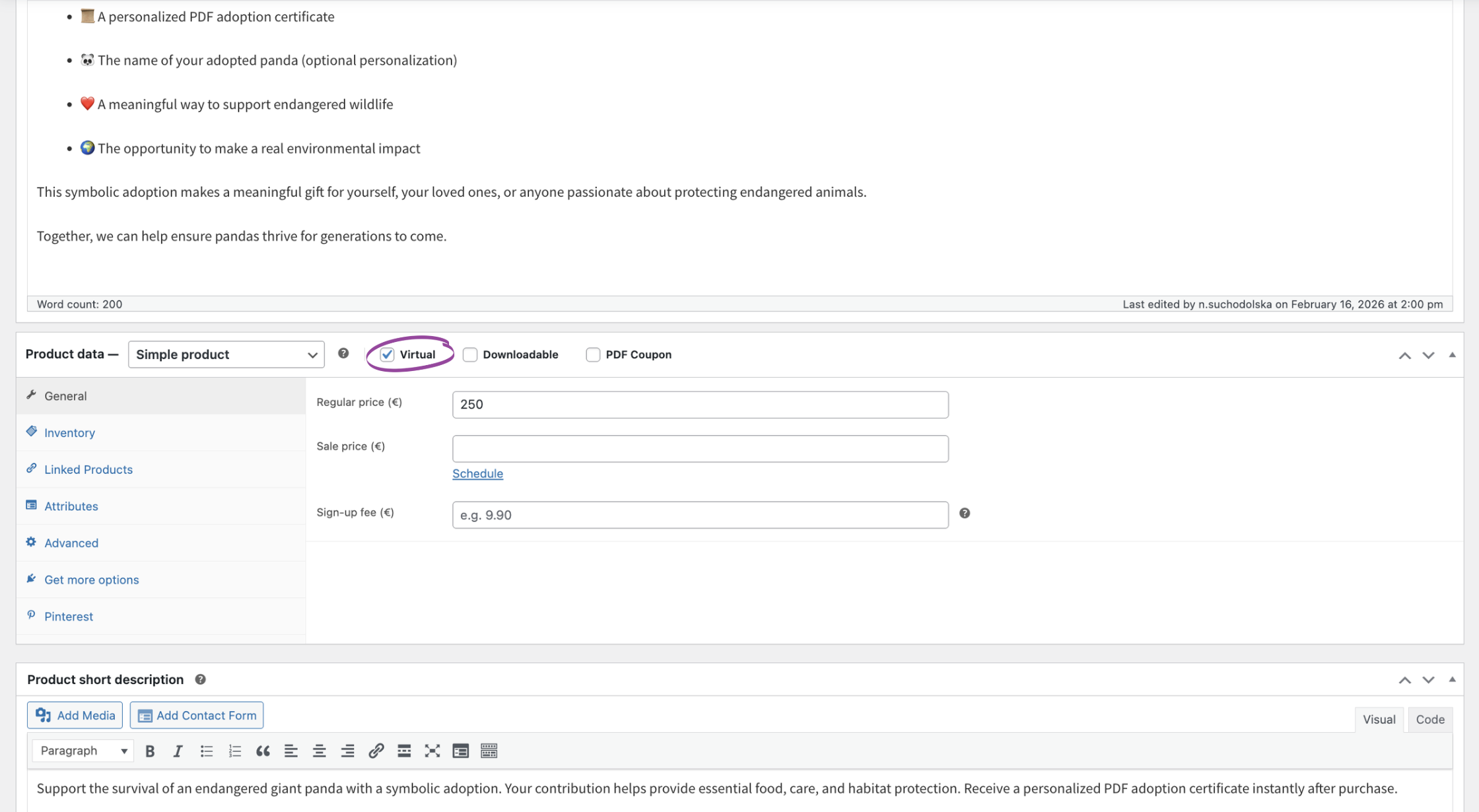
Start by adding the product customers will purchase. It could be called “Symbolic Panda Adoption,” “Sponsor a Tree,” “Support a Wildlife Habitat,” or “Course Completion Certificate.” Use a clear description to explain what the purchase represents and what the customer will receive.
If the product does not require physical shipping, mark it as Virtual. This prevents WooCommerce from treating the certificate like a parcel and asking for unnecessary shipping options. Set the product price according to your campaign or service model.
2. Add the Certificate Personalization Fields
Next, determine which details must appear on the document. Keep the form focused: every extra field adds work for the customer and should have a clear purpose.
Useful fields for a symbolic adoption or charity certificate may include:
- recipient’s name,
- donor or purchaser name,
- personal dedication,
- name of the adopted animal,
- selected animal or adoption type,
- tree species or campaign name,
- course or award title,
- date to display on the certificate.
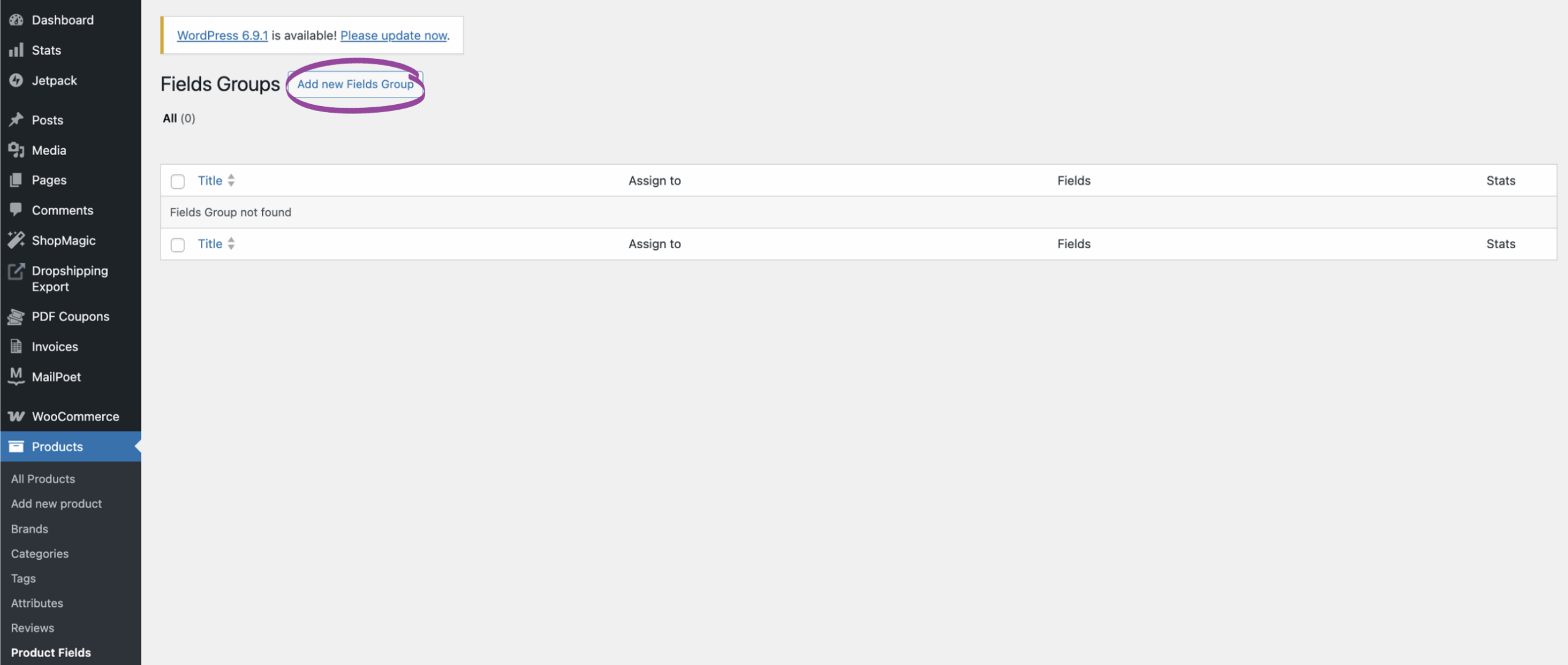
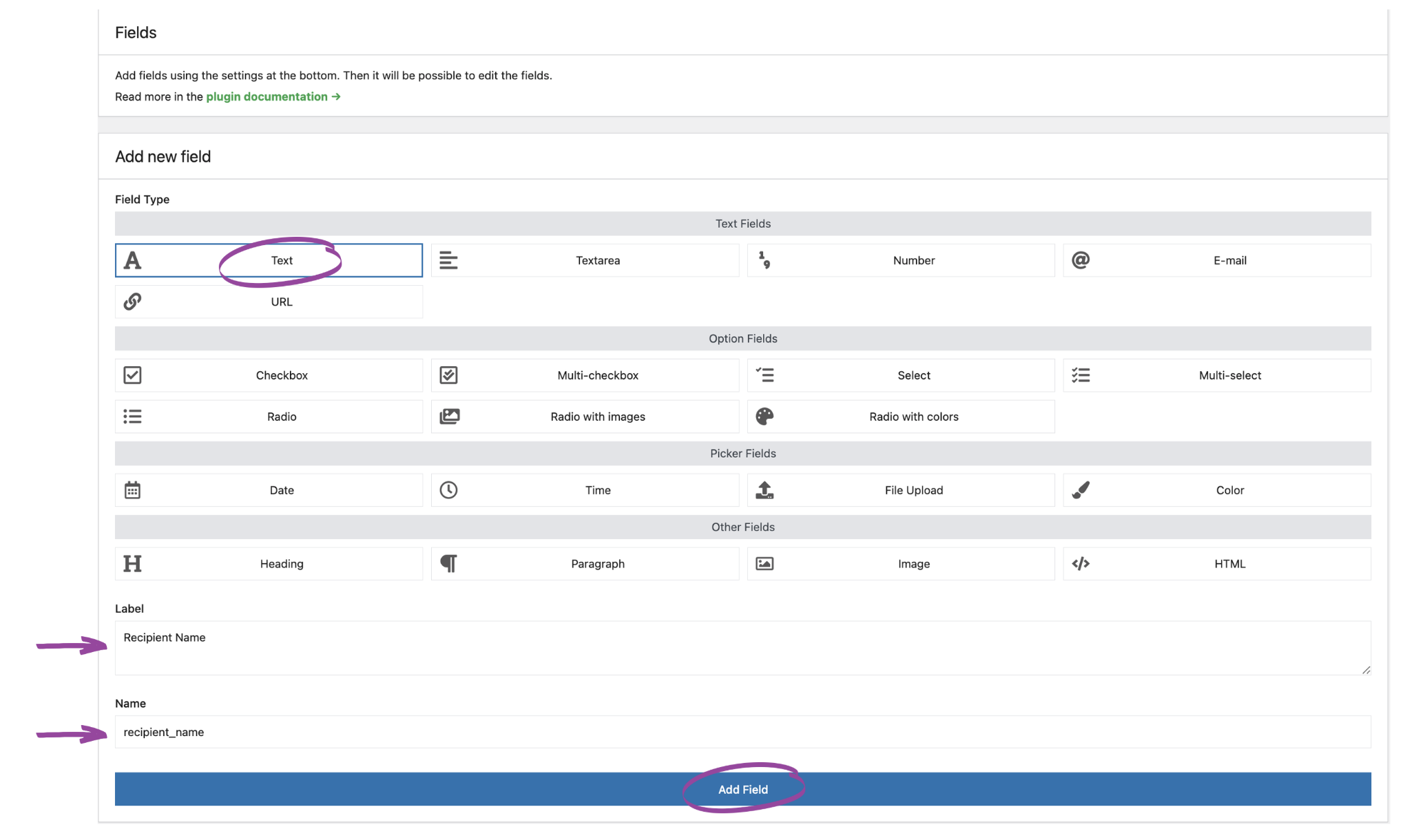
Flexible Product Fields PRO can be used to add these inputs to the WooCommerce product page. Depending on the information required, you can use text fields, text areas, select lists, or other suitable field types. Make a field required only when the certificate cannot be generated correctly without it.
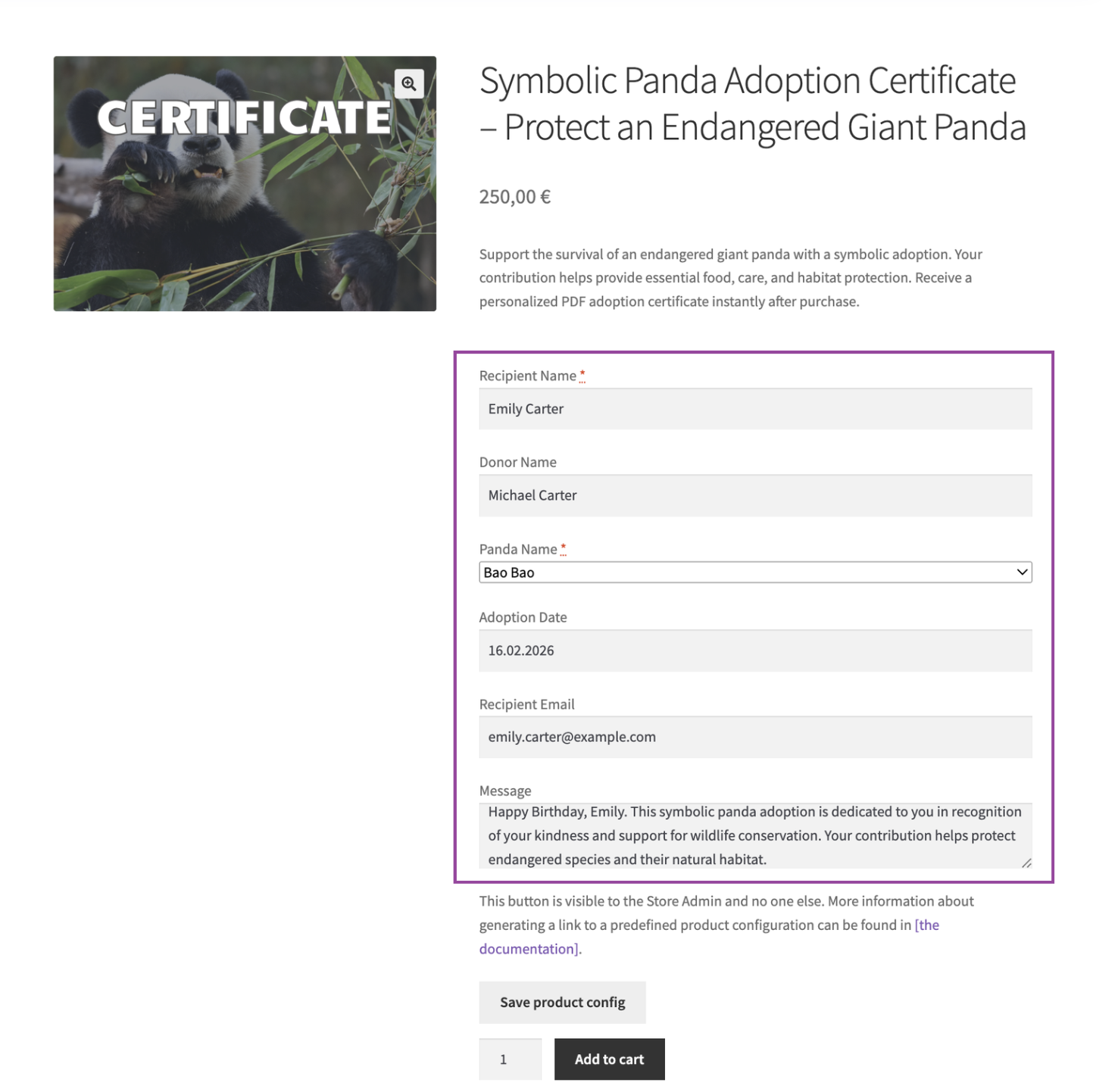
If a selected option should change the product price, plan that rule separately and test how the final amount is shown in the cart and order. Our guide explains one approach to adding an extra cost to a WooCommerce gift card product.
3. Configure the Product as a PDF Coupon
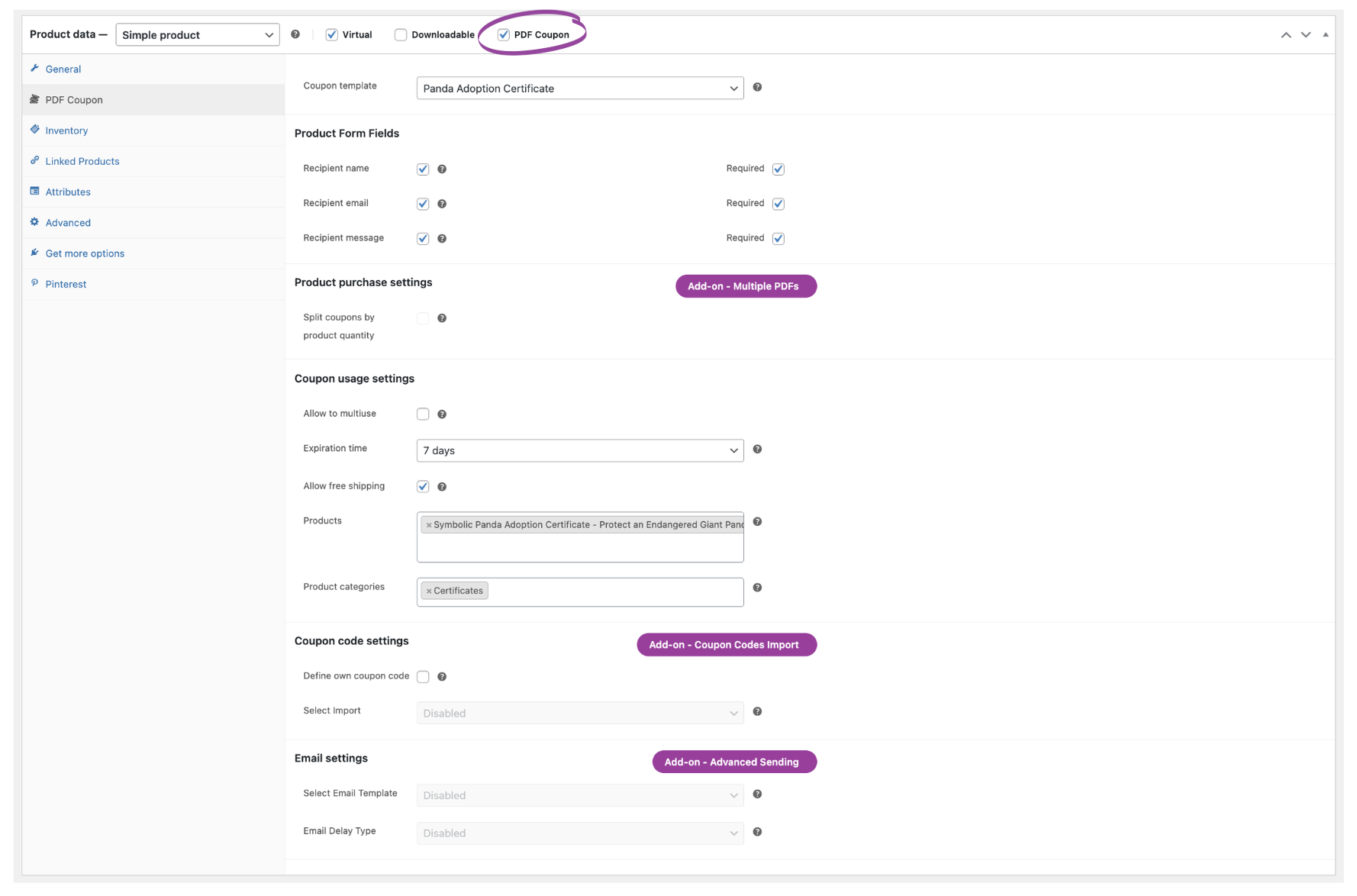
Open the product settings and select the PDF coupon product type or relevant PDF coupon option provided by Flexible Coupons PRO. Then connect the product with the certificate template you want to use.
Depending on the intended workflow, review settings such as:
- PDF template: choose the design assigned to this product.
- Recipient details: collect the information needed when the document is intended as a gift.
- Coupon value: decide whether the PDF has redeemable value or functions primarily as a certificate.
- Expiry: set an expiration rule only when it is appropriate for the product.
- Message: allow a personal note when the certificate is being sent to another person.
The available product configuration is described in the Flexible Coupons product edit screen documentation.
4. Design the PDF Certificate Template
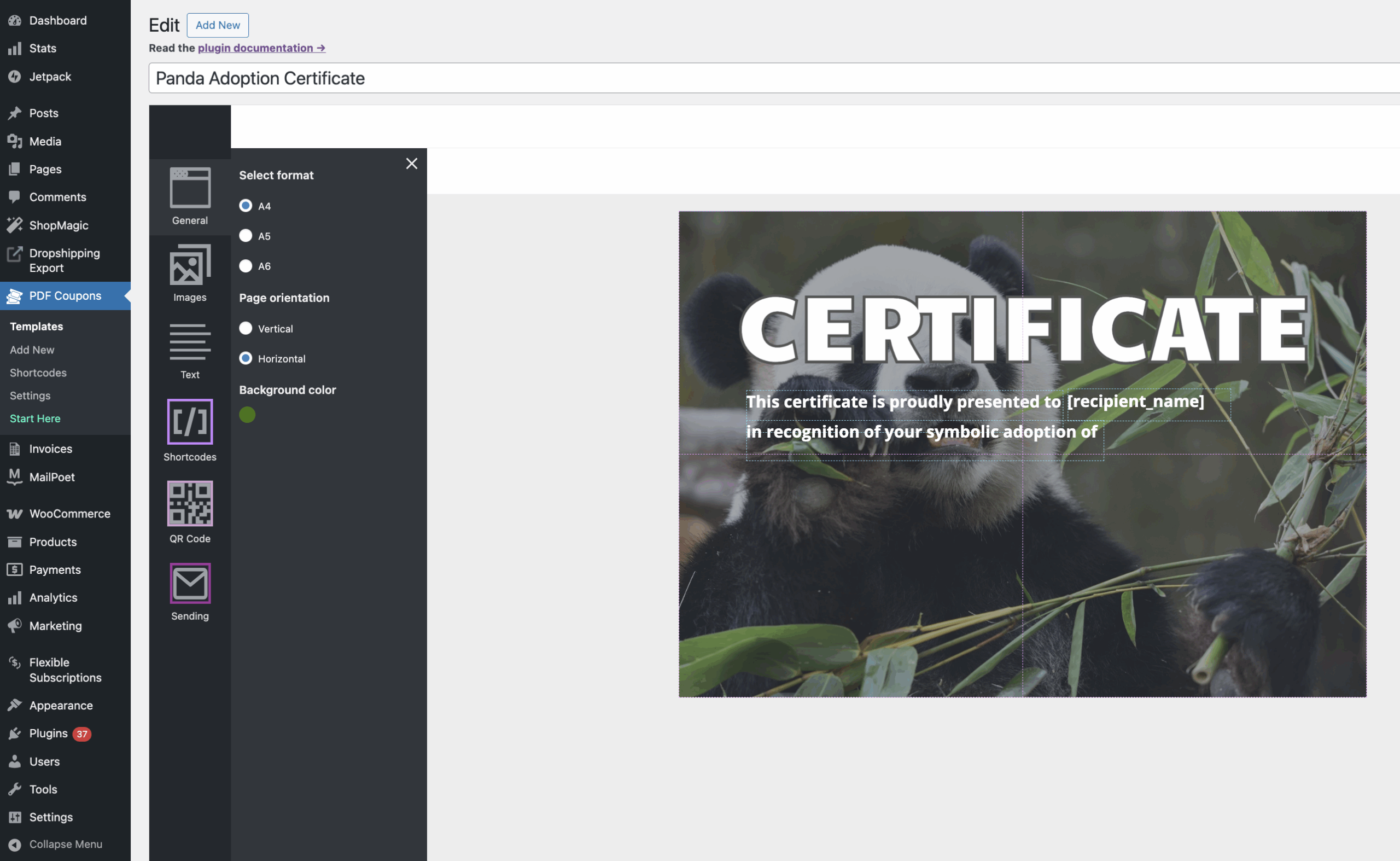
The template determines how the final document looks. Use the graphic editor to arrange text, images, and dynamic content without writing the PDF layout from scratch.
A practical certificate design may contain:
- your organization’s name and logo,
- a clear certificate title,
- the recipient’s personalized details,
- a short explanation of the supported initiative or achievement,
- a unique certificate or coupon code,
- validity information when the document can be redeemed,
- instructions for use or verification.
Choose a PDF format and orientation that fit the intended use. A landscape layout may suit a traditional award certificate, while a portrait design can work well for a gift voucher or symbolic adoption document. Use readable colors and sufficient contrast, especially when customers may print the PDF at home.
See the documentation for more information about customizing Flexible Coupons templates.
5. Import Custom Product Data with Shortcodes
Standard recipient and coupon information can be handled through the appropriate Flexible Coupons settings. If the PDF also needs values from custom product fields, use the Custom Shortcodes add-on.
The basic workflow is:
-
Install and activate Flexible Coupons PRO and the Custom Shortcodes add-on.
-
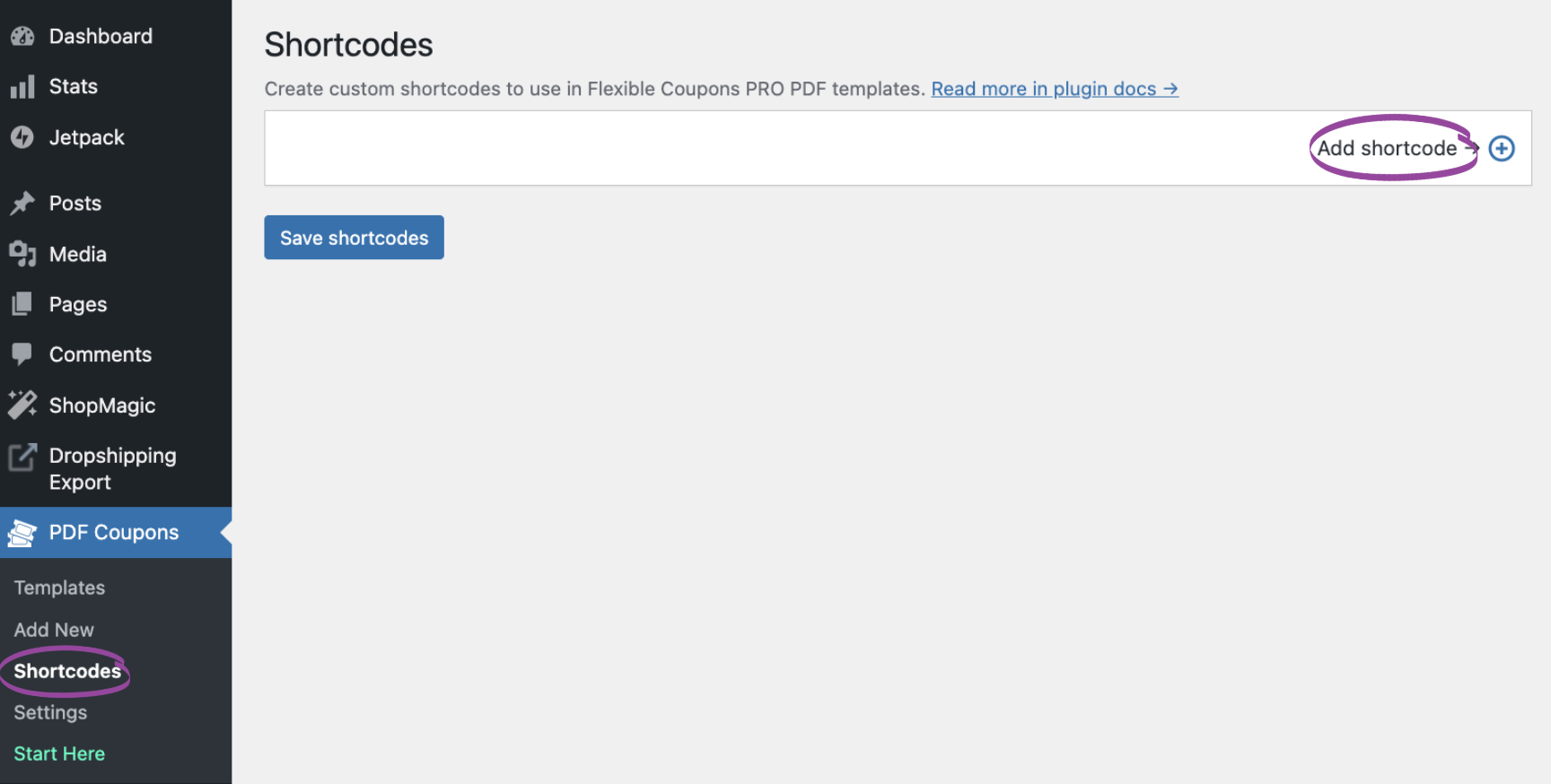
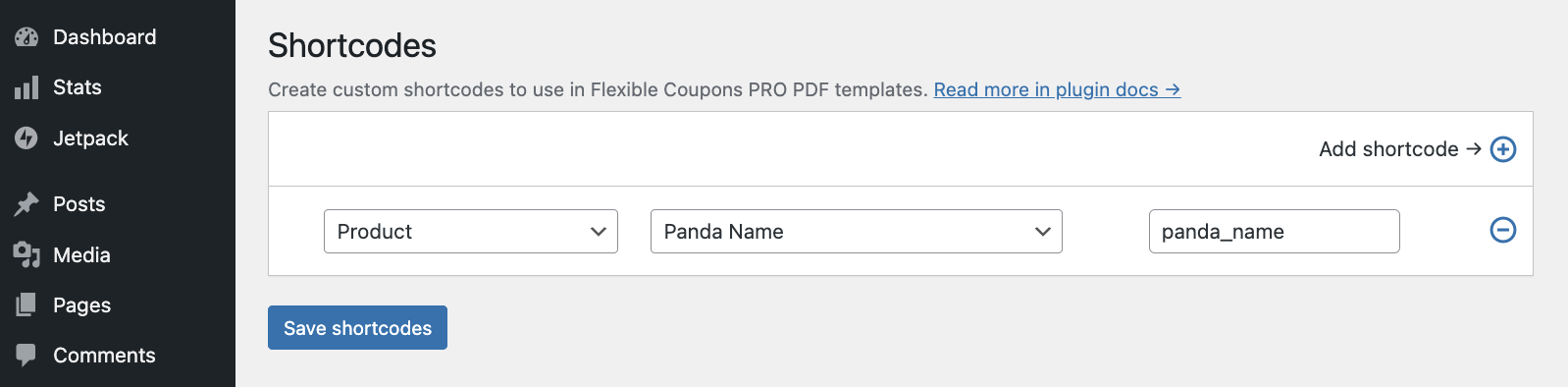
Create a shortcode and select the data source. For example, map a product field containing the chosen panda name.
-
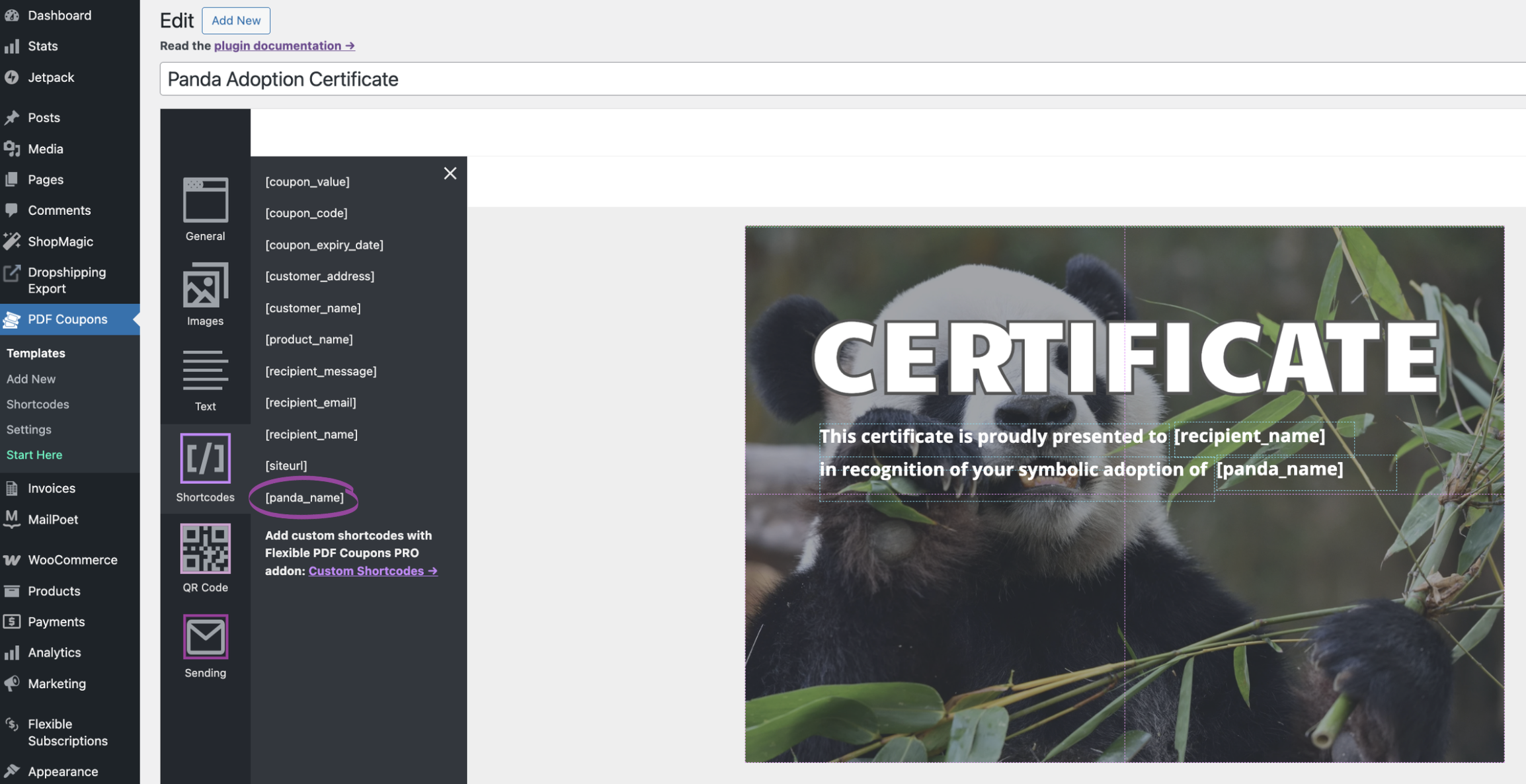
Insert the generated shortcode into the appropriate text area in the PDF template.
-
Place a test order and confirm that the entered value appears correctly in the generated PDF.
For example, a shortcode mapped to the “Panda Name” field can insert the customer’s chosen name into the certificate. The same method can be used for campaign names, course titles, dedications, product attributes, and other supported WooCommerce data.
Read the Custom Shortcodes documentation for the configuration details. You can also see additional examples in our guide to personalized WooCommerce PDF gift cards with custom shortcodes.
6. Set Up PDF Certificate Delivery
Once the order reaches the relevant status, the generated PDF can be included in the WooCommerce email workflow. The exact setup should reflect who needs the document: the buyer, the recipient, or both.
If you need customized certificate emails or scheduled delivery, use the Advanced Sending add-on. Scheduled sending is particularly useful for birthdays, anniversaries, holiday gifts, or a certificate that should arrive on a specific campaign date. See the Advanced Sending documentation for supported options.
Before launch, verify:
- which order status triggers generation or delivery,
- whether the buyer and recipient addresses are correct,
- how the PDF attachment is named,
- how resending is handled if an email is not received,
- whether the certificate should be available immediately or on a scheduled date.
7. Add QR Verification When the Certificate Is Also a Ticket
A decorative certificate does not normally require a QR code. However, QR validation can be useful when the PDF grants entry, confirms a booking, or acts as a credential that staff must verify.
The Event Ticket QR Scanner add-on generates QR codes and supports their validation. It is a separate extension and should be included only when the business process actually requires scanning. Learn more about generating and validating QR codes on PDF tickets.
Practical Workflows for Charities and Symbolic Adoptions
Symbolic Animal Adoption
A wildlife organization can create a virtual WooCommerce product for each adoption type. The customer selects an animal, enters the recipient’s name, adds a dedication, and completes the order. The PDF template then presents these details as a branded adoption certificate.
If several adoption products share one visual design, a custom shortcode can insert the relevant product or attribute data into the common template. This makes it easier to maintain consistent branding without creating a separate layout for every variation.
Tree Planting Certificate
An environmental campaign can sell a symbolic tree sponsorship as a virtual product. The certificate may include the recipient’s name, campaign name, tree species, and personal message. If no individual planting identifier is available in WooCommerce, it should not be added or invented—the PDF should include only data the organization can reliably provide.
Course or Workshop Certificate
A training provider can use a WooCommerce order to generate a personalized PDF associated with a course or workshop product. When completion must be confirmed outside WooCommerce, establish an appropriate internal approval process before sending the document. Purchasing a product alone should not be presented as proof of completion unless that accurately reflects the business model.
Charity Gift Card with Flexible Value
A campaign can allow customers to select or enter a voucher value, depending on the configured product and supported Flexible Coupons settings. The PDF may then serve as a giftable acknowledgment or as a redeemable charity gift card. Clearly explain whether the amount is a donation, store credit, or voucher value to avoid confusion.
How to Keep the Certificate Workflow Manageable
A successful award certificate generator depends on more than the visual template. The underlying data and delivery rules must also be consistent.
- Use concise field labels: customers should immediately understand what will appear on the PDF.
- Set sensible character limits: long dedications may not fit a fixed certificate layout.
- Separate required and optional data: do not block checkout for information that is not essential.
- Create a dedicated test product: use it to check templates and emails without modifying a live campaign.
- Preview different values: test long names, blank optional fields, and different product variations.
- Explain redemption rules: if the certificate has monetary value, show the expiry and usage terms clearly.
- Avoid unsupported claims: certificates should describe only actions or achievements your organization can verify.
Free, PRO, and Add-on Requirements
Feature requirements depend on the complexity of the certificate. Do not assume that every part of the workflow is available in the free plugin.
- Flexible Coupons PRO: use it for advanced PDF coupon products and certificate-oriented workflows described in this guide.
- Custom Shortcodes: required when importing supported order, product, attribute, or custom field data into templates.
- Advanced Sending: use it for customized certificate emails and scheduled delivery.
- Event Ticket QR Scanner: use it to generate and validate QR codes for tickets or scannable credentials.
- Multiple PDFs: relevant when one order needs to create several separate coupons, certificates, or tickets.
- Coupon Codes Import: relevant when the workflow must use predefined codes imported from supported files instead of relying only on automatically generated codes.
Check the requirements for each planned function before building the production workflow. The Custom Shortcodes changelog can also help you review updates to that extension.
Key Takeaways
- A WooCommerce PDF certificate generator can support symbolic adoptions, donation acknowledgments, awards, service vouchers, and event tickets.
- Virtual WooCommerce products are suitable when no physical shipment is required.
- Flexible Coupons PRO generates the branded PDF and connects it with the WooCommerce product workflow.
- Custom product fields can collect names, dedications, campaign selections, and other personalization details.
- The Custom Shortcodes add-on is needed to import supported custom data into the PDF template.
- Advanced Sending is useful for customized emails and scheduled certificate delivery.
- QR codes should be added only when the document requires scanning or validation.
- Every template, shortcode, email, and expiry rule should be tested with real sample orders before launch.
Summary: Launch a Personalized PDF Certificate in WooCommerce
A well-planned custom certificate builder turns customer input and WooCommerce order data into a consistent branded document. Flexible Coupons PRO provides the foundation for creating the PDF product, designing the template, generating unique codes, and organizing delivery.
When more detailed personalization is required, Flexible Product Fields PRO can collect the information and the Custom Shortcodes add-on can place supported values in the PDF. Additional Flexible Coupons add-ons can extend the workflow with scheduled emails, multiple documents, imported codes, or QR validation.
Start with one certificate product and a focused set of fields. Test the complete journey—from the product page and checkout to the final email and PDF—before expanding the system to more campaigns, adoption options, courses, or events.
FAQ
How can I sell donation certificates in WooCommerce with PDF delivery?
Create a virtual WooCommerce product, configure it as a PDF coupon product with Flexible Coupons PRO, and assign a branded certificate template. If you need additional donor or recipient data, collect it through suitable product fields and import supported values with the Custom Shortcodes add-on.
Can Flexible Coupons create symbolic animal adoption certificates?
Yes. You can design the PDF as an adoption certificate and connect it to a WooCommerce product. The document can include recipient details, a unique code, static campaign information, and supported custom data imported with the appropriate add-on.
Can customers add a personal message to the certificate?
Yes, provided the product is configured to collect a recipient message or an appropriate custom field is added. Test the maximum expected message length to make sure it fits the PDF layout.
Do I need the Custom Shortcodes add-on?
You need it when the certificate must display supported data from WooCommerce orders, products, attributes, or custom fields that is not already available through the standard template elements. A simple certificate using standard recipient and coupon data may not require this extension.
Can I schedule the certificate for a birthday or another date?
Scheduled delivery is available through the Advanced Sending add-on. It can be useful when a PDF certificate is purchased as a gift and should reach the recipient on a selected date.
Can I add QR codes to WooCommerce PDF certificates?
Yes. The Event Ticket QR Scanner add-on can generate and validate QR codes. This is most relevant when the PDF is used as an event ticket, admission document, or another credential that staff need to scan.
