




To sell a $100 gift card for $80 without cutting its redeemable value, WooCommerce must treat the sale price and coupon amount as two separate values. This guide shows how to make the buyer pay the promotional price while the generated voucher retains the product’s regular-price value.
How discounted gift cards should work in WooCommerce
A correctly configured promotion uses two independent amounts. The purchase price determines what the buyer pays at checkout, while the redemption value determines how much the recipient can use in your store.
For example, the product may have a regular price of $100 and a sale price of $80. WooCommerce charges the buyer $80, but the WooCommerce gift card plugin generates a coupon worth $100. The $20 difference is the promotional incentive funded by the merchant.
This model is different from simply selling an $80 voucher. If the generated coupon uses the discounted order line total, the recipient will receive only $80, which defeats the purpose of advertising a $100 gift card promotion.
Sale price vs redemption value: the essential distinction
The WooCommerce gift card regular price should represent the value promised to the recipient. The sale price represents the temporary amount collected from the purchaser.
The intended pricing logic is:
- Regular product price: $100
- Promotional sale price: $80
- Amount charged at checkout: $80
- WooCommerce gift card redemption value: $100
The generated coupon amount must therefore come from the product’s regular price, not its active sale price, cart subtotal, or discounted order line total.
What you need to create full-value gift cards sold at a discount
You need WooCommerce with coupons enabled and a WooCommerce gift card plugin capable of creating a unique coupon after a gift card product is purchased. It must also support sourcing the generated coupon value from the product’s regular price.
Flexible PDF Coupons PRO for WooCommerce can be used to create the coupon product, generate its WooCommerce coupon, design the PDF voucher, and handle delivery. Its regular-price coupon value option is essential when selling discounted WooCommerce gift cards with a higher redemption value.
You will also need:
- a gift card product with regular and sale prices,
- a PDF coupon template displaying the code and value,
- an order status that triggers coupon generation after payment,
- clear redemption restrictions and usage limits,
- a tested email or PDF delivery workflow.
The gift card product can include recipient details such as a name, email address, and message. For a broader introduction to the format, see the guide to selling PDF gift cards in WooCommerce.

The tutorial below presents the basic product, template, generation, and delivery workflow. Keep in mind that an older interface shown in a tutorial may differ from the version currently installed in your store.
How to configure the gift card product’s regular and sale prices
Create or edit the product that will represent your gift card. A simple product works for one denomination, while a variable product can offer several values, such as $25, $50, and $100.
For a simple $100 gift card sold for $80, configure the General section of Product data as follows:
- Enter 100 as the regular price.
- Enter 80 as the sale price.
- Optionally schedule the sale for the campaign period.
- Enable the product as a PDF coupon or gift card product.
- Select the appropriate coupon template.
- Mark the product as virtual if no physical delivery is required.
For a variable product, set both prices separately for every promotional variation. Do not assume that changing the parent product will automatically create the intended price relationship for each denomination.
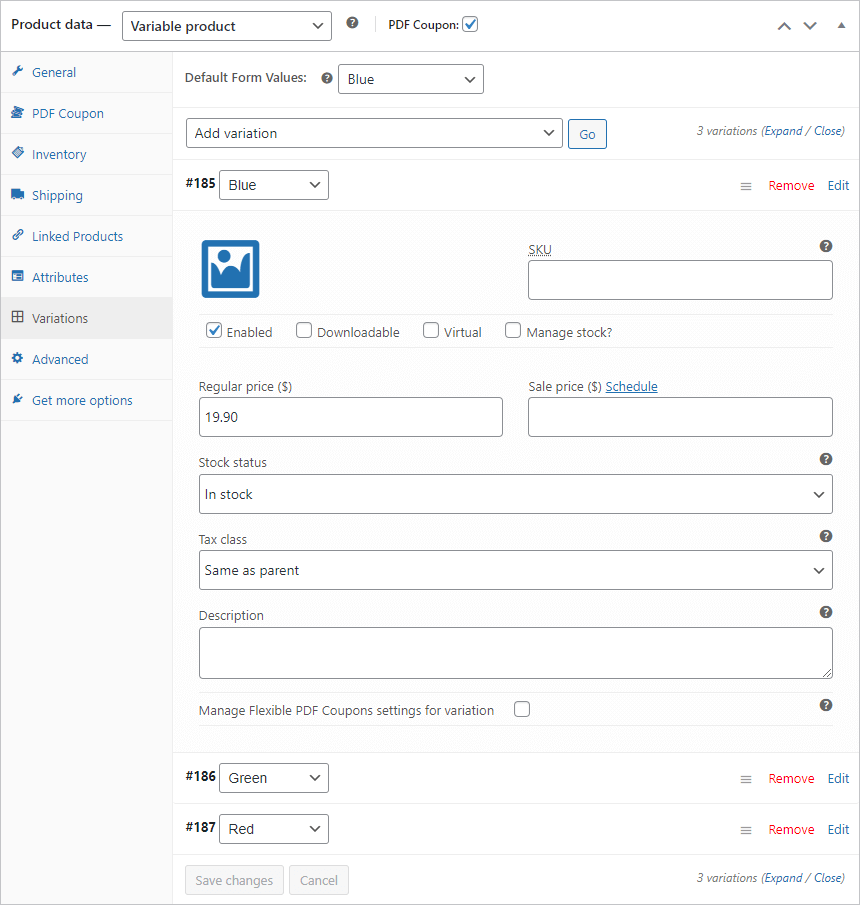
Check the storefront after saving. The customer should see the regular $100 value and the promotional $80 purchase price in a way supported by your theme.
How to generate the coupon value from the regular price
The decisive configuration is located in the plugin’s coupon settings. Go to PDF Coupons, Settings, Coupon and enable the option that always uses the product’s regular price for the coupon value.
With that option active, the plugin should read $100 from the regular price even though WooCommerce charges the current sale price of $80. This separates the generated coupon amount from the order line total.
After placing a test order, open the generated code under Marketing and Coupons. Verify all three data points independently:
- the order total shows an $80 payment,
- the generated coupon amount is $100,
- the PDF or email states a $100 redeemable value.
For a money-value voucher, inspect whether the generated code uses the intended WooCommerce fixed cart discount behavior or a balance mechanism provided by your setup. The backend coupon amount, rather than the visual PDF alone, controls the actual checkout result.
How to configure redemption rules and coupon restrictions
A full-value coupon should not automatically mean an unrestricted coupon. Decide where, when, and how the gift card can be redeemed before launching the campaign.
Eligible products and categories
Choose whether the generated gift card applies storewide or only to specified products and categories. Restrictions are useful when the campaign is intended to promote a particular range or when some products cannot absorb the additional discount.
Coupon expiry date
Set an expiration period only after reviewing the commercial and legal requirements applicable to your store. Make the date visible in the email and PDF so that the recipient does not need to discover it during checkout. The process is covered in the guide to displaying an expiration date on WooCommerce gift cards.
Single-use and multi-use redemption
A single-use coupon may consume its value in one transaction, depending on the configured mechanism. If customers should spend the balance across several orders, enable and test the appropriate reusable voucher option. Read more about multi-use gift cards and coupon conditions before promising remaining-balance functionality.
Usage limits
For a single-use code, the usage limit per coupon should normally prevent the same code from being redeemed again. A usage limit per user is not a substitute for a limit on the unique code itself, especially if the recipient checks out as a guest or shares the code.
If your plugin does not expose every restriction during automatic generation, inspect a generated test coupon. Determine whether additional configuration, automation, or customization is required before issuing codes to customers.
Worked example: sell a $100 gift card for $80
Consider a campaign advertising: Pay $80 and receive a $100 gift card. The complete transaction should proceed as follows:
- The gift card product has a regular price of $100 and a sale price of $80.
- The customer adds the product to the cart.
- The cart and checkout charge $80 before any applicable taxes or fees.
- The payment reaches the order status selected for coupon generation.
- The gift card plugin reads the $100 regular price.
- A unique $100 coupon is created.
- The purchaser or recipient receives the code by email, PDF, or download link.
- The recipient applies the code to an eligible future order.
If the recipient buys $120 of eligible products, the coupon should deduct up to $100 and leave the remaining amount, plus any non-covered charges, to be paid through checkout. If the eligible cart is below $100, the outcome depends on whether the voucher supports a remaining balance or is configured for one-time use.
How to prevent coupon stacking and unintended discounts
There are two separate stacking risks. The first occurs when someone buys the discounted gift card. The second occurs when the recipient redeems it.
Protect the gift card purchase
Existing promotional coupons should not reduce the $80 sale price further unless that is an intentional part of the campaign. Review your active coupons and exclude the gift card product or its category. For suitable campaigns, the WooCommerce Exclude sale items restriction can also stop a coupon from applying to products already on sale.
Protect gift card redemption
Review whether the generated gift card should be marked as Individual use only. In WooCommerce, this means the coupon cannot be used in conjunction with other coupons. Without this restriction, a recipient may combine the $100 gift card with a percentage discount or another fixed cart discount.
You can review the available restrictions, discount types, and limits in the guide to WooCommerce coupon settings.
How to test purchase, generation, delivery, and redemption
Run the complete workflow on a staging site or with a controlled payment method. Checking only the product page is not enough because the error may appear during coupon generation or redemption.
- Product page: confirm that the regular value and sale price are clearly displayed.
- Cart: verify that the line total is $80 and that unintended coupons cannot reduce it.
- Checkout: complete an order using the same customer flow as a real buyer.
- Order status: confirm that no gift card is issued before the payment status required by your workflow.
- Coupon generation: open the generated coupon and confirm its amount is $100.
- PDF and email: check the code, value, recipient details, expiry date, and download link.
- Redemption: apply the code to an eligible cart and confirm the correct discount.
- Restrictions: try an excluded product, an expired scenario, and an additional coupon.
- Usage limits: attempt a second redemption when the code should be single-use.
- Remaining balance: for a multi-use voucher, place a partial order and verify the balance before another purchase.
The purchaser may receive a download link on the order details or thank-you page, depending on the configured workflow. Test that the file remains accessible to the intended customer.

Common configuration mistakes and how to fix them
The generated coupon is worth only $80
The coupon amount is probably being calculated from the sale price or paid line total. Enable the option that uses the regular product price as the coupon value, then place a new test order. Changing the setting may not correct coupons that were already generated.
The PDF says $100, but checkout deducts $80
The template displays a value that does not match the backend coupon. Open the actual code under Marketing and Coupons and inspect its amount. Correct the generation logic rather than manually changing only the PDF text.
Another coupon reduces the $80 purchase price
Edit your promotional coupons and exclude the gift card product or category. Also check coupons distributed through email automation, loyalty programs, and abandoned-cart campaigns.
The coupon is generated before payment
Change the automatic generation trigger to an order status that confirms successful payment in your store’s workflow. Avoid issuing usable codes for pending or failed transactions.
The customer expects to retain an unused balance
Do not advertise multi-use functionality unless it has been enabled and tested. A standard coupon usage limit and a remaining-value gift card mechanism are not the same feature.
The recipient never receives the gift card
Verify the recipient email field, WooCommerce email status, spam delivery, PDF attachment setting, and download link. Also confirm that the order reached the status required to generate and send the voucher.
Campaign profitability, refunds, taxes, and customer communication
Calculate the real promotional cost
An $80 payment for $100 of purchasing power does not automatically produce a profitable campaign. Estimate the cost of goods or services redeemed, payment processing, fulfillment, support, and any discounts that could still be combined with the gift card.
Do not build the campaign around an assumption that some vouchers will remain unused. Model the offer as if every issued code were redeemed in full, then treat additional spending above the gift card value as a potential benefit rather than guaranteed revenue.
Define the refund workflow
Decide what happens if the purchaser requests a refund after the code has been generated or delivered. Before returning the payment, verify whether the coupon has already been used and whether your system automatically disables it. If it does not, void or reconcile the code as part of the refund procedure.
Confirm tax and accounting treatment
Flexible PDF coupons use the standard WooCommerce coupon mechanism, which reduces the relevant order value during redemption. This may be treated differently from a prepaid stored-value gift card. Tax, revenue recognition, and liability treatment can vary by jurisdiction and business model, so confirm the setup with a qualified accountant before launch.
Make the offer unambiguous
Use consistent storefront messaging such as Pay $80 today and receive a gift card redeemable for $100. State the eligible products, expiration policy, stacking rules, delivery method, refund conditions, and whether unused value can be carried forward.
Customers should never need to infer the WooCommerce gift card redemption value from a crossed-out price. Repeat the value in the product description, cart information, email, and PDF voucher.
Discounted WooCommerce gift card launch checklist
Before making the campaign public, use this checklist to confirm that the pricing and redemption logic work together:
- The regular price equals the promised redemption value.
- The sale price equals the promotional amount charged to the buyer.
- The coupon value is sourced from the regular price.
- The generated backend coupon contains the correct amount.
- The gift card purchase is protected from unintended extra discounts.
- The redemption code has appropriate stacking rules.
- Eligible products and categories are configured correctly.
- Expiry dates and usage limits are visible and tested.
- Single-use or remaining-balance behavior matches the product description.
- Coupon generation occurs only at the intended order status.
- Email, PDF, and account download links work correctly.
- Refund, tax, accounting, and customer-service procedures are documented.
Additional configuration guides and campaign ideas are available in the Flexible Coupons resources.
Summary
To learn how to sell discounted gift cards in WooCommerce without reducing their redemption value, focus on the source used for the generated coupon amount. Set the full promised value as the regular product price, apply the promotion through the sale price, and configure the gift card plugin to use the regular price when creating the coupon.
For the $100-for-$80 example, the buyer must pay $80 while the backend generates a genuine $100 coupon. Protect the campaign with purchase exclusions, redemption restrictions, appropriate usage limits, clear customer messaging, and a complete end-to-end test before accepting live orders.
