




Need a reliable way to validate WooCommerce event tickets and prevent duplicate admission? Choose a QR scanner that connects ticket generation, delivery, verification, status updates, and staff access in one tested workflow. These practical questions will help you evaluate a solution and prepare it for real event conditions.
Why a WooCommerce QR ticket scanner matters
A WooCommerce QR ticket scanner should do more than recognize an image. It needs to check the ticket against its associated record, give the operator a clear result, and update the ticket status after admission.
This is where online ticket sales meet the physical event. Slow scanning, unclear messages, outdated records, or inadequate staff permissions can create queues even when checkout and ticket delivery work correctly.
If you are planning the entire customer journey, see how to build a WordPress ticketing system with WooCommerce. The complete process should cover purchase, PDF ticket generation, delivery, presentation at the venue, validation, and the final status update.
1. What must the QR scanner integrate with?
The scanner must connect to the system that generates the ticket, stores its unique code, and records whether it has been used. In a WooCommerce workflow, every component should refer to the same coupon or ticket record.
Flexible PDF Coupons PRO – Event Ticket QR Scanner is an add-on for Flexible PDF Coupons PRO for WooCommerce. Our core plugin creates and delivers branded PDF coupons and tickets, while the add-on provides QR code generation and validation, camera scanning, manual verification, and ticket status management.
After a successful scan, the add-on changes the associated coupon status in WooCommerce. Subsequent checks can therefore distinguish an unused ticket from one that has already been admitted. The Event Ticket QR Scanner documentation explains the configuration and scanning workflow.
Before configuring your event, map the workflow:
- Determine when WooCommerce generates the ticket.
- Confirm how the customer receives the PDF ticket or ticket link.
- Check that the QR code identifies the correct coupon record.
- Define which ticket statuses permit or block admission.
- Decide which staff members can scan tickets and change statuses.
- Confirm how coupon records will be reviewed after the event.
2. Which devices will the check-in team use?
Event Ticket QR Scanner can use a camera on a compatible phone, tablet, computer, or another supported device. The best choice is a device that staff can operate comfortably and that focuses quickly in the expected entrance conditions.
Camera access requires the scanner page to run through HTTPS or localhost. Test the live event website because browser permissions, security settings, and camera behavior may differ from a development environment.
Prepare a list of the device models, operating systems, browsers, and cameras your team will use. Older phones may focus slowly, tablets can be awkward at crowded entrances, and laptops are generally better suited to fixed reception desks.
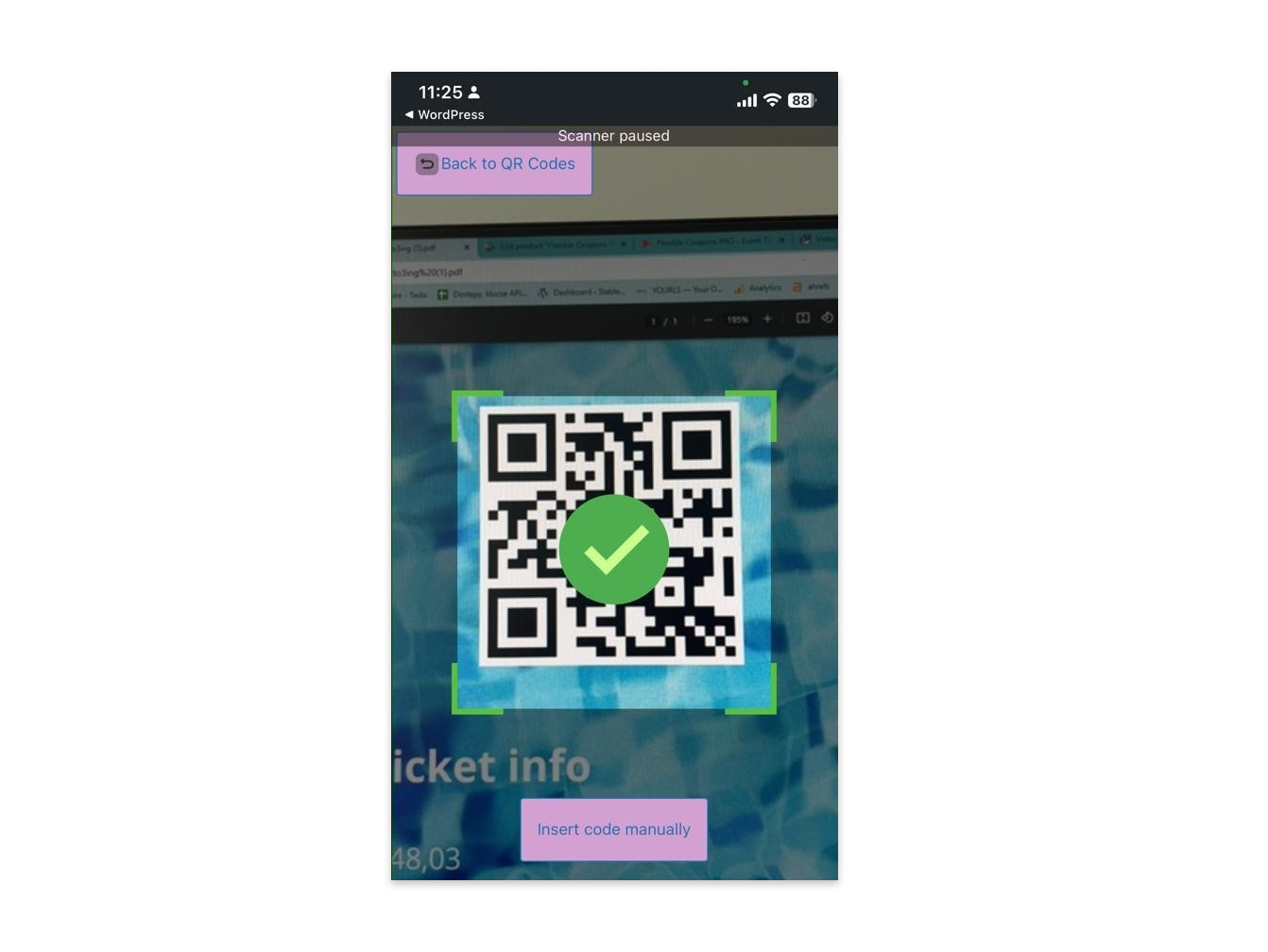
The interface should remain readable on every planned screen size. Operators need to see validation results, access manual verification, and start the next scan without zooming or trying to tap small controls.
The following screenshot presents the camera-based scanning and verification interface:
For another practical introduction, learn how to add a QR code reader for WooCommerce.
3. Will the event ticket QR scanner work at your venue?
Test the scanner at the venue or recreate its lighting, connectivity, and entrance layout as accurately as possible. A successful office test does not prove that the same device will perform reliably at an outdoor gate, in bright sunlight, or inside a dark concert hall.
Test printed tickets, original PDF files, screenshots, and QR codes displayed in email applications. Include low screen brightness, reflective displays, folded pages, damaged printouts, and different QR code sizes.
Your venue test should answer these questions:
- Does the camera focus quickly in low or uneven light?
- Can it read QR codes from paper and phone screens?
- Does glare interfere with scanning at outdoor entrances?
- Can staff adjust lighting without delaying the queue?
- Do protective device cases obstruct the camera?
- Is Wi-Fi or mobile data available at every check-in point?
Event Ticket QR Scanner validates tickets against WooCommerce records, so each scanning device should have a stable connection to the website. Prepare backup connectivity rather than relying on unverified offline operation.
4. How many tickets and entry points must the system handle?
Plan for peak arrivals, not only the total number of tickets sold. Estimate how many guests may reach the venue during the busiest 10- or 20-minute interval, then provide enough devices and trained operators for that volume.
An event with 1,000 guests arriving gradually has different requirements from a performance where most attendees appear shortly before the scheduled start. Unreadable, refunded, disputed, or previously used tickets also take longer to process than standard admissions.
Include these factors in your capacity estimate:
- Total paid and complimentary tickets.
- Expected arrivals during the busiest interval.
- Number of entrances, lanes, and priority queues.
- Average time required for a successful scan.
- Average time required to resolve an exception.
- Number of trained staff members and spare devices.
- Network quality at every scanning position.
Run several scanners simultaneously during testing. If multiple entrances validate tickets against the same WooCommerce records, this rehearsal will show whether operators receive current status information across all devices.
5. How does each event ticket QR code get validated?
Each scan should check the current WooCommerce coupon record, not simply confirm that the QR image can be decoded. Staff must know whether a ticket is available for admission or has already been used.
Flexible PDF Coupons PRO – Event Ticket QR Scanner uses WooCommerce coupon records and displays ticket status information based on coupon usage. It supports camera scanning, manual code verification, and administrative status changes for authorized users.
Define the required action for every result before the event. A valid unused ticket can be admitted immediately, while a duplicate, expired, refunded, unrelated, or unreadable ticket may require a different procedure.
If your ticket configuration allows more than one use, verify that the permitted usage and remaining admissions match your event rules. Test this scenario before ticket sales begin.
6. Can the workflow prevent duplicate or invalid admission?
After successful validation, Event Ticket QR Scanner updates the associated coupon status in WooCommerce. If the same ticket is presented again, staff can identify that the ticket has already been used instead of treating the QR code as a new admission.
Test duplicate handling with at least two devices. Scan a ticket at one entrance and immediately present it at another. The second operator should receive a result based on the updated WooCommerce record.
Also test random QR codes, tickets from another event, expired coupons, refunded tickets, and codes that have reached their usage limit. Detecting a QR image is not enough; the associated record must satisfy your admission rules.
The following screen shows ticket status information alongside coupon usage and expiry data:
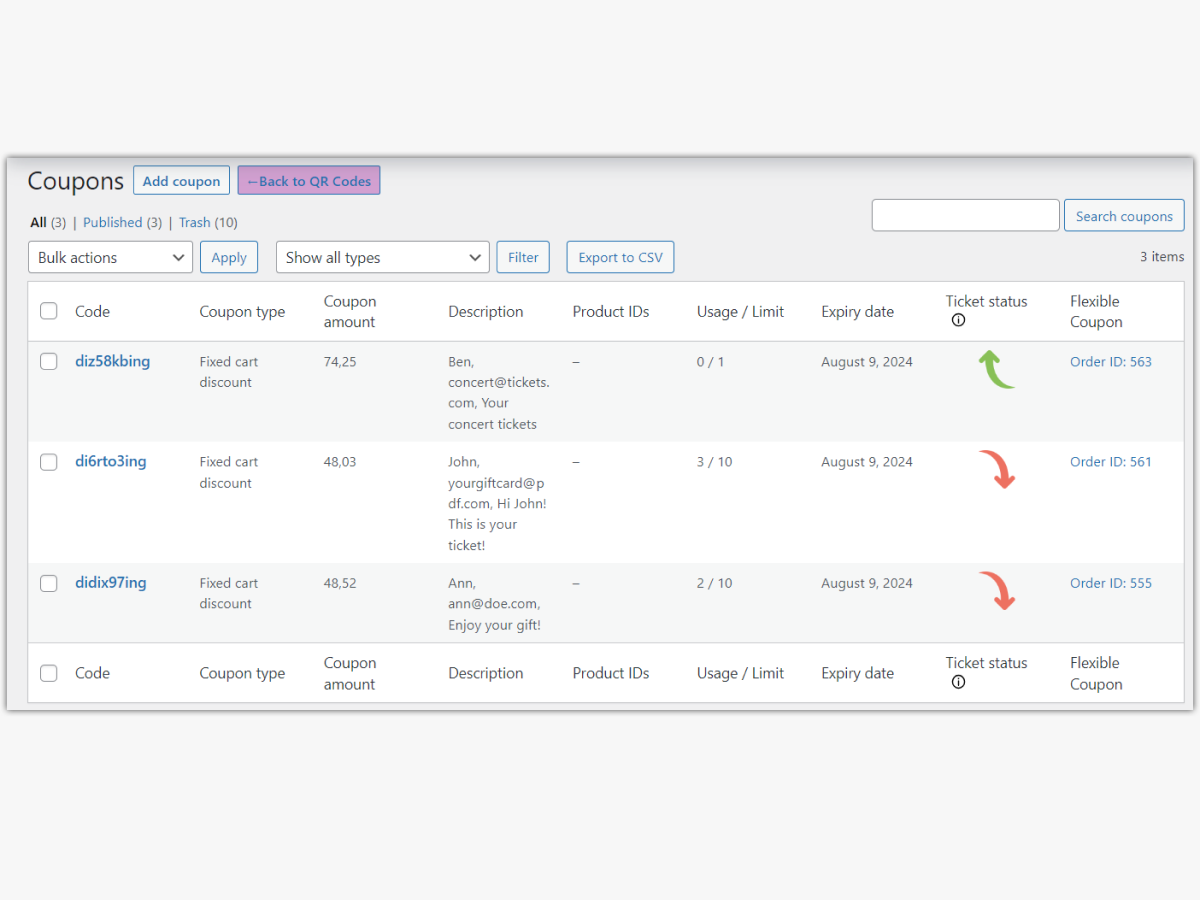
See our coupon management documentation for details about the information available in the WooCommerce coupon list.
7. What should staff see after scanning a ticket?
Operators should immediately receive an unambiguous validation result and enough information to decide whether to admit the guest. Messages should use clear text rather than relying only on color.
This is particularly important on small screens, in bright sunlight, and for staff with color-vision differences. A team member should be able to distinguish a valid ticket from a used or invalid one without interpreting technical data.
Show only the information required for check-in. Depending on your workflow, this may include:
- Ticket or coupon code.
- Event or product name.
- Current coupon status.
- Usage information.
- Expiry date.
Check-in accounts should not receive broader access to orders or customer information unless the assigned role genuinely requires it.
8. How easy is it to train and manage the check-in team?
A QR ticketing workflow is suitable for front-line staff when each operator has the correct account, permissions, camera access, and exception procedure. Training should cover routine admission as well as tickets that cannot be accepted immediately.
Flexible PDF Coupons PRO – Event Ticket QR Scanner adds an Event Manager role. It provides permissions for viewing relevant WooCommerce coupons, scanning ticket QR codes, and changing coupon statuses without requiring every operator to have full WordPress administrator access.
Each operator should practise how to:
- Sign in and open the scanning interface.
- Grant browser access to the device camera.
- Position paper and digital QR codes correctly.
- Interpret the available ticket statuses.
- Use manual code verification when camera scanning fails.
- Escalate refunded, disputed, or duplicate tickets.
Assign an experienced supervisor to resolve exceptions while front-line operators continue processing standard admissions. Remove temporary user access after the event when it is no longer needed.
9. What is the fallback plan for connectivity or device failure?
Your fallback plan should include spare devices, backup internet access, manual code verification, and a controlled escalation process. No entrance should depend on a single phone, charger, connection, or staff account.
Use this response order when a scan fails:
- Clean the camera lens and increase the brightness of the guest’s screen.
- Retry with the QR code held flat and steady.
- Enter the ticket code manually if the QR image remains unreadable.
- Move the operator to a charged and previously tested spare device.
- Switch to an approved backup internet connection.
- Escalate uncertain, refunded, or duplicate records to a supervisor.
- Record any exceptional manual admission for later reconciliation.
Prepare power banks, charging cables, secure login details, and written instructions before opening the doors. If you maintain a backup attendee list, restrict access and avoid exposing information that is not needed for admission.
10. How will you test the complete WooCommerce QR ticketing workflow?
Test the process from WooCommerce order placement through to the final ticket status update. Use the same payment scenarios, ticket formats, devices, browsers, user roles, and entrance conditions planned for the event.
A complete rehearsal should include these stages:
- Place test orders using relevant payment and order statuses.
- Confirm that the expected PDF tickets are generated and delivered.
- Open tickets from emails, PDF files, screenshots, and printed pages.
- Scan valid tickets with every planned device and browser.
- Scan the same ticket again to verify duplicate-admission handling.
- Test expired, refunded, unrelated, and malformed codes.
- Use manual verification for an unreadable QR code.
- Operate several scanners simultaneously.
- Switch devices and networks to rehearse the fallback plan.
- Review the resulting coupon statuses in WooCommerce.
Record the result of every scenario and resolve issues before launch. When comparing other products, ask the provider to demonstrate any capability that is not clearly documented.
For additional examples, explore the benefits and uses of QR code ticketing for events.
Key takeaways for choosing an event ticket QR scanner
- Choose a scanner that validates the underlying WooCommerce ticket record, not only the QR image.
- Confirm that successful admission updates the record and supports duplicate-entry detection.
- Test every intended phone, tablet, browser, camera, and staff role.
- Recreate realistic lighting, connectivity, ticket formats, and peak arrival conditions.
- Give operators only the permissions and customer information needed for check-in.
- Prepare manual verification, spare equipment, backup power, and backup internet access.
- Rehearse the complete process from order placement to post-scan coupon management.
Download the event ticket QR scanner checklist
Use this checklist during configuration, venue testing, staff training, and your final event rehearsal:
Download the WooCommerce event ticket QR scanner checklist
Summary
The right event ticket QR scanner for WooCommerce connects ticket generation with clear, current admission decisions. Flexible PDF Coupons PRO – Event Ticket QR Scanner supports QR code scanning, manual verification, coupon status visibility, and WooCommerce record updates after successful validation.
Technology is only part of the process. Test the complete workflow with real devices, realistic ticket formats, multiple operators, and venue-like conditions. A structured rehearsal and a documented fallback plan help your team handle standard admissions and exceptions consistently.
FAQ about WooCommerce event ticket scanning
Does Event Ticket QR Scanner update a ticket after admission?
Yes. After successful validation, the add-on changes the associated coupon status in WooCommerce. A subsequent scan can then identify that the ticket has already been used.
Can staff scan tickets with a smartphone?
Yes. Staff can use a compatible phone, tablet, computer, or another camera-equipped device. The scanner page must run through HTTPS, and the browser needs permission to access the camera.
Can the scanner read printed and digital tickets?
It can scan QR codes presented on paper or a compatible digital display. Performance depends on camera focus, lighting, print quality, screen brightness, glare, and the condition of the QR code, so both formats should be tested before the event.
What happens if a QR code cannot be scanned?
Staff can use manual code verification when the ticket code is available. Your fallback procedure should also include a spare device, backup connectivity, and escalation to a supervisor for unresolved records.
How does the scanner help prevent duplicate admission?
The scanner validates the ticket against its WooCommerce coupon record and updates its status after successful admission. When the same ticket is presented again, staff can see that it has already been used.
Do check-in staff need administrator access to WordPress?
No. The scanner add-on creates an Event Manager role with permissions related to viewing relevant coupons, scanning QR codes, and changing coupon statuses. This avoids giving every operator full administrator access.
Does the WooCommerce QR scanner require an internet connection?
The scanner works with ticket records stored in WooCommerce, so scanning devices should have a stable connection to the website. Prepare backup Wi-Fi or mobile data rather than depending on unverified offline validation.
Which plugin is required for the Event Ticket QR Scanner add-on?
Flexible PDF Coupons PRO – Event Ticket QR Scanner requires Flexible PDF Coupons PRO for WooCommerce. The core plugin manages PDF coupon and ticket generation and delivery, while the add-on provides the QR ticket scanning workflow.
