




A WooCommerce gift card plugin should do more than generate a discount code. It should help you create branded PDF gift cards, personalize each voucher, automate delivery, and give customers a simple redemption experience. Flexible PDF Coupons PRO brings these steps into WooCommerce without requiring custom code.
Why customize WooCommerce gift cards?
Generic vouchers may work technically, but they do little to reinforce your store’s identity. A well-designed PDF gift card becomes part of the customer experience, from the moment it is purchased to the moment the recipient redeems it.
With a solution that lets you customize WooCommerce gift cards, you can:
- Maintain consistent branding: Use your logo, colors, images, fonts, and preferred layout.
- Personalize the gift: Include the recipient’s name, email address, and a message from the buyer.
- Automate coupon creation: Generate an individual WooCommerce coupon code for the purchased voucher.
- Control redemption: Display the value, coupon code, expiry date, and relevant instructions directly on the PDF.
- Adapt the format: Create gift cards, printable service vouchers, store credits, or event tickets.
- Save administrative time: Reduce the need to prepare and send every voucher manually.
This flexibility is useful for online retailers, marketplaces, salons, spas, gyms, venues, and businesses selling appointments or experiences. Instead of building a separate workflow, merchants can manage gift card products within WooCommerce.
Flexible PDF Coupons PRO as a WooCommerce gift card plugin
Flexible PDF Coupons PRO extends the standard coupon workflow with PDF generation, template customization, recipient details, and automated delivery. Unlike default WooCommerce coupons, the generated code can be presented as a branded document that customers can email or print.
The free version is a practical starting point for creating PDF coupons in WooCommerce. This guide focuses on Flexible PDF Coupons PRO because advanced template and personalization options discussed below require the PRO version. Features delivered through separate add-ons, such as scheduled emails, custom data shortcodes, multiple PDFs, imported coupon codes, or QR validation, are not part of the free plugin.
How to create and customize PDF gift cards
The process has two main parts: designing the PDF template and connecting it to a WooCommerce product. Starting with the template makes it easier to plan where the coupon value, recipient details, instructions, and branding should appear.
1. Configure the PDF gift card template
Create a new coupon template or edit an existing one. The general settings define the dimensions and structure of the final document.
- PDF format: Select an available format such as A4, A5, or A6 according to how the voucher will be viewed or printed.
- Page orientation: Choose a vertical or horizontal layout.
- Background color: Match the template to your brand palette or a specific campaign.
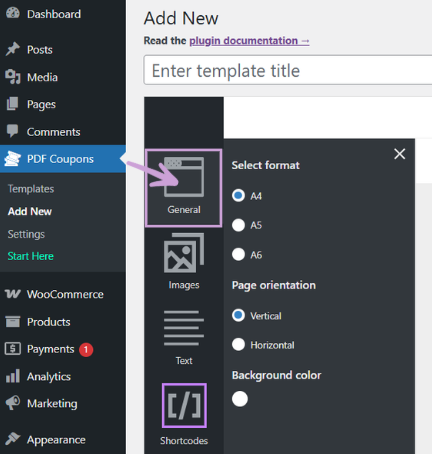
Consider the intended use before selecting the format. A compact design may be suitable for email delivery, while a larger page can provide more space for service conditions, event information, or redemption instructions.
2. Design branded gift cards with the graphic editor
The graphic editor gives you control over the placement and appearance of template elements. You can arrange content visually rather than writing code, making it easier to create a polished design for each product line or occasion.
Add logos, photographs, and background graphics
Images help recipients immediately recognize who issued the voucher. Depending on your design, you can add:
- Your company logo.
- Product or service photography.
- Seasonal graphics for birthdays, holidays, or special campaigns.
- A background image that supports the overall layout.
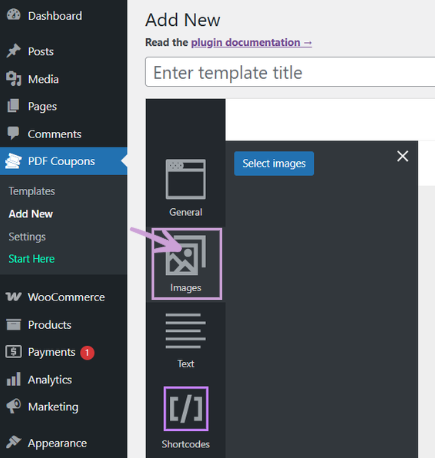
Images can also be rotated directly in the editor. This is useful when fitting a logo, decorative element, or photograph into a horizontal or vertical composition.

The same template approach can be adapted to other documents. For example, see how the editor supports a workflow for selling WooCommerce tickets.
Customize headings, instructions, and voucher text
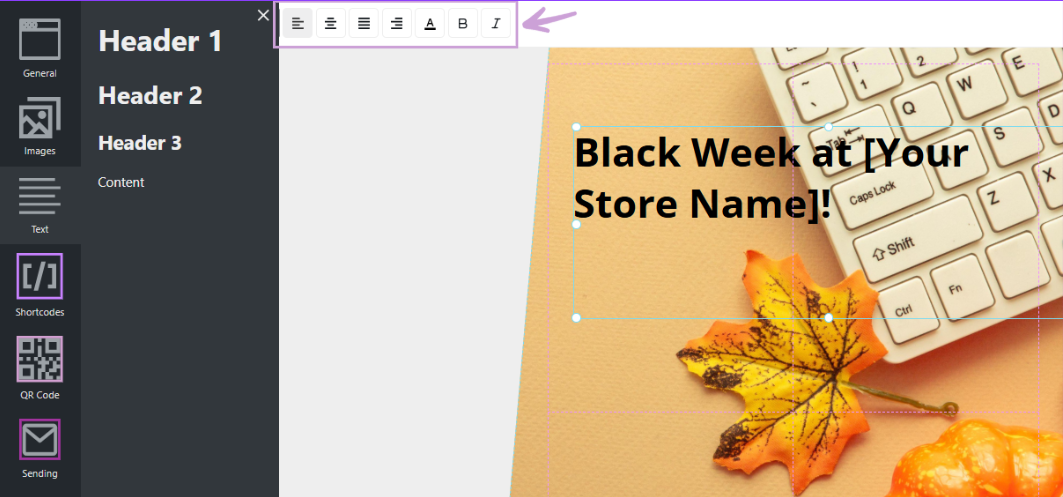
Add text areas for the gift card title, greeting, redemption instructions, terms, or other information the recipient needs. Text controls include:
- Font selection: Choose typography that fits your visual identity.
- Size and color: Build a clear hierarchy between the title, value, code, and supporting text.
- Bold and italic formatting: Emphasize individual details without making the template difficult to scan.
- Alignment and positioning: Place each text element where it works best in the layout.
If your brand uses its own typeface, follow our guide to customizing WooCommerce PDF coupons with custom fonts.
3. Personalize WooCommerce gift cards with shortcodes
A static template can be reused for many orders when shortcodes supply the changing information. Flexible PDF Coupons PRO replaces each shortcode with the relevant coupon, customer, recipient, or product data when generating the PDF.
Available template data includes fields such as:
[coupon_value]for the gift card value.[coupon_code]for the unique redemption code.[coupon_expiry_date]for the configured expiry date.[customer_name]for the purchaser’s name.[recipient_name]for the recipient’s name.[recipient_email]for the recipient’s email address.[recipient_message]for the buyer’s personal message.[product_name]for the WooCommerce product name.[site_url]for the store address.
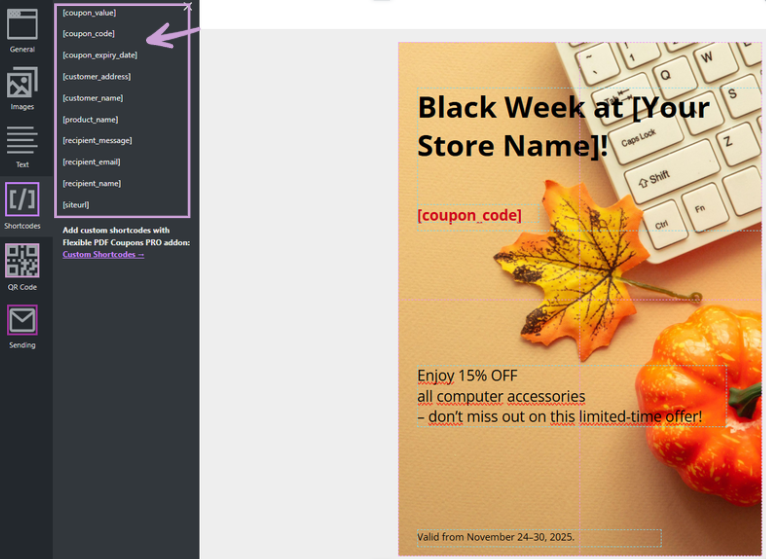
For example, one reusable template can automatically display a different recipient name, personal message, value, expiry date, and coupon code for every completed purchase. This reduces repetitive work while keeping each gift card personal.
If the template needs information beyond the standard fields, the separate Custom Shortcodes add-on can import supported WooCommerce order, product, attribute, or field data. This can be useful for adding details such as an event date or a product-specific instruction. Developers and store administrators can also consult the Custom Shortcodes documentation.
4. Connect the template to a WooCommerce product
Once the PDF design is ready, connect it to the WooCommerce product that customers will purchase. The product can represent a fixed gift card value or another supported voucher configuration. Where your setup allows customers to select the value, make sure the chosen amount is clearly displayed on the PDF.
Recipient fields can collect the information required to personalize and deliver the gift card, including the recipient’s name, email address, and message. For the complete product configuration workflow, read our guide to creating WooCommerce coupons.
5. Test the purchase, PDF, and redemption process
Before publishing the product, place a test order and review the complete customer journey. Check that:
- The correct template is generated.
- The gift card value and coupon code are accurate.
- Recipient data appears in the intended positions.
- Long names and messages do not overlap other elements.
- The PDF is readable on screen and when printed.
- The coupon can be redeemed under the configured conditions.
- The expiry information matches your store settings.
- The customer or recipient receives the expected email and attachment.
This test is especially important when one template is used with several gift card values or when customers can enter longer personalized messages.
Optional add-ons for more advanced voucher workflows
Not every store needs the same delivery or redemption process. Our add-ons extend Flexible Coupons for specific business requirements:
- Advanced Sending: Customize voucher emails and schedule delivery for a selected date, such as a birthday or anniversary.
- Custom Shortcodes: Add supported WooCommerce order, product, attribute, or custom field data to PDF templates.
- Event Ticket QR Scanner: Generate and validate QR codes for admission workflows.
- Multiple PDFs: Create several coupons or tickets within one order when multiple separate documents are required.
- Coupon Codes Import: Use predefined coupon code lists imported from supported files.
These add-ons are separate from the free and PRO plugin features. Choose them only when the store’s workflow requires the additional functionality.
How different businesses can use PDF gift cards
Retail and online stores
Create branded gift cards that customers can purchase when they are unsure which product to choose. The recipient receives a coupon code and can redeem it in the WooCommerce store.
Salons, spas, and service providers
Sell printable vouchers for a treatment, appointment, package, or service credit. The PDF can include practical redemption instructions and relevant conditions.
Gyms and experience businesses
Offer vouchers for classes, memberships, workshops, or experiences. Product-specific templates can make it clear what the voucher covers.
Event organizers and venues
Prepare PDF tickets or event vouchers with attendee or order information. When entry validation is required, the separate Event Ticket QR Scanner add-on can support a QR-based check-in process.
Key conclusions for choosing a WooCommerce gift card plugin
- Choose a plugin that creates both the WooCommerce coupon and a customer-friendly PDF document.
- Use branded templates to keep gift cards consistent with the rest of your store.
- Apply shortcodes so one template can handle many personalized orders.
- Display the coupon code, value, expiry date, and redemption instructions clearly.
- Test long recipient names and messages before launching the product.
- Separate essential gift card functionality from optional add-ons required for specialized workflows.
- Consider future uses such as service vouchers, store credits, printable coupons, and event tickets.
Summary: build a practical WooCommerce gift card workflow
A suitable WooCommerce gift card plugin should make design, personalization, generation, delivery, and redemption easier to manage. Flexible PDF Coupons PRO combines WooCommerce coupon functionality with customizable PDF templates, dynamic shortcodes, recipient information, and automated document generation.
By preparing a reusable template and testing the complete order journey, you can offer personalized gift cards without manually designing every voucher. If your workflow later requires scheduled sending, additional order data, multiple PDFs, imported codes, or QR validation, you can extend it with the relevant add-on.
Explore Flexible PDF Coupons PRO
Flexible PDF Coupons PRO for WooCommerce
Design PDF coupons and sell them as gift cards, service vouchers, or tickets. Customize templates, include dynamic customer and coupon information, and adapt the workflow with optional add-ons.
Flexible Coupons
Review the current product requirements, available features, and add-ons on the product page before installation.
WooCommerce gift card plugin FAQ
Can I create printable PDF gift cards in WooCommerce?
Yes. Flexible PDF Coupons can generate a PDF document connected to a WooCommerce coupon. In PRO, you can customize the template format, orientation, images, text, colors, and dynamic information before making it available to customers.
How do I add a logo or image to a WooCommerce gift card?
Open the template in the graphic editor, add an image, and select a file from your computer or WordPress media library. You can then position it within the template and adjust its orientation.
Can customers personalize a gift card for another person?
The gift card workflow can collect recipient information such as a name, email address, and personal message. Relevant shortcodes can then place these details in the generated PDF template.
Can a WooCommerce gift card have an expiry date?
Yes. When an expiry date is configured for the coupon, it can be displayed in the PDF with the relevant shortcode. Make the date easy to find and ensure it matches the actual coupon settings.
Can I schedule gift card delivery?
Scheduled delivery and customized voucher emails require the separate Advanced Sending add-on. This is useful when a buyer wants the gift card delivered on a birthday, anniversary, or another selected date.
Can Flexible Coupons create event tickets with QR codes?
Flexible Coupons can support PDF event ticket workflows. Generating and validating QR codes requires the separate Event Ticket QR Scanner add-on.
What should I look for in a WooCommerce gift card plugin?
Check whether the plugin supports branded PDF templates, recipient fields, personalized messages, automatic coupon codes, expiry settings, email delivery, and clear redemption controls. Also verify which capabilities belong to the free version, PRO version, or separate add-ons.
