



Flexible PDF Coupons PRO – Coupon Preview is an add-on that lets customers preview a coupon template on the product page before purchasing it.
Requirements#
- WooCommerce and Flexible PDF Coupons PRO version 2.6.0 or later, installed and active.
- The Flexible PDF Coupons PRO – Coupon Preview add-on, installed and active.
- A product configured as a PDF coupon with a published coupon template assigned to it.
To display values from Flexible Product Fields in the preview, you also need Flexible Product Fields and the Flexible PDF Coupons PRO – Custom Shortcodes add-on.
Settings#
Global settings#
- Go to PDF Coupons → Settings → Main settings.
- In the Product page section, find Add-on - Coupon Preview.
- Switch on Coupon preview → Enable.
- Click Save Changes.
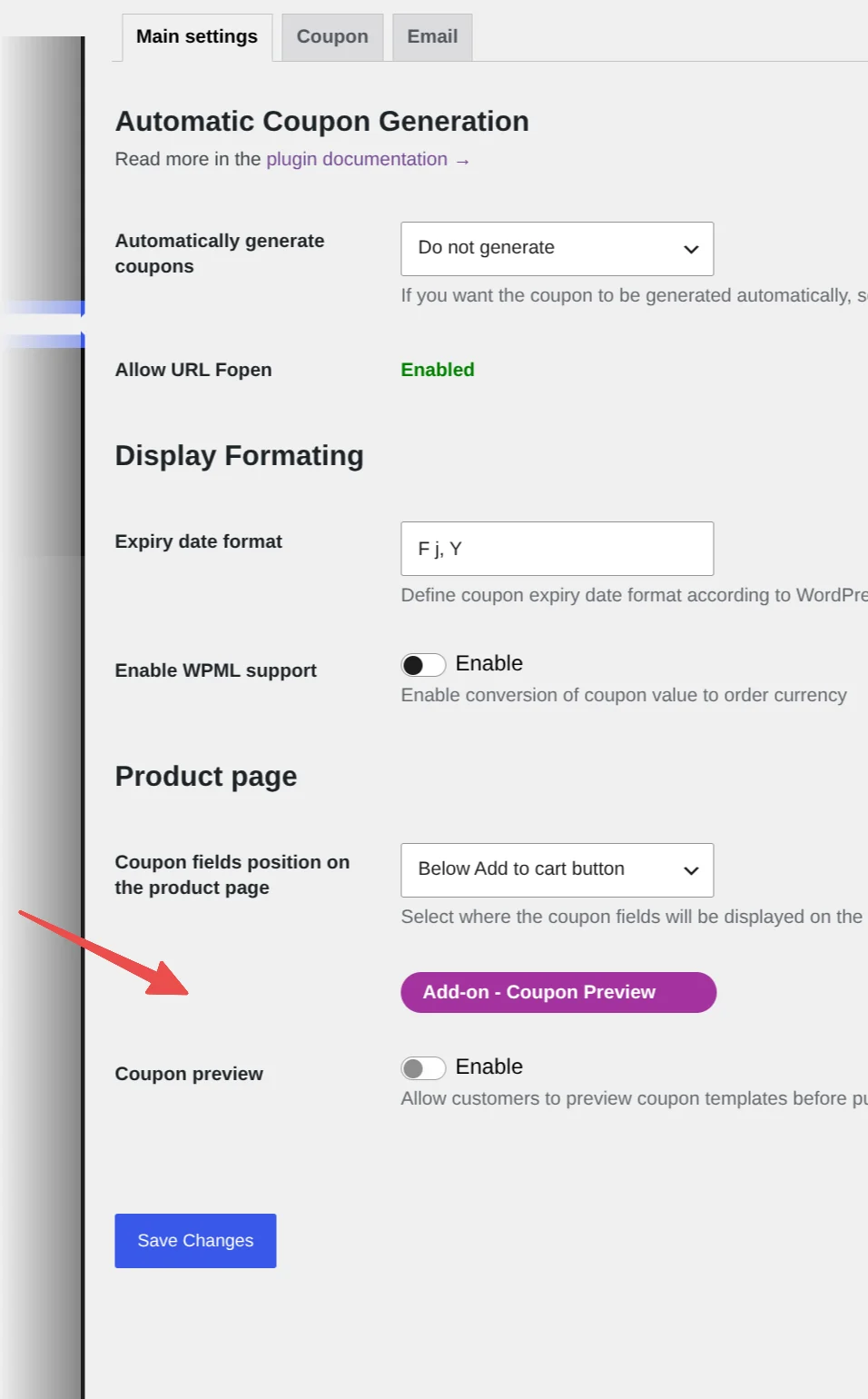
Coupon preview – controls whether customers can preview coupon templates before purchase. You can override this setting for individual products.
Product settings#
- Go to Products and edit your PDF coupon product.
- Open the PDF Coupon settings in the product data panel.
- Find the Coupon preview section and select an option.
- Update the product to save your changes.
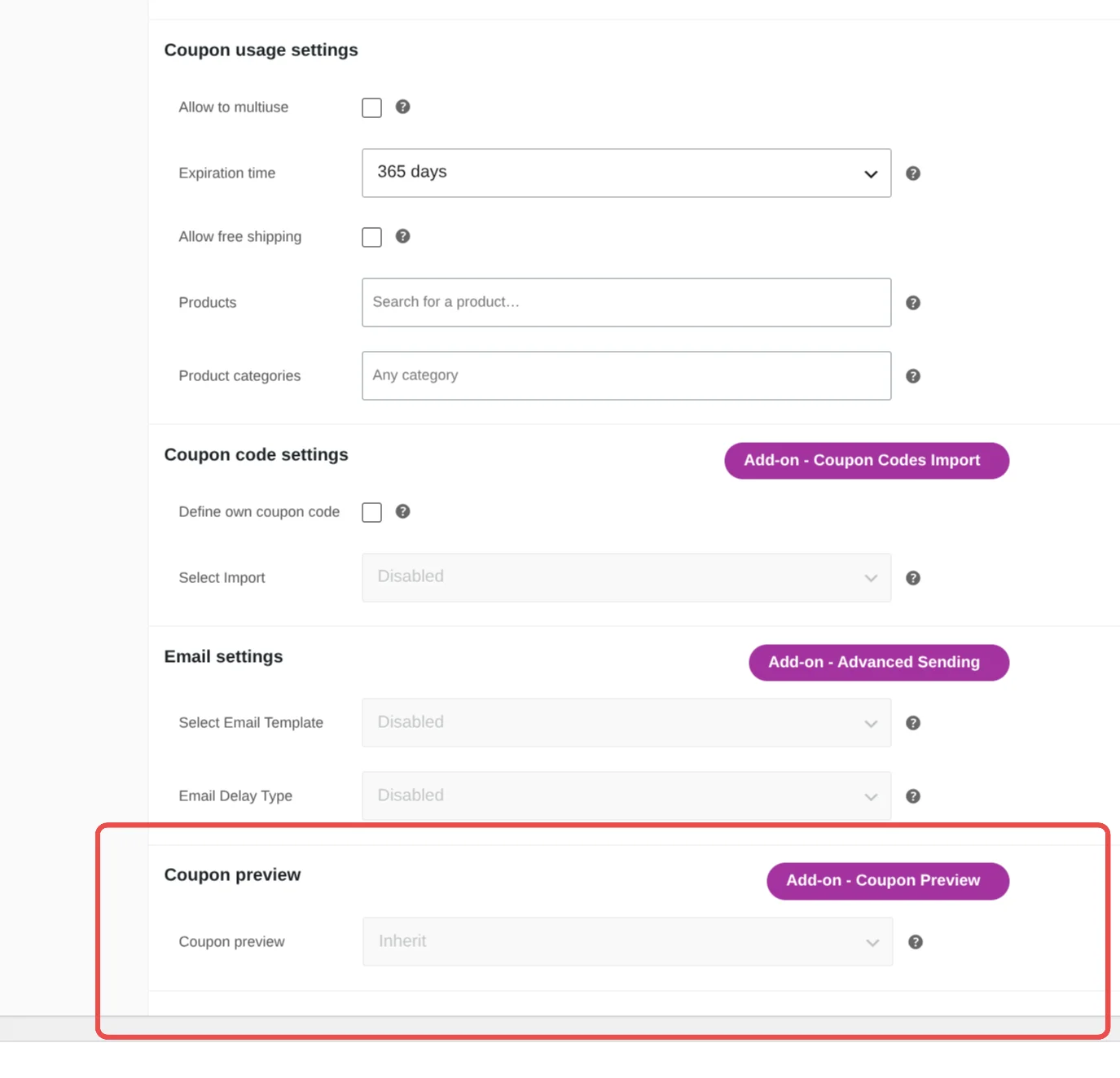
- Inherit – use the global Coupon preview setting.
- Enable – enable the preview for this product.
- Disable – disable the preview for this product.
For example, enable the preview globally and select Disable for a product whose template you do not want customers to preview.
Variation settings#
For variable products, you can configure Coupon preview for individual variations. Open the variation in the product data panel and enable its coupon settings before changing the preview option.
Inherit uses the parent product setting. Select Enable or Disable to override it for the variation, then save the variations and update the product.
Coupon preview on the product page#
- Open the coupon product page in your shop.
- For a variable product, select the variation you want to preview.
- Fill in the coupon fields and any configured product fields.
- Click Preview coupon.
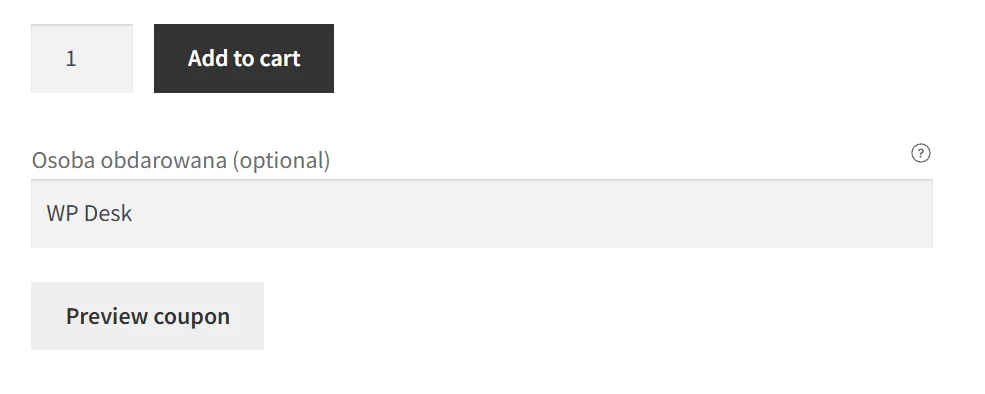
The coupon preview opens in a dialog on the product page. It uses the assigned coupon template and the supported values entered on the product page. Close the dialog to return to the product.
The preview displays XXXXXX in place of the coupon code. Data that is unavailable before purchase may appear as Unavailable in preview. This includes customer name and address shortcodes, order and order metadata shortcodes, checkout field shortcodes, and callable function shortcodes.
Integrations#
Custom Shortcodes and Flexible Product Fields#
Use Custom Shortcodes to include values from Flexible Product Fields in the coupon template and display them in the preview.
- Activate Flexible Product Fields and Flexible PDF Coupons PRO – Custom Shortcodes.
- Add the required Flexible Product Fields fields to your PDF coupon product.
- Go to PDF Coupons → Shortcodes.
- Select Flexible Product fields in the first column and choose the field in the second column. Set the shortcode name in the third column and save the settings.
- Go to PDF Coupons → Templates, edit the template assigned to the product, and insert the shortcode. Save the template.
- Open the product page, enter a value in the field, and click Preview coupon to check the result.
For details on creating shortcodes, see Flexible PDF Coupons PRO – Custom Shortcodes documentation.
Troubleshooting#
The Coupon preview setting is unavailable#
Check that the Coupon Preview add-on is active and that Flexible PDF Coupons PRO is updated to version 2.6.0 or later.
The Preview coupon button does not appear#
Check the global, product, and variation preview settings. Make sure the product is configured as a PDF coupon and has a published coupon template assigned. For variable products, select an eligible variation.
A Flexible Product Fields value is missing#
Check that Custom Shortcodes and Flexible Product Fields are active, that the field is assigned to the coupon product, and that its shortcode is inserted in the template assigned to that product. Enter a value on the product page before opening the preview.
The preview does not load#
If the request has expired, reload the product page and try again. If you see a message about too many preview requests, wait before retrying. If rendering takes too long, use Retry in the preview dialog.