



Key plugin features#
Flexible PDF Coupons PRO – Custom Shortcodes is an add-on for Flexible PDF Coupons PRO that lets you include additional WooCommerce data in PDF coupon templates.
- Order and product details: Display order numbers, dates, totals, product names, descriptions, quantities, and product attributes.
- Custom data: Add values from order and product metadata or WordPress site options.
- Product and checkout fields: Include customer-entered values from Flexible Product Fields, Flexible Checkout Fields, and Checkout Fields for Blocks when the relevant plugins are active and configured.
- Reusable shortcodes: Create and name shortcodes under PDF Coupons → Shortcodes, then use them in the PDF template editor.
- Custom PHP functions: For advanced requirements, use a callable function to provide a value for a shortcode.
Use these features to personalize gift vouchers with customer-provided text, include details of the purchased service, or add an order reference to a PDF coupon.
Requirements#
You must enable the coupons in WooCommerce settings:
The Flexible PDF Coupons PRO - Custom Shortcodes plugin is an add-on to Flexible PDF Coupons PRO. It allows you to add new shortcodes to PDF templates to import values from WooCommerce order and product fields.
Settings#
Go to the PDF Coupons → Shortcodes tab.
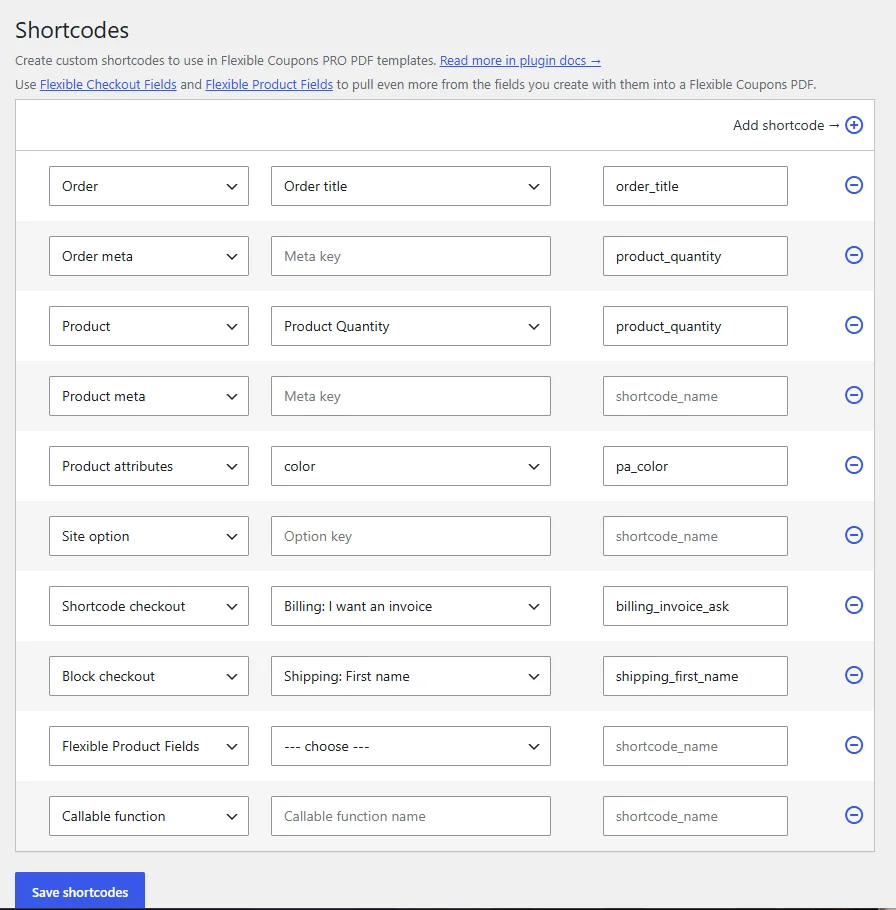
First column - resource name#
Select the resource from which you want to retrieve values for the coupon template.
You can choose from the following resources:
- Order
- Order meta
- Product
- Product meta
- Product attributes
- Site option
- Shortcode checkout
- Block checkout
- Flexible Product fields
- Callable function.
If you want to use a callable function, add your custom code to the theme's functions.php file with the function you will then use in the Shortcodes. For example, to get a short description of the product or the variation description (for variable products), add this code:
function coupon_get_product_short_description( $shortcode_data ) {
if ($shortcode_data->get_product()->get_parent_id()) {
$product = $shortcode_data->get_product()->get_description();
return $product;
}
else {
$product = $shortcode_data->get_product();
return $product->get_short_description();
}
}
Then, in the Shortcodes, use the callable function and copy the function name e.g., coupon_get_product_short_description. Finally, choose the name for the shortcode you will be able to use afterward in the PDF coupon templates.
Please note! For the attribute name to appear in the “Shortcodes” tab, the attribute must be assigned to a product that is a PDF coupon.
Second column - meta field name#
After selecting Order, Product, Product Attributes, or Settings, a list of fields from which you can download will appear in the middle column values straight to a PDF coupon template supported with Flexible PDF Coupons PRO.
In the case of Meta Order Data, Product Meta Data resources, you need to manually enter the meta field name from which the values are to be retrieved.
In the screenshot below, you will find an example for the Purchase Notes field in the product edition, and therefore belonging to the Product Meta set. Open the browser console and use the cursor to select the field whose meta name you are looking for. Copy the name from the console and paste it into the middle column in the Custom Shortcodes settings.

Third column - the shortcode#
The shortcode name will be automatically completed based on the field ID used in the second column. You can change it to any name you like.
PDF Coupon Template#
After saving the Custom Templates settings, the shorts will appear in the shorts list in the PDF template settings:

Use them in the same way as the regular Flexible Coupons PRO shortcodes.
Integrations#
The Flexible PDF Coupons - Custom Shortcodes plugin can create shorts for fields created with other plugins.
Flexible Product Fields#
Flexible PDF Coupons - Custom Shortcodes plugin can import values of fields created by Flexible Product Fields. A shortcode placed on a PDF Coupon template will only import the value of a Flexible Product Fields field if it has been added to a product tagged as PDF Coupon.
To add a shortcode for a Flexible Product Fields field:
- In the first column, select Flexible Product fields.
- In the second column, choose the field added via Flexible Product Fields to the PDF Coupon product.
- The shortcode name will be filled in automatically in the third column.
Flexible Checkout Fields#
With Flexible PDF Coupons - Custom Shortcodes plugin, you can define shortcodes for fields created in Flexible Checkout Fields. The values of those Flexible Checkout Fields that were filled in during order placing will go into the PDF template of the coupon.
Checkout Fields for Blocks#
With Flexible PDF Coupons – Custom Shortcodes, you can define shortcodes for fields created with Checkout Fields for Blocks. The values entered by the customer during checkout will be inserted into the PDF Coupon template.
To add a shortcode for a Checkout Fields for Blocks field:
- In the first column, select Checkout fields (block).
- In the second column, choose the relevant field (fields added by you will appear under Other).
- The shortcode name will be filled in automatically in the third column.