




Turn WooCommerce into a practical WordPress ticketing system without coding. With the free Flexible PDF Coupons plugin, you can design branded PDF event tickets, sell them as virtual products, and automate delivery after payment. Follow this guide to configure the complete customer journey.
This setup is suitable for event organizers, venues, workshops, attractions, gyms, salons, and other businesses selling access to events or experiences. The free workflow covers ticket design, WooCommerce checkout, PDF generation, and email delivery. Advanced admission validation with QR codes requires Flexible PDF Coupons PRO and the Event Ticket QR Scanner add-on.
Step 1: Install the Free WordPress Ticketing Plugin
To add PDF tickets to WooCommerce, install Flexible PDF Coupons. Our free plugin lets you create PDF designs and connect them to virtual WooCommerce products. You can use the same workflow to sell printable vouchers, gift cards, and service credits.
Download Flexible PDF Coupons for free
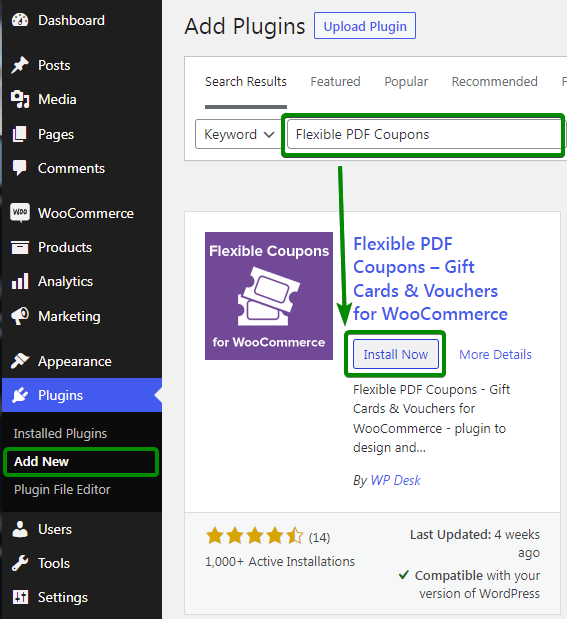
In your WordPress dashboard, go to Plugins > Add New Plugin, search for Flexible PDF Coupons, and select Install Now. Activate the plugin when the installation is complete.
Before creating the ticket, decide which information customers need before attending. This will usually include the event name, date, venue, ticket type, and relevant entry instructions. A clear design helps customers recognize the document as their ticket rather than a standard store coupon.
Step 2: Design a PDF Event Ticket Template in WordPress
Go to Coupons PDF > Templates > Add New. The built-in visual editor lets you create a WooCommerce PDF ticket layout without writing code.
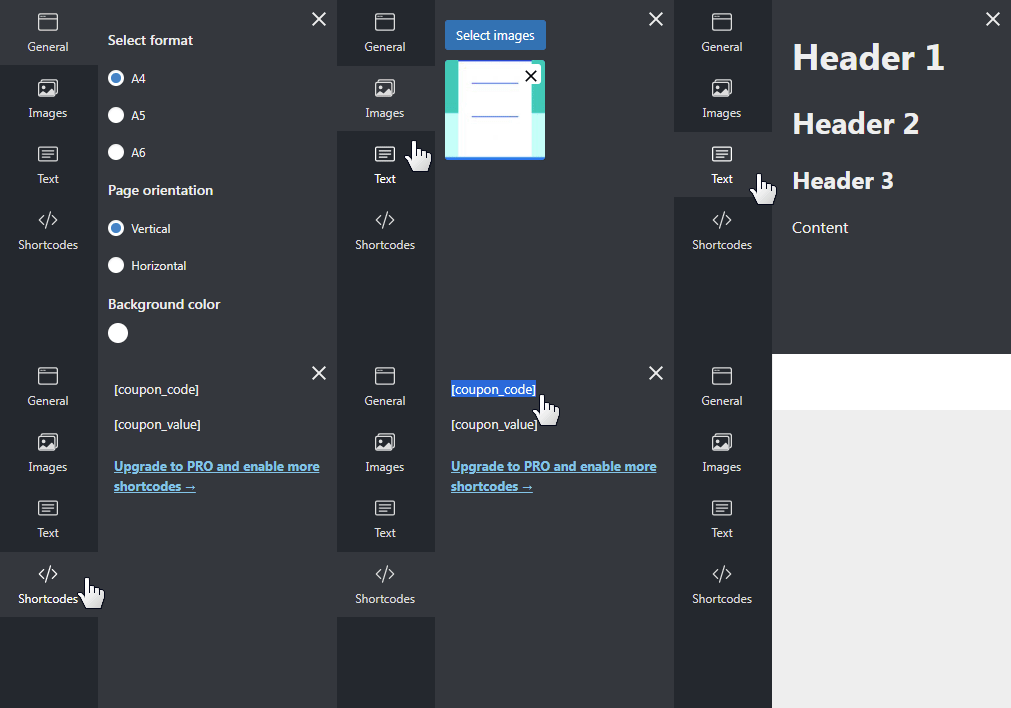
The drag-and-drop interface allows you to add and arrange text, images, and available shortcodes. You can apply your brand colors, upload an event graphic, and organize the layout so that the most important ticket details are easy to find.
Consider including the following elements:
- Event name displayed prominently at the top.
- Date, start time, and venue details.
- Ticket type, such as general admission or a named seating area.
- Basic entry instructions or terms of use.
- Your logo and event branding.
- The automatically generated coupon code, where appropriate for your workflow.
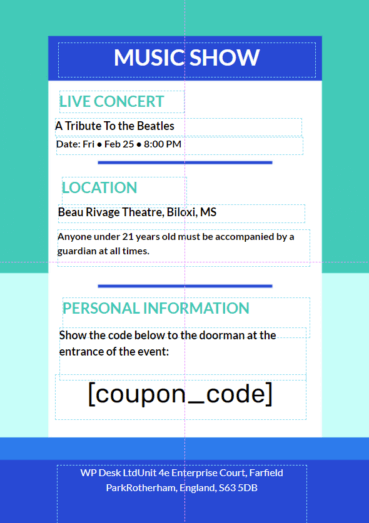
You can use the background below as a starting point for your own PDF ticket. Download it and add it to the template editor as an image.

Download the ticket background
Step 3: Adapt Customer-Facing Coupon Text for Tickets
Flexible PDF Coupons supports different PDF products, including gift cards, coupons, service vouchers, and event tickets. Some default customer-facing phrases may therefore refer to a coupon or voucher.
If you want this setup to use ticket-specific wording, install the supplied translation files:
-
Download the package containing the
.moand.pofiles. -
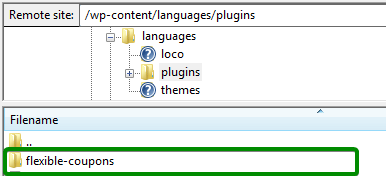
Open the following location on your server:
wp-content/languages/pluginsCreate a folder named:
flexible-coupons
- Extract the downloaded files into the new folder.
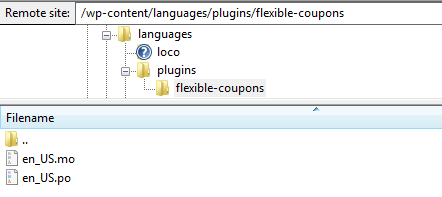
Customer messages should now use ticket-related wording instead of the default coupon terminology. Review the product page, checkout, and email flow after making this change to confirm that the language fits your event.
Step 4: Enable Automatic PDF Ticket Generation
Open the Flexible PDF Coupons settings and choose the WooCommerce order status that should trigger ticket generation.

When an order reaches the selected status, the plugin generates the PDF and makes it available through the WooCommerce email flow. This automates ticket delivery and removes the need to prepare and send each document manually.
Select a status that reflects your payment process. The aim is to avoid issuing a valid ticket before the order has been paid while also preventing unnecessary delivery delays.
Step 5: Restrict the WooCommerce Coupon Code
Flexible PDF Coupons creates a WooCommerce coupon code as part of the PDF generation process. If you are using the document only as an event ticket, you may not want that code to provide a discount on regular store products.
One way to control this is to create a new, empty WooCommerce product category used only for the ticket configuration.
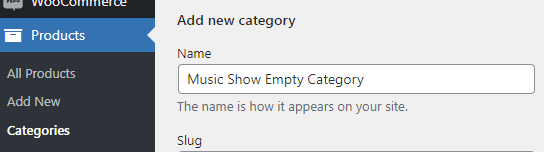
Because the generated code is restricted to products in that category and the category contains no products, customers cannot use it to discount regular items.
Keep this category empty. If another store manager later assigns a product to it, ticket-related coupon codes may become applicable to that product. A descriptive internal category name can help prevent accidental use.
Step 6: Create the WooCommerce Ticket Product
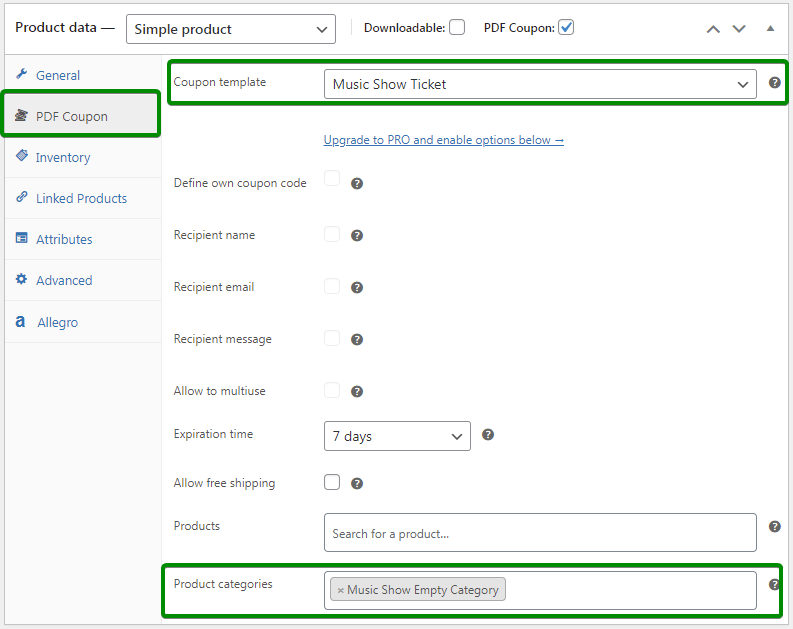
Now add the product customers will purchase. Go to Products > Add New, enter the event title, and set the ticket price. In the product data section, activate the PDF Coupon option.
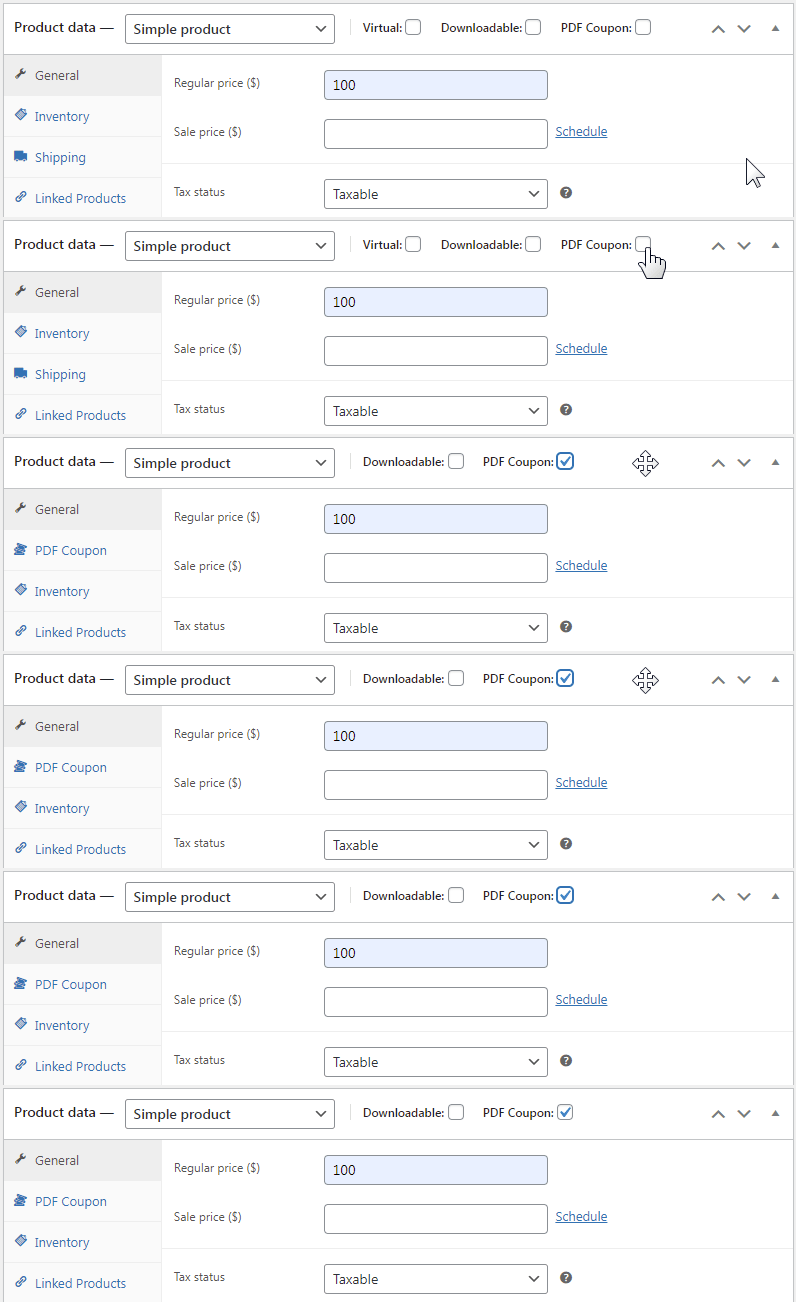
The product becomes virtual, so WooCommerce does not require physical shipping. A new PDF Coupon tab also appears in the product settings.
Open that tab and:
- Select the PDF ticket template created in Step 2.
- Select the empty restriction category created in Step 5.
- Save or update the product.
What to Include on the Event Product Page
Your product page should answer the questions customers normally ask before buying an event ticket. Add the information that applies to your event, such as:
- Event date and starting time.
- Venue name and address.
- What the ticket includes.
- Age or access requirements.
- Arrival and entry instructions.
- Refund or cancellation conditions.
- Accessibility information.
You can also use the product image and gallery to show the venue, speakers, performers, class format, or experience being sold. Make it clear whether customers should present a digital ticket, a printed copy, or either format.
What the WordPress Ticketing System Looks Like to Customers
Once the product is published, customers can view and buy the ticket like any other WooCommerce product. They add it to the cart, complete checkout, and receive the PDF according to the generation status configured earlier.

Because the ticket is configured as a virtual WooCommerce product, physical shipping charges are not calculated for it. Review your other checkout settings if an order can contain both virtual tickets and physical products.
How WooCommerce Delivers PDF Tickets
After the order reaches the selected status, Flexible PDF Coupons generates the document. The customer can then access the ticket through the relevant WooCommerce email.
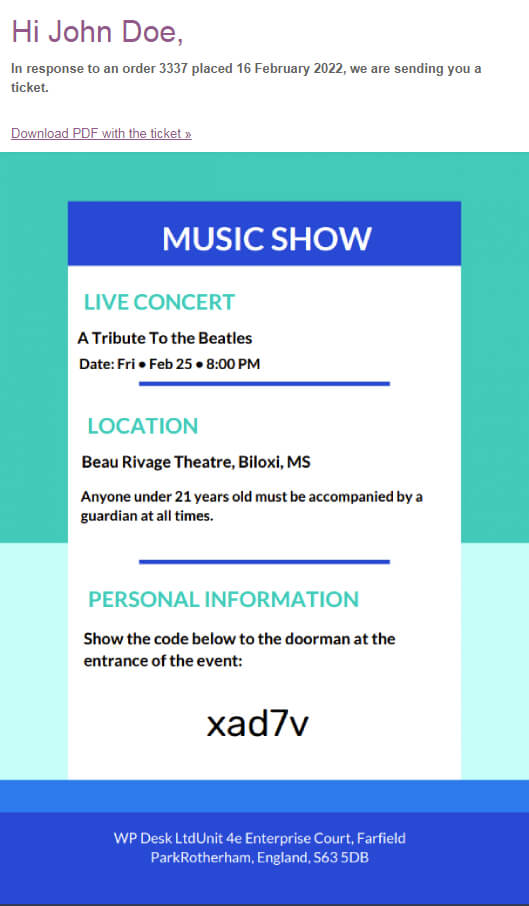
Test email deliverability before promoting the event. Confirm that the message reaches the inbox, the download works, and the document remains readable on a phone. You should also explain what customers need to show at the venue, such as a digital PDF or a printed copy.
Free WordPress Ticketing System vs PRO Features
The free version is a practical starting point when you need to design, sell, generate, and deliver PDF tickets with WooCommerce. Flexible PDF Coupons PRO is intended for stores that need broader personalization and more control over their templates and workflows.
- Free version: supports a basic PDF ticket product and automated WooCommerce delivery.
- PRO recipient options: collect details such as the recipient name, email address, and personal message when a ticket or voucher is purchased for someone else.
- Additional template control: useful for designs that require more precise editing and personalization.
- Custom template data: the separate Custom Shortcodes add-on can import supported WooCommerce order, product, attribute, or field data into templates.
- Optional ticket validation: generate and validate QR codes with the Event Ticket QR Scanner add-on.
For a closer look at design and personalization, see our guide to the WooCommerce gift card plugin and template customization. You can also learn more about personalized templates and custom shortcodes.
Check the current free vs PRO feature comparison before choosing a version for your ticketing workflow.
Extend Your WooCommerce PDF Ticket Workflow
Flexible PDF Coupons PRO provides additional personalization options and supports our specialized add-ons for workflows such as QR ticket validation and custom template data.
WP Desk
Add QR Validation to Your WordPress Ticketing System
For events where staff need to verify admission at the entrance, use the Event Ticket QR Scanner. This add-on requires Flexible PDF Coupons PRO.

The add-on provides:
- QR code generation: creates a QR code based on the generated coupon.
- QR code placement: adds the code to a ticket or gift card template.
- Built-in scanning: allows staff to scan the code without a separate QR scanning tool.
- Mobile and desktop use: supports admission workflows on different devices.
- Coupon status updates: changes the coupon status after scanning to support ticket validation.
This option is useful for venues and event organizers that need a structured check-in process rather than PDF delivery alone.
Key Takeaways for Selling WooCommerce Tickets
- WooCommerce and Flexible PDF Coupons can form a basic free WordPress ticketing system.
- The visual editor lets you prepare a branded PDF event ticket without coding.
- Tickets are sold as virtual WooCommerce products, so physical shipping is not required.
- Automatic generation connects ticket delivery to a selected order status.
- An empty restriction category can prevent ticket coupon codes from discounting regular products.
- A complete test order should be performed before ticket sales begin.
- QR generation and entrance validation require Flexible PDF Coupons PRO and the Event Ticket QR Scanner add-on.
Summary: Build a Practical WordPress Ticketing System
With WooCommerce and the free Flexible PDF Coupons plugin, you can create a straightforward system for selling and delivering PDF event tickets. Install the plugin, design a branded template, configure the generation status, restrict the associated coupon code, and connect the template to a virtual product.
This setup is suitable when customers mainly need a clear PDF document confirming their purchase and providing event details. If your event also requires QR-based admission control, you can extend the workflow with Flexible PDF Coupons PRO and the dedicated Event Ticket QR Scanner add-on.
FAQ
What is a WordPress ticketing system?
A WordPress ticketing system allows a business to sell and deliver event tickets from its WordPress website. In this setup, WooCommerce processes the order and Flexible PDF Coupons generates the PDF ticket.
Can I build a WordPress ticketing system for free?
Yes. WooCommerce and the free Flexible PDF Coupons plugin can be used to create, sell, generate, and deliver basic PDF event tickets. Advanced functions such as QR code generation and validation require PRO and the relevant add-on.
How do I sell PDF tickets in WooCommerce?
Install Flexible PDF Coupons, design a PDF template, create a virtual WooCommerce product, enable the PDF Coupon option, assign the template, and configure the order status that triggers generation.
Can WooCommerce send event tickets automatically?
Yes. Flexible PDF Coupons can generate the PDF when an order reaches the configured WooCommerce status and make it available through the customer email flow.
Are PDF tickets treated as physical products?
No. When configured as PDF Coupon products, tickets are virtual, so WooCommerce does not calculate physical shipping for them.
Can customers buy tickets as gifts?
The ticket can be purchased like another WooCommerce product. Flexible PDF Coupons PRO provides additional recipient fields and personalization options for workflows where the ticket or voucher is intended for another person.
Do I need PRO to scan event tickets?
Yes. QR code generation and validation require Flexible PDF Coupons PRO together with the Event Ticket QR Scanner add-on.
