



Scheduled WooCommerce gift card delivery lets customers buy a voucher today and send it on the date that matters. With Flexible Coupons PRO and the Advanced Sending add-on, you can create branded PDF gift cards, collect recipient details, and automate delivery for birthdays, holidays, anniversaries, and other occasions.
Table of contents
- Scheduling gift cards in WooCommerce
- WooCommerce coupon delivery delay options
- Benefits of scheduled gift card delivery
- How to schedule gift card delivery
- Configuration checklist
- Choosing a WooCommerce gift card solution
- Summary
Scheduling gift cards in WooCommerce
WooCommerce does not provide scheduled PDF gift card delivery by default. To add this workflow, you need Flexible Coupons PRO and the Advanced Sending add-on.
Flexible Coupons PRO allows you to create and sell PDF gift cards, printable vouchers, service credits, and event tickets as WooCommerce products. Advanced Sending extends this workflow with recipient-focused email options and delivery scheduling.
Together, they let a customer purchase a voucher now, enter the recipient’s details and, when enabled for the product, select a future delivery date. The PDF coupon can then be sent by email according to the configured delay.
Important: scheduled delivery is not a feature of the free plugin. The workflow described in this guide requires both Flexible Coupons PRO and Advanced Sending.
Flexible PDF Coupons PRO for WooCommerce
Create branded PDF coupons and sell them as gift cards, tickets, or service vouchers in your WooCommerce store.
WP Desk
After installing and activating PRO, add Advanced Sending for Flexible Coupons to configure delayed or date-based email delivery.
Flexible PDF Coupons PRO – Advanced Sending
Customize voucher emails and schedule WooCommerce gift card delivery using a delay, a fixed date, or a date selected by the customer.
WP Desk
If you need several Flexible Coupons extensions, you can also review the available options on the Flexible Coupons pricing page.
Advanced Sending: WooCommerce coupon delivery delay options
Advanced Sending provides several delivery modes. You can select a different mode for each applicable coupon product, making the setup suitable for retail gift cards, salon vouchers, spa packages, gym passes, service credits, and other time-sensitive gifts.
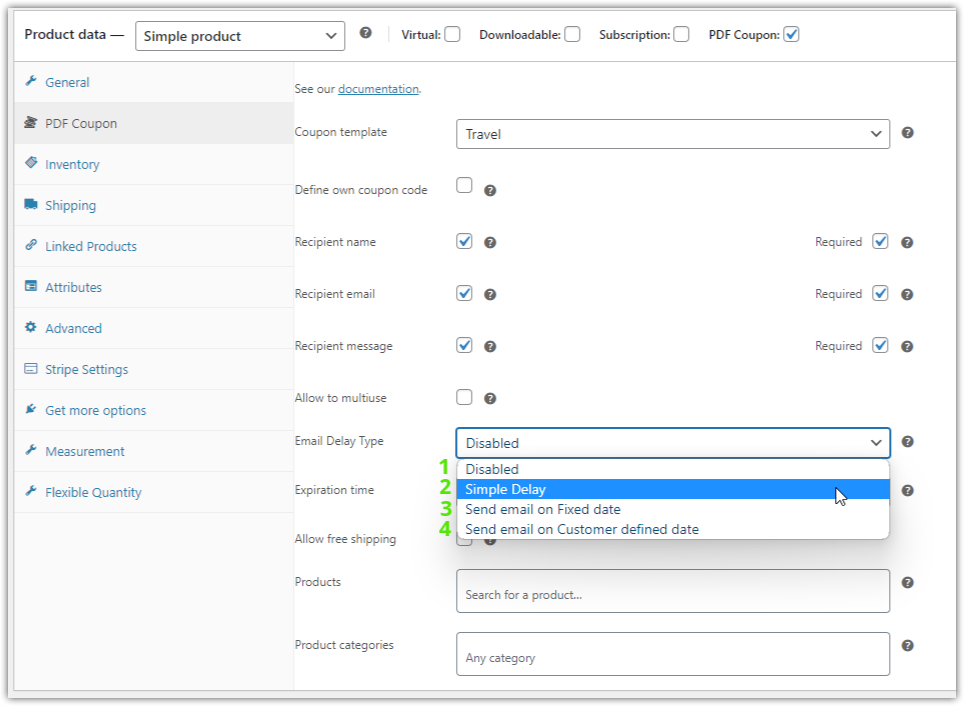
- Disabled: turns off delayed delivery for a product when scheduling is not required.
- Simple Delay: sends the email after a delay defined in days, weeks, or months.
- Send email on Fixed date: sends the voucher on a date selected by the store manager.
- Send email on Customer defined date: adds a date selection option to the product page so the customer can choose when the recipient should receive the gift card.
Which delivery option should you choose?
Use Simple Delay when every coupon should be delivered after the same period. This can be useful for service vouchers that should become available after a defined processing time.
Choose a fixed date for campaigns in which all vouchers should be delivered together, such as a seasonal promotion or a company event.
The customer-defined date is the most flexible option for personal gifts. It allows shoppers to plan delivery around a birthday, anniversary, holiday, or another occasion without waiting until that day to place the order.
Benefits of scheduled gift card delivery
Scheduling is more than a convenient email setting. It creates a clearer purchasing experience for the customer and gives the store greater control over coupon fulfillment.
- Customers can shop in advance: they do not need to remember to return to the store on the day of the occasion.
- Recipients get the gift at the intended time: the purchaser can coordinate delivery with a birthday, holiday, or event.
- Store owners reduce manual work: there is no need to keep a separate reminder and send each PDF voucher manually.
- Recipient data stays connected to the order: the name, email address, message, and selected date can be collected as part of the purchase workflow.
- Different products can follow different rules: one gift card can use immediate delivery while another allows the customer to select a future date.
- The PDF remains branded: the scheduled email can deliver the coupon design prepared for the relevant product or campaign.
For example, a salon can let customers schedule birthday treatment vouchers, while an event venue can use a fixed delivery date for tickets connected with a particular campaign. A retail store may offer customer-selected dates for general gift cards and disable scheduling for vouchers intended for immediate use.
How to schedule WooCommerce gift card delivery
1. Review the Advanced Sending email settings
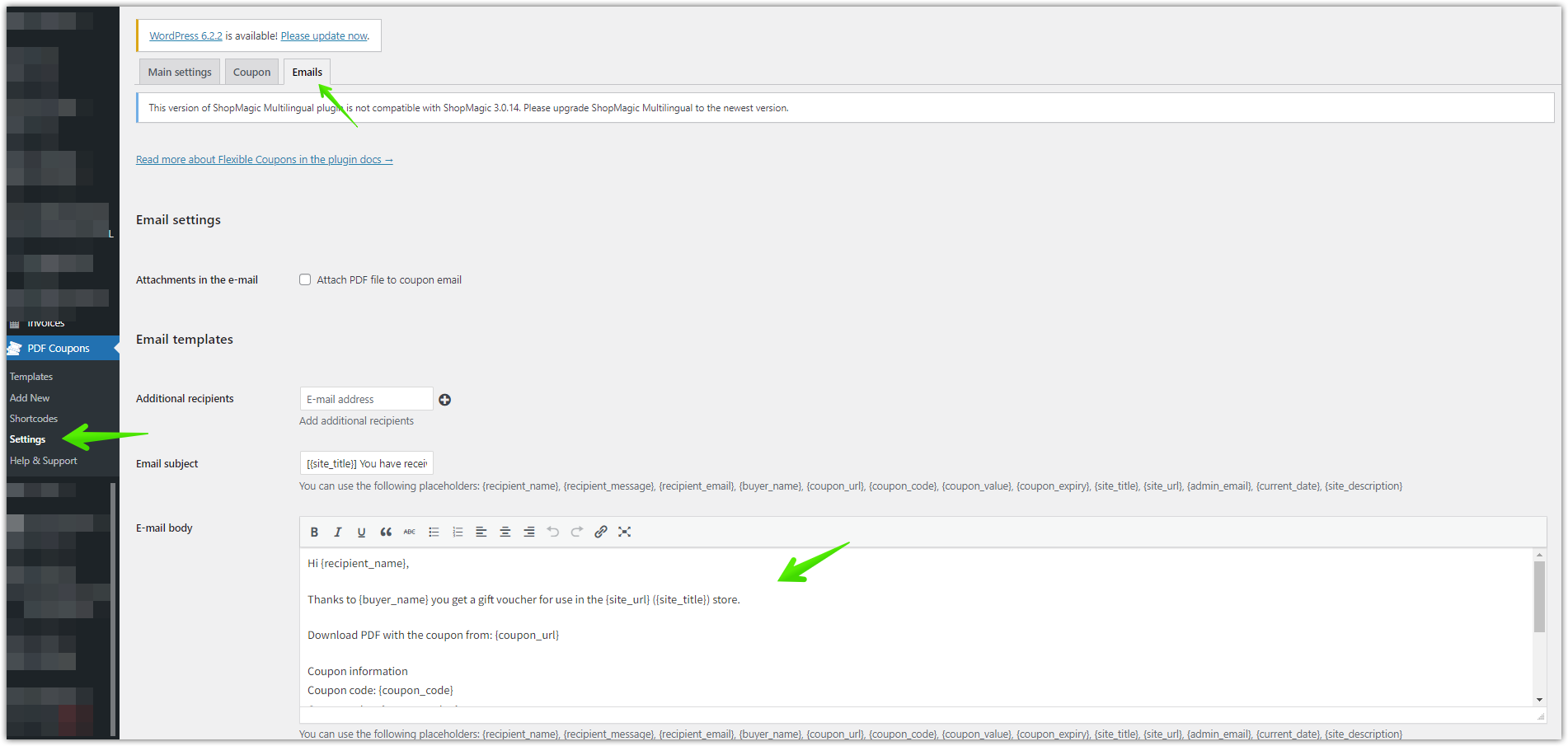
In the WordPress dashboard, go to PDF Coupons → Settings → Email. After activating Advanced Sending, this section contains the add-on’s general email configuration.
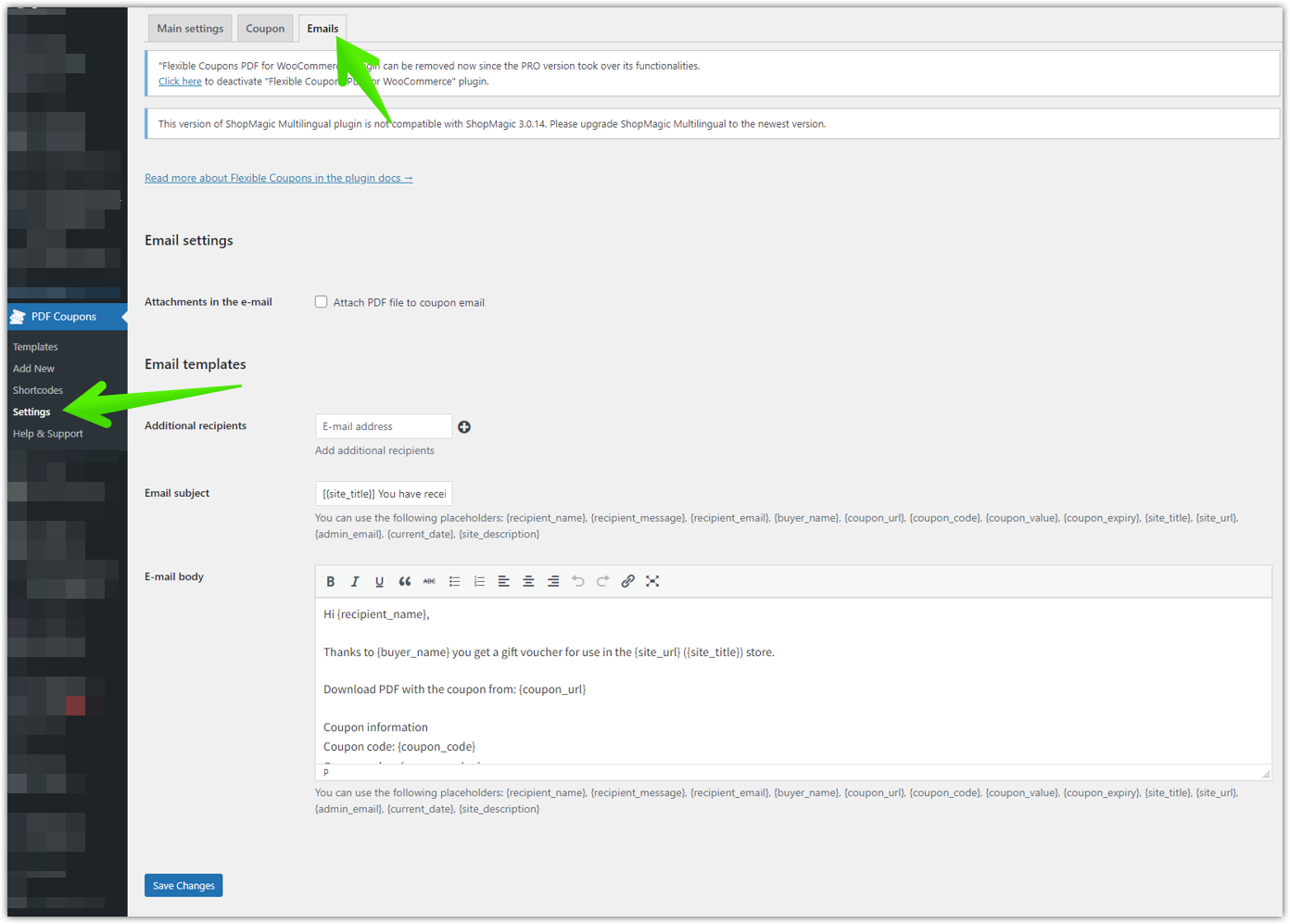
Review the email content before publishing the product. The message should clearly explain what the recipient has received and include information needed to use the voucher.
2. Open the WooCommerce coupon product
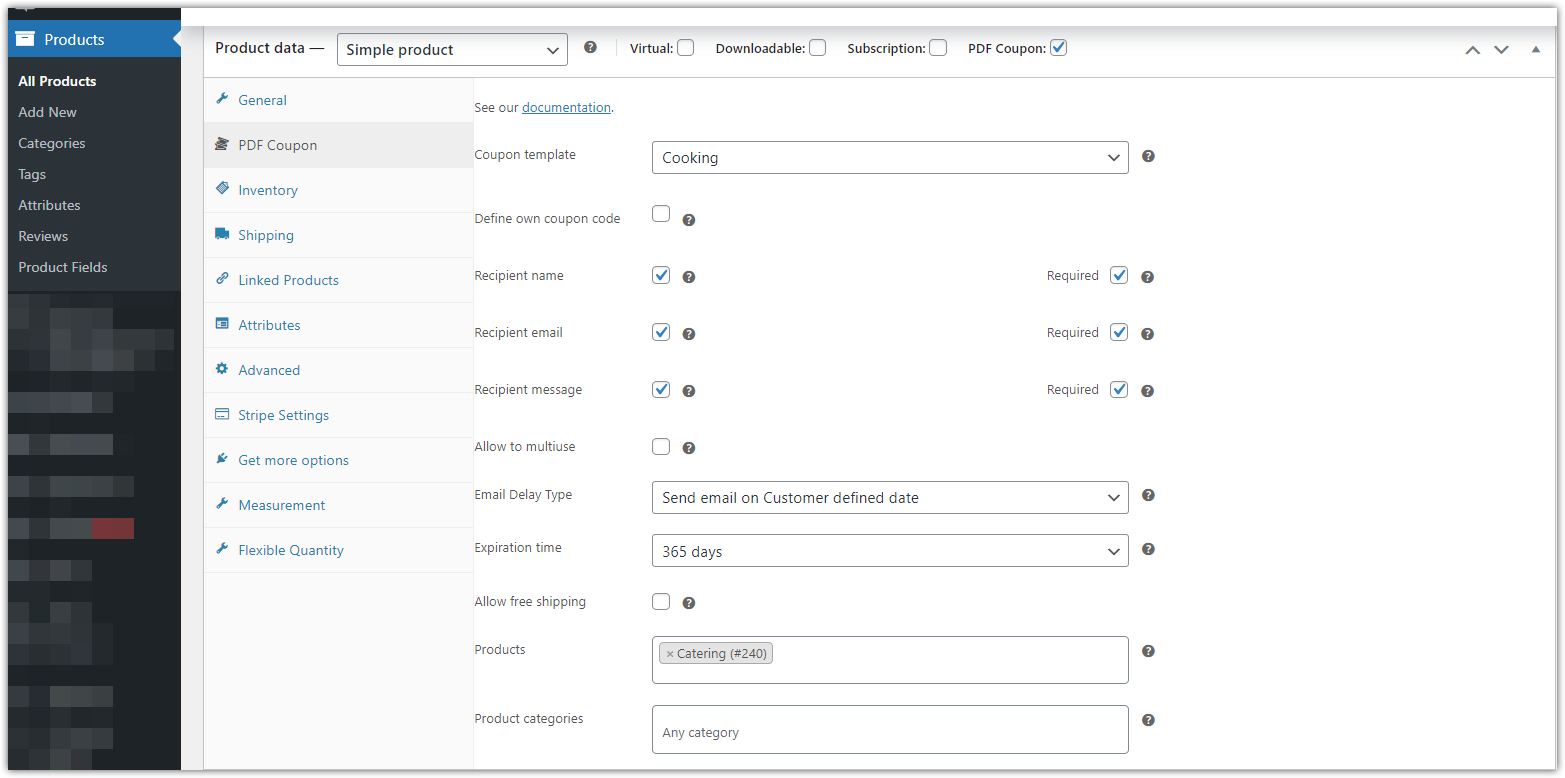
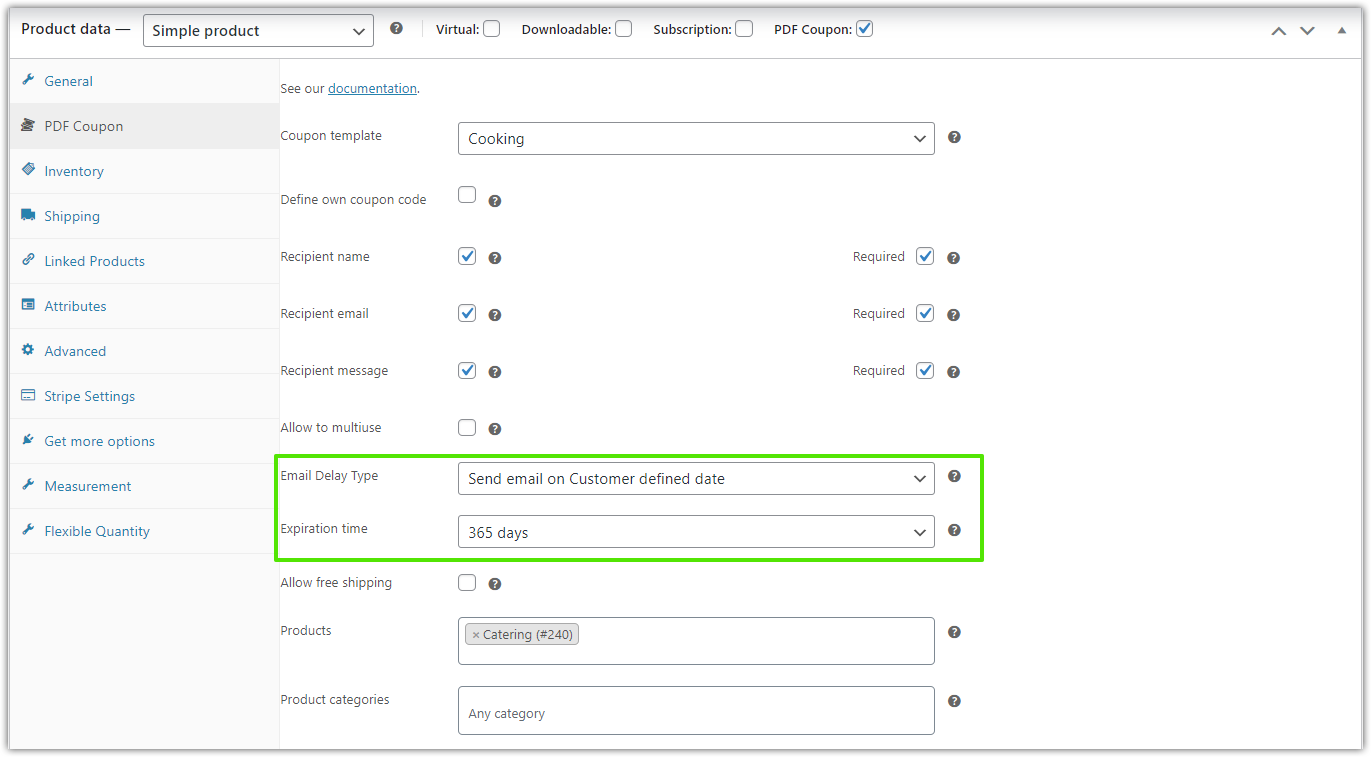
Edit the WooCommerce product that will be sold as a gift card or voucher. The Flexible Coupons product settings allow you to connect the appropriate PDF coupon template and configure the customer-facing fields.
3. Select the PDF coupon template and recipient fields
Choose the template that should be generated for this product. Depending on your product setup, you can also enable fields for the recipient’s name, recipient email address, and a personalized message.
Only request information that is useful for delivery and personalization. For example, an email address is necessary when the voucher is sent directly to the recipient, while a message field can help the purchaser add a personal greeting.
4. Choose the gift card delivery delay type
Select the delivery mode that fits the product. To let the purchaser control the date, choose Send email on Customer defined date. The delivery-date field will then be presented on the product page.
You can also configure coupon expiration according to your voucher policy. Make the validity period clear in the product description and on the generated PDF so both the purchaser and recipient understand when the voucher can be redeemed.
5. Save the product and test the customer experience
Save or update the product, then open its public product page. Confirm that the required recipient fields and delivery-date selector are displayed correctly.
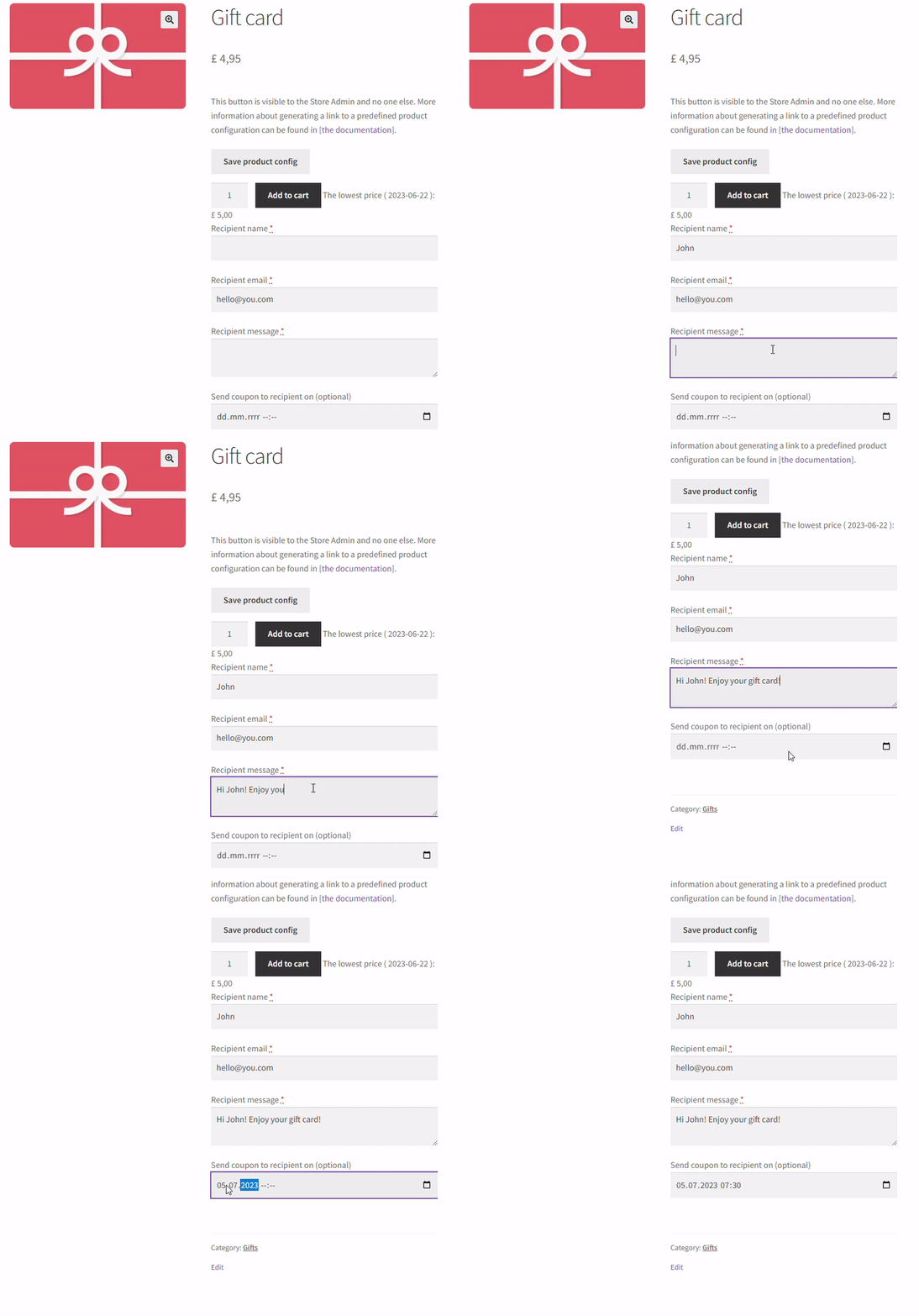
Place a test order before offering the product to customers. Check the product page, cart, checkout, order details, email content, PDF attachment, coupon code, selected delivery date, and expiry information.
6. Preview the PDF gift card
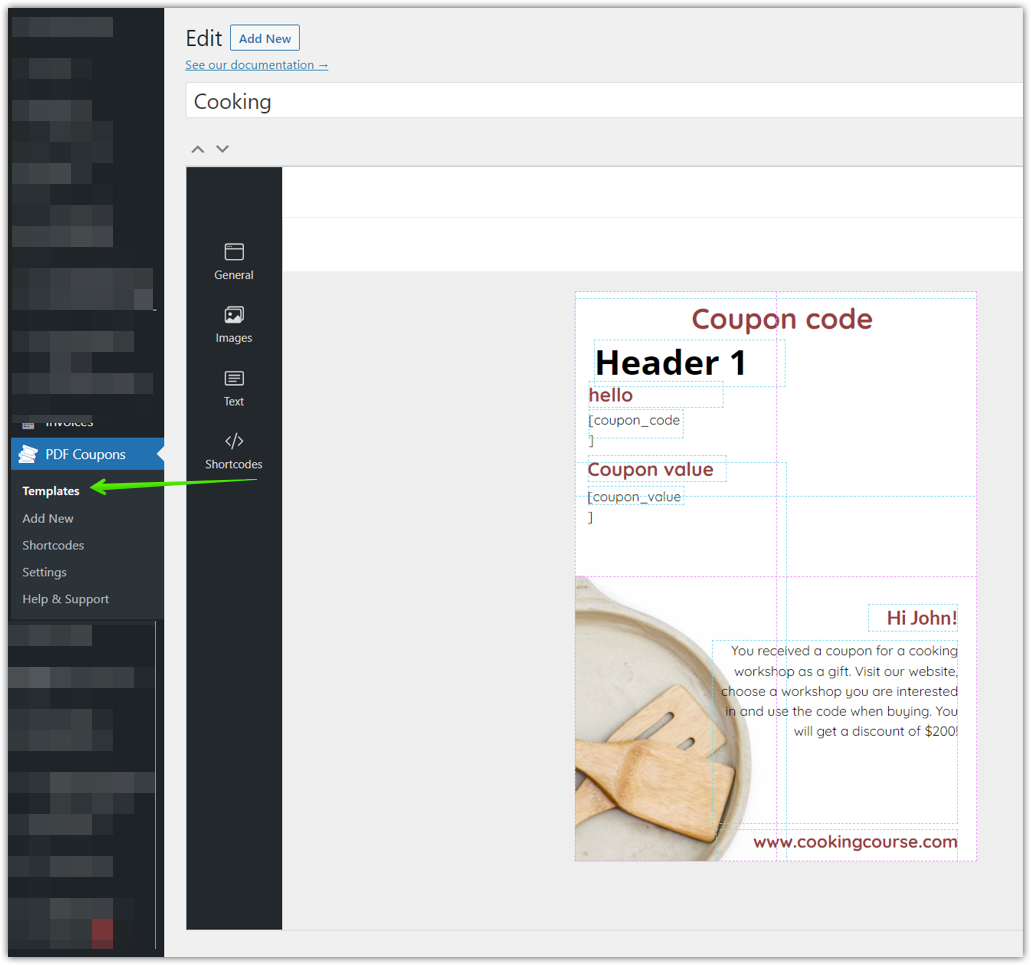
Go to PDF Coupons → Templates and preview the template connected with the product. Verify the layout, text, images, coupon details, and any recipient information included in the design.
7. Preview the scheduled gift card email
Return to PDF Coupons → Settings → Email to check the message that will accompany the voucher. Keep the email concise and make sure the sender, subject, recipient information, and voucher instructions are appropriate for your business.
WooCommerce gift card delivery checklist
Before publishing a scheduled voucher product, confirm the following:
- Flexible Coupons PRO and Advanced Sending are active.
- The correct PDF coupon template is assigned to the product.
- The chosen delay type matches the product’s intended use.
- The recipient email field is enabled when direct delivery is required.
- The name and personal message fields are configured as needed.
- The coupon expiration rules match your store policy.
- The delivery-date field is visible and understandable on the product page.
- The email content and PDF design have been previewed.
- A complete test order has been placed.
- The test coupon can be identified and redeemed according to your workflow.
Choosing a WooCommerce gift card plugin with scheduled delivery
The right solution depends on the products you sell and the level of automation you need. For scheduled PDF delivery, Flexible Coupons PRO provides the coupon and template workflow, while Advanced Sending adds the delivery controls described in this guide.
This combination can support several business models:
- Retail stores: branded gift cards with a recipient and personal message.
- Salons and spas: printable treatment or package vouchers delivered for birthdays and anniversaries.
- Gyms and service businesses: service credits or passes with a defined validity period.
- Event organizers and venues: PDF tickets or vouchers delivered as part of a planned campaign.
- Marketplaces: coupon products with different templates and delivery rules.
The main advantage is workflow control. You can decide whether a product is delivered immediately, after a delay, on a store-defined date, or on a date selected by the customer. At the same time, the purchaser can provide the details required to personalize the gift.
Summary: schedule WooCommerce gift cards without manual sending
Scheduled WooCommerce gift card delivery helps customers prepare gifts in advance while reducing manual email work for store owners. To use it, configure the PDF voucher with Flexible Coupons PRO, add Advanced Sending, select the appropriate delay type, and test the full purchasing and delivery process.
For personal gifts, the customer-defined delivery date offers the most flexibility. Simple delays and fixed dates are practical when the schedule should remain under the store’s control. Whichever option you choose, make sure the recipient fields, PDF template, email content, and expiry rules form one clear and consistent customer experience.
