



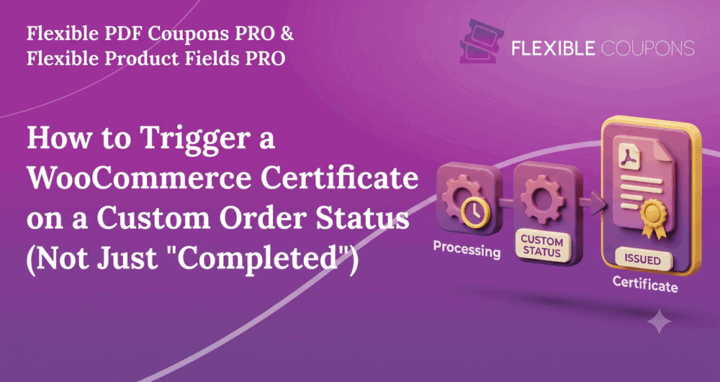

If you sell online courses or in-person training, WooCommerce’s default order statuses may not reflect when a student actually finishes. Triggering a certificate as soon as an order becomes “Completed” can send it too early. A dedicated custom order status lets you generate the PDF certificate only after the course, exam, or attendance requirement is complete.
Why “Order Completed” is not always the right WooCommerce certificate trigger
For a physical product, “Completed” may indicate that the order has been shipped or delivered. A training order usually involves two separate milestones:
- Commercial completion: payment has been received and access to the course or service has been granted.
- Training completion: the student has finished the material, passed an exam, or attended the required sessions.
Using one order status for both milestones can result in certificates being issued before the student qualifies. The alternative is to add a dedicated status such as “Training Completed” and apply it manually only after the relevant completion requirements have been met.
This creates a clear workflow: WooCommerce manages payment and access through its standard statuses, while the custom status acts as the trigger for the WooCommerce PDF certificate.
Step 1: Add a custom order status to WooCommerce
WooCommerce core does not include an admin field for creating custom order statuses. You can register one with a PHP snippet or use a suitable order-status plugin. If you choose the snippet method, add the code through a code snippets plugin or a child theme rather than editing a parent theme directly.
The following example registers a “Training Completed” status and places it after “Completed” in the WooCommerce status list:
function get_training_order_status_settings() {
    return array(
        // Keep the status key at 20 characters or fewer.
        'slug'  => 'wc-training-done',
        'label' => 'Training Completed',
    );
}

add_action( 'init', 'register_training_order_status' );
function register_training_order_status() {
    $settings = get_training_order_status_settings();

    register_post_status(
        $settings['slug'],
        array(
            'label'                     => $settings['label'],
            'public'                    => true,
            'exclude_from_search'       => false,
            'show_in_admin_all_list'    => true,
            'show_in_admin_status_list' => true,
            'label_count'               => _n_noop(
                $settings['label'] . ' <span class="count">(%s)</span>',
                $settings['label'] . ' <span class="count">(%s)</span>'
            ),
        )
    );
}

add_filter( 'wc_order_statuses', 'add_training_status_to_woocommerce' );
function add_training_status_to_woocommerce( $order_statuses ) {
    $settings           = get_training_order_status_settings();
    $new_order_statuses = array();

    foreach ( $order_statuses as $status_id => $status_name ) {
        $new_order_statuses[ $status_id ] = $status_name;

        if ( 'wc-completed' === $status_id ) {
            $new_order_statuses[ $settings['slug'] ] = $settings['label'];
        }
    }

    return $new_order_statuses;
}
The slug is the internal status identifier, while the label is what store administrators and customers can see. Keep the wc- prefix, use lowercase characters and hyphens in the slug, and do not exceed the WordPress status-key limit of 20 characters.
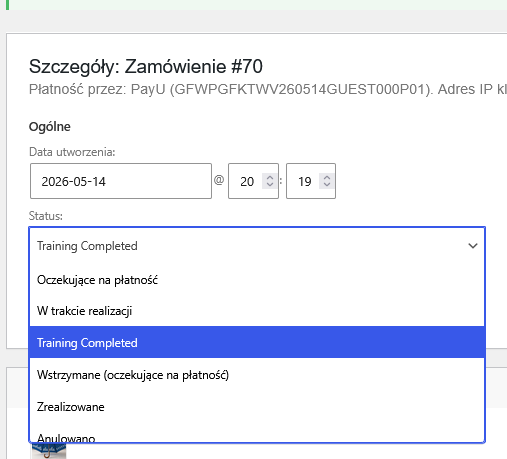
After activating the snippet, confirm that “Training Completed” appears in the order status dropdown and the order list filters.
Step 2: Select the custom order status in Flexible Coupons PRO
Once registered, the new status becomes available to other WooCommerce-compatible settings that use the standard order status list. This means you do not need another snippet to connect it to Flexible Coupons PRO.
Go to Coupons PDF → Settings and locate the setting responsible for automatic PDF generation. Select “Training Completed” instead of the default “Completed” status.
From that point, the certificate configured with your PDF template, custom fields, and shortcodes will be generated when a team member changes the order to the selected status. Payment can therefore be processed and course access granted without issuing the certificate prematurely.
A practical WooCommerce training certificate workflow
A simple process for a course provider, training venue, or event organizer can look like this:
- The customer purchases a course or training session through WooCommerce.
- The order moves through the standard payment and processing statuses.
- The student receives access or attends the scheduled training.
- An instructor or administrator verifies that the completion criteria have been met.
- The administrator changes the order status to “Training Completed.”
- Flexible Coupons PRO generates the configured PDF certificate according to its automatic generation settings.
This separation gives your team direct control over when the certificate is created while avoiding manual PDF preparation for every participant. It can be adapted to online courses, workshops, professional training, fitness qualifications, beauty courses, and other services where purchase and completion happen at different times.
Important checks before using the custom certificate status
- Verify that the custom status appears in WooCommerce after activating the snippet.
- Select the new status in the Flexible Coupons PRO automatic generation settings.
- Place a test order and move it through the full workflow before using the setup for customers.
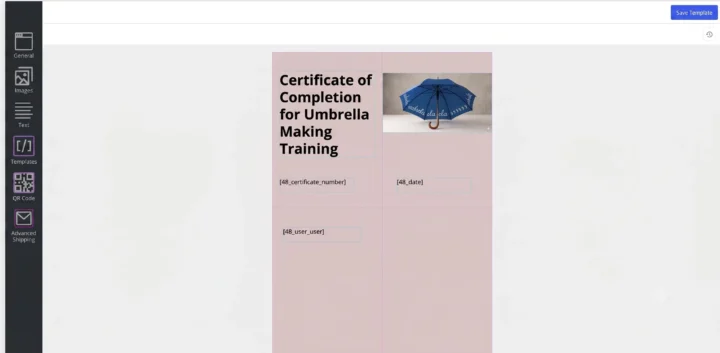
- Check that the certificate template displays the expected participant and course information.
- Make sure staff know exactly when they should apply the “Training Completed” status.
- Review any existing emails or automations that react to WooCommerce status changes.
FAQ about custom WooCommerce certificate triggers
Can I create a custom order status without writing code?
WooCommerce core does not provide an admin interface for creating one. You can use the PHP snippet above or install a suitable plugin that registers custom WooCommerce order statuses. After the status has been registered, selecting it as the certificate trigger in Flexible Coupons PRO does not require additional code.
Will the custom status change my existing WooCommerce automations?
Not automatically. Existing processes tied to statuses such as “Processing” or “Completed” should continue to use those triggers. However, you should review email, fulfilment, membership, and other order-based automations to decide whether any of them also need to react to “Training Completed.”
Can I rename the custom certificate status?
Yes. Change the label in the snippet to match your workflow, for example “Course Passed,” “Attendance Confirmed,” or “Assessment Completed.” If you change the internal slug after orders have already used the status, update and test the workflow carefully because WooCommerce treats a new slug as a different status.
Can I register several custom order statuses?
Yes, separate statuses can be registered with unique slugs and labels. However, confirm which status or statuses your Flexible Coupons PRO generation settings support before designing a multi-certificate workflow. Do not assume that every registered status will trigger a different template automatically.
Summary: trigger a WooCommerce PDF certificate at the right moment
A dedicated custom order status separates payment completion from actual course completion. By registering a status such as “Training Completed” and selecting it in Flexible Coupons PRO, you can control when a WooCommerce certificate is generated without creating each PDF manually.
- Use standard WooCommerce statuses for payment and access management.
- Apply a custom status only after the participant meets your completion criteria.
- Use that status as the automatic PDF generation trigger in Flexible Coupons PRO.
- Test the full order, status, certificate, and delivery workflow before launch.
