




How to Create WooCommerce Voucher Variations for Christmas and Black Friday
WooCommerce voucher variations let you sell Bronze, Silver, Gold, or custom gift card packages from one product page. With Flexible Coupons PRO, each variation can have its own value, PDF design, recipient fields, coupon settings, and seasonal branding for Christmas or Black Friday.
Christmas gift cards and Black Friday vouchers can help customers choose a suitable gift or service package without browsing multiple separate products. Instead of creating an individual product for every option, you can offer several WooCommerce voucher variations within one variable product.
For example, a salon could sell Bronze, Silver, and Gold treatment packages, while an event venue could offer standard, premium, and VIP PDF tickets. A retail store might use the same setup for $100, $200, and $300 gift cards, each with a different design and configuration.
You can create a template and a basic PDF Coupon product with the free version of Flexible Coupons. However, setting up gift card variations requires the PRO version of our WooCommerce PDF Coupons plugin.
Why Create WooCommerce Voucher Variations?
A variable voucher product gives customers a clear choice without making your product catalogue unnecessarily complex. It is practical when packages differ by price, included service, recipient information, expiry date, or PDF layout.
Typical use cases include:
- Christmas gift cards with different values or festive designs.
- Black Friday voucher packages for selected products or categories.
- Bronze, Silver, and Gold service packages for salons, spas, gyms, and wellness businesses.
- Standard, premium, and VIP event tickets delivered as PDF files.
- Service credits with different redemption conditions or validity periods.
- Marketplace vouchers tailored to selected product categories.
Each option remains part of the same WooCommerce product, making it easier for customers to compare available packages and select the right variation.

How to Set Up WooCommerce Voucher Variations
The initial configuration follows the standard WooCommerce variable product workflow:
- Open the product editing panel in WooCommerce.
- Set the product type to a variable product.
- Add the attributes you want to use, such as Package, Value, or Ticket Type.
- Create the relevant variations, such as Bronze, Silver, and Gold.
- Enable the PDF Coupon option.
- Open the PDF Coupon settings and configure the global voucher options.
The global settings provide a shared starting point for all variations. You can use them when every package should have the same template, recipient fields, and redemption rules.
Configure Individual Gift Card Variations
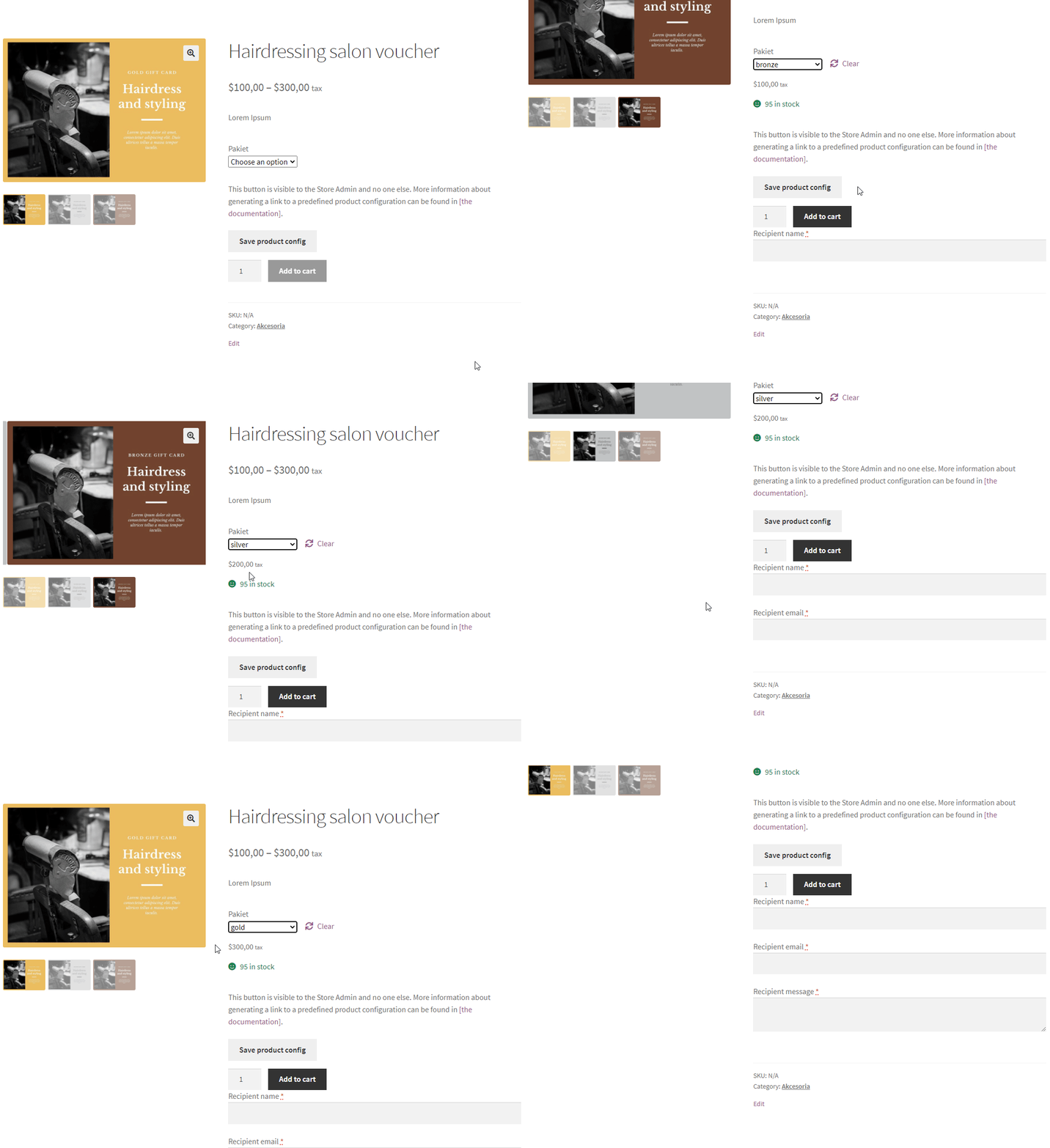
Global settings may be sufficient for a simple campaign, but seasonal packages often need individual parameters. Flexible Coupons PRO lets you configure settings for a specific variation rather than applying one setup to the whole product.
A practical package structure could look like this:
- Bronze package: a lower voucher value and only the recipient’s email address required.
- Silver package: a different value with the recipient’s first and last name required.
- Gold package: a premium design, additional recipient information, and its own coupon code configuration.
This approach gives you control over how each voucher is purchased, generated, and presented while keeping all options on one WooCommerce product page.
How to Define Coupon Codes for Voucher Variations
Flexible Coupons PRO can generate coupon codes automatically and lets you adjust their format. Depending on your campaign, you can configure:
- The coupon code prefix.
- The coupon code suffix.
- The number of digits used in the generated code.
These settings can be applied globally or configured for an individual voucher variation. For example, Christmas gift cards could use a seasonal prefix, while a Black Friday package could use a separate code format that is easier for store staff to recognize during redemption.

Set Required Recipient Fields for Each Voucher Variation
A gift card often needs more information than an ordinary WooCommerce product. Depending on the package, you can collect details such as:
- Recipient name.
- Recipient email address.
- A personalized message for the recipient.
These fields can be optional or mandatory for a particular variation. This is useful when a basic printable voucher does not need recipient details, but a premium gift package must be personalized and sent directly to another person.
Flexible Coupons PRO also lets you configure variation-level voucher options such as:
- Multi-use coupon settings.
- Voucher expiry dates.
- Free shipping eligibility.
- Applicable WooCommerce products.
- Applicable product categories.
Create Christmas and Black Friday Voucher Templates
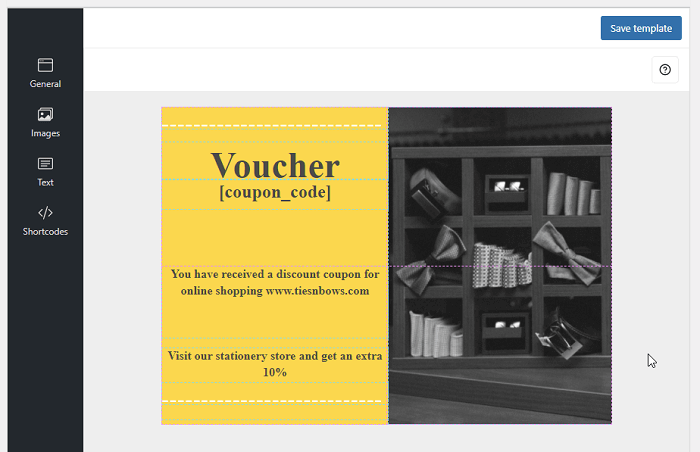
The PDF design is an important part of a seasonal voucher package. To create a template, go to PDF Coupons → Templates → Add New and open the built-in template editor.
The editor allows you to prepare a branded PDF layout with suitable text, colors, images, and coupon information. You can create one shared design for the entire product or prepare separate templates for individual variations.
For example:
- A Bronze Christmas voucher can use a simple festive layout.
- A Silver voucher can include a different image and additional service details.
- A Gold voucher can use a premium layout with its own terms and recipient message.
- A Black Friday voucher can use campaign-specific colors and coupon wording.
If you already have seasonal templates, open the product’s Variations tab and assign the appropriate voucher template to each option. You can also select one template in the global voucher settings when every variation should use the same design.
Plan a Practical Seasonal Voucher Package
Before publishing the product, define what actually changes between variations. A clear plan prevents unnecessary duplication and makes the offer easier for customers to understand.
- Choose the package structure: use names such as Bronze, Silver, and Gold or values such as $100, $200, and $300.
- Define the voucher value: decide what each variation can be redeemed for.
- Select the PDF design: use one shared template or a different layout for every option.
- Configure recipient fields: collect only the information required to prepare and deliver the voucher.
- Set redemption rules: configure validity, usage, eligible products, or categories.
- Test every variation: place test orders and check the generated PDF, code, recipient details, and email delivery.
Optional Tools for Voucher Order Automation
Voucher products can also be included in a broader WooCommerce workflow. For example, Flexible Invoices for WooCommerce PRO can support automated invoicing for store orders.
You can also use ShopMagic to manage follow-up communication, such as thank-you messages or newsletters informing customers about new Christmas and Black Friday voucher packages.
Before adding a product to your live store, you can test the voucher creation workflow in our demo store.
Flexible PDF Coupons PRO WooCommerce
Design PDF coupons and sell them as gift cards, tickets, or service vouchers. Configure voucher variations, personalized fields, coupon settings, and templates within WooCommerce.
WP Desk
Key Takeaways
- Basic PDF voucher products and templates can be created with the free plugin, while WooCommerce voucher variations require Flexible Coupons PRO.
- Global settings help maintain a consistent configuration across all variations.
- Individual variation settings allow different templates, fields, codes, expiry rules, and redemption conditions.
- Bronze, Silver, and Gold packages are suitable for gift cards, services, experiences, and event tickets.
- Seasonal PDF designs can make Christmas gift cards and Black Friday vouchers easier to distinguish.
- Every variation should be tested before the voucher product is published.
Summary
WooCommerce voucher variations provide a practical way to sell several gift card or service packages through one product. With Flexible Coupons PRO, you can control the PDF template, recipient information, coupon code format, expiry settings, and redemption rules for each variation.
This setup works well for Christmas gift cards, Black Friday promotions, service vouchers, and PDF event tickets. If you have suggestions for future voucher workflows, you can also share an idea for plugin development.
