




Scheduled gift card email delivery lets WooCommerce customers buy a present now and arrange for it to arrive at the right moment. With Flexible Coupons PRO and the Advanced Sending add-on, you can delay a PDF gift card by a set interval, choose a fixed date, or allow the purchaser to select a delivery date.
Table of contents
- Why offer delayed gift card email delivery?
- What do you need to schedule WooCommerce gift cards?
- How to set up gift card email delivery with a delay
- Available gift card delivery options
- Practical scheduling tips
- Key takeaways
- Summary
A customer may want to purchase a birthday gift card during a promotion, organize Christmas presents in advance, or schedule a service voucher for an anniversary. Immediate delivery does not always fit these situations. A selectable delivery date gives the purchaser more control without requiring your team to send each voucher manually.
Why offer delayed gift card email delivery?
Delayed gift card delivery separates the purchase date from the email delivery date. The order can be placed when it is convenient for the customer, while the PDF gift card reaches the chosen recipient at a more suitable time.
This approach can be useful for WooCommerce stores selling:
- birthday and anniversary gift cards,
- Christmas and seasonal vouchers,
- salon, spa, gym, and wellness service credits,
- restaurant or hospitality vouchers,
- experience gifts and printable coupons,
- PDF event tickets intended for a future occasion.
Practical benefit: scheduled delivery helps customers plan gifts in advance while reducing the need for store staff to monitor dates and send voucher emails manually.
The feature also supports more predictable gift-giving. A customer can complete the purchase today, enter the recipient’s details and message, and use an appropriate delivery option for the occasion.
What do you need to schedule WooCommerce gift cards?
Scheduled delivery is not included in the free version of Flexible Coupons. To add this workflow to WooCommerce, you need Flexible Coupons PRO and the Advanced Sending add-on.
Flexible Coupons PRO provides the foundation for creating branded PDF coupons, gift cards, service vouchers, and tickets. You can prepare the document customers receive using a graphic editor and customize elements such as text, colors, images, and layout.

Flexible PDF Coupons PRO for WooCommerce
Design and sell branded PDF gift cards, coupons, service vouchers, and tickets directly in your WooCommerce store.
WP Desk
How to set up gift card email delivery with a delay
Once Flexible Coupons PRO is active, install and activate the Advanced Sending add-on. This add-on extends the standard voucher workflow with customized email delivery and scheduling options.
Flexible PDF Coupons PRO – Advanced Sending
Send coupons by email and schedule gift card delivery using the available delay types.
WP Desk
A practical setup process looks like this:
- Create or edit the WooCommerce product that will be sold as a gift card, voucher, or ticket.
- Prepare the corresponding PDF template in Flexible Coupons PRO.
- Add the recipient information and personalization fields needed for your workflow.
- Open the Advanced Sending settings for email delivery.
- Select the appropriate delay type.
- Save the configuration and test the complete purchase and delivery process.
Important: the delivery date controls when the voucher email is sent. The coupon’s redemption expiry is a separate setting, so check both values to ensure the recipient has enough time to use the gift card after receiving it.
Gift card email delivery with delay: available options
Advanced Sending provides four delivery modes: disabled delay, Simple Delay, a fixed date, and a customer-defined date. The best choice depends on whether the timing should be controlled by the store or selected by the purchaser.
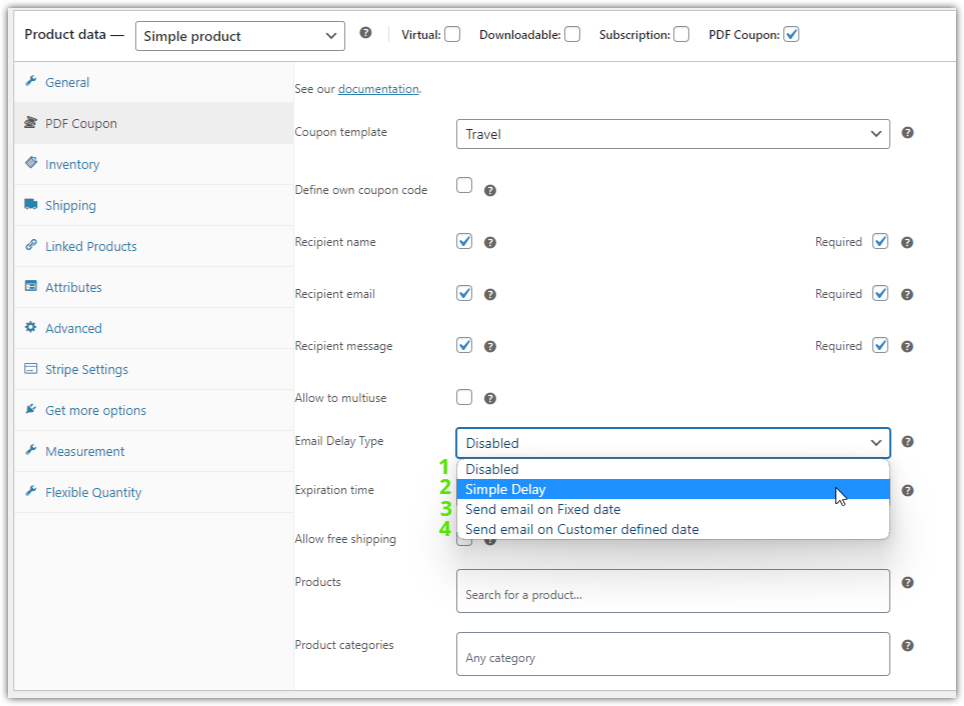
1. Disable the delay
Use this option when the voucher should follow the regular email delivery workflow without scheduling. It is suitable for digital gift cards that customers expect to receive immediately as part of the standard order process.
2. Simple Delay

Simple Delay holds the email for a configured period. It is useful when every voucher connected with a product should be sent after the same interval rather than on a specific calendar date.
For example, a store may use this option when the delivery timing is part of a standardized service process. Because the rule is defined by the merchant, the customer does not need to select a date during the purchase.
3. Send email on a fixed date
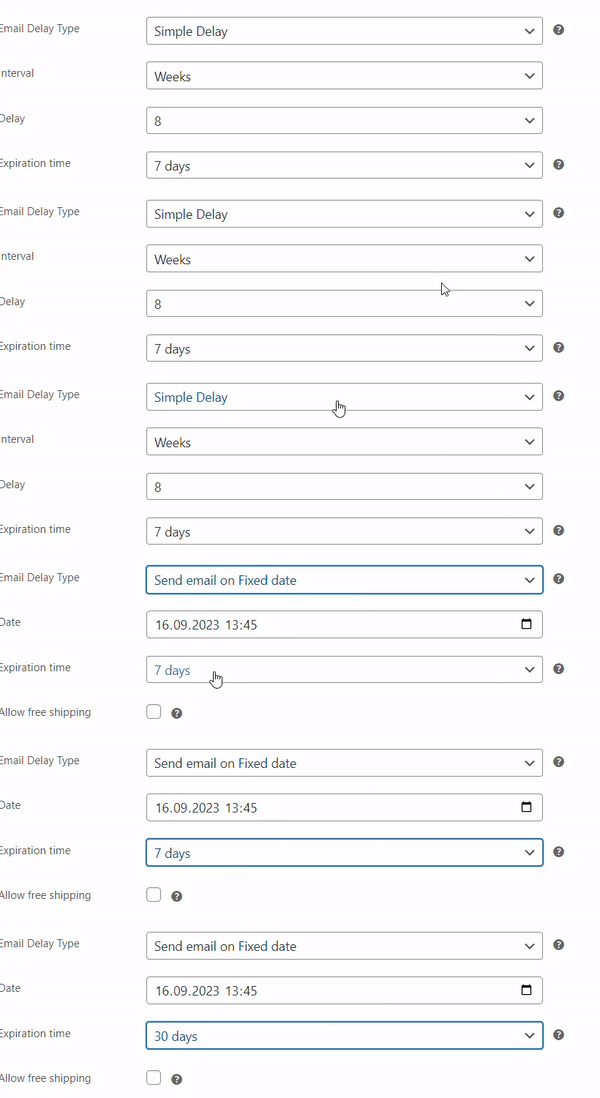
The fixed-date delivery option lets the store select a specific calendar date. This is helpful for campaigns in which all related vouchers should be sent on the same day.
Possible uses include Christmas gift card delivery, the start of a scheduled event, a venue promotion, or another date defined by the merchant. The customer places the order in advance, but the voucher email waits for the configured date.
4. Send email on a customer-defined date
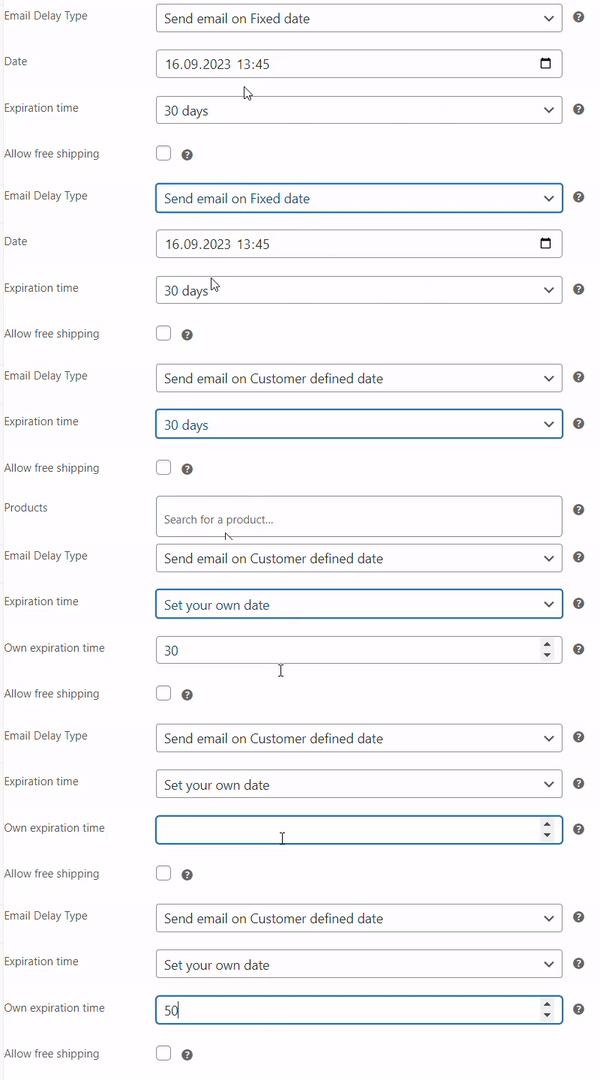
With a customer-defined delivery date, the purchaser chooses when the gift card email should be sent. This option is particularly useful when your store sells vouchers for personal occasions because each order may require different timing.
For example, one customer can schedule a birthday gift for next week, while another can arrange an anniversary voucher several months in advance. Your store does not need to create a separate fixed-date product for every occasion.
Best practices for scheduled WooCommerce gift cards
Make the delivery choice clear
Use straightforward labels and instructions so customers understand whether they are selecting the purchase date, delivery date, or coupon expiry date. Clear wording helps prevent mistakes at checkout.
Collect the correct recipient details
Check that the voucher workflow collects the email address required for delivery. If you also allow a recipient name or personalized message, explain where that information will appear in the email or PDF document.
Match the option to your business model
- Use Simple Delay for a consistent merchant-controlled interval.
- Use a fixed date for store-wide campaigns or scheduled occasions.
- Use a customer-defined date for personal gifts and flexible delivery.
- Disable scheduling when immediate delivery is the better customer experience.
Test before launching
Place a test order and verify the recipient address, personalized content, PDF appearance, coupon code, and delivery settings. Testing is especially important when a voucher is intended for an event or time-sensitive occasion.
Review the full plugin configuration
Scheduled email delivery requires the PRO plugin and add-on to work together. You can review the available Flexible Coupons options on the Flexible Coupons pricing page before choosing the setup that matches your store.
Key takeaways
- Gift card email delivery with a delay lets customers purchase now and arrange delivery for a more appropriate time.
- The scheduling feature requires Flexible Coupons PRO and the Advanced Sending add-on.
- Available modes include no delay, Simple Delay, fixed-date delivery, and a customer-defined date.
- Fixed dates suit merchant-controlled campaigns, while customer-defined dates work well for birthdays and personal occasions.
- The email delivery date and voucher expiry should be configured as separate parts of the workflow.
- A complete test order helps confirm that recipient data, PDF design, and scheduling behave as expected.
Summary
Delayed gift card delivery adds practical flexibility to a WooCommerce voucher store. Instead of sending every PDF immediately, you can apply a standard delay, schedule delivery for a fixed campaign date, or let the purchaser choose the right day.
With Flexible Coupons PRO handling the PDF voucher workflow and Advanced Sending providing delivery controls, stores can automate time-sensitive gift card emails without manually tracking every order.
