





Learn how to offer a WooCommerce custom price based on user input and turn it into a PDF gift card. Using Flexible PDF Coupons and Custom Price for WooCommerce, customers can choose a voucher value within limits set by your store—without coding or creating separate products for every denomination.
This guide uses a toy store as an example, but the same workflow can support retail shops, salons, spas, gyms, service providers, and other businesses selling gift cards or credits.
Download Flexible PDF Coupons →
Download Custom Price for WooCommerce →
Table of contents
- How a WooCommerce custom-price gift card works
- Install the free WooCommerce plugins
- Configure Flexible PDF Coupons
- Configure Custom Price for WooCommerce
- Test the custom-price voucher workflow
- Practical uses for customer-defined voucher values
- Key takeaways
How a WooCommerce custom price based on user input works
WooCommerce normally requires you to set the price of a product in advance. This is suitable for standard products, but it can be restrictive when selling gift cards. One customer may want to spend $20 on a small present, while another may need a $100 voucher for a close friend or family member.
A WooCommerce custom-price gift card solves this problem by allowing the buyer to enter a value on the product page. The store owner can still control the available range by defining a minimum and maximum price.
The setup described in this guide combines two free plugins:
- Flexible PDF Coupons creates the gift card product and generates the PDF voucher.
- Custom Price for WooCommerce adds the customer-defined price field to the product page.
This means you can manage multiple voucher values with one WooCommerce product instead of maintaining a separate product for every denomination.
Install the free WooCommerce plugins
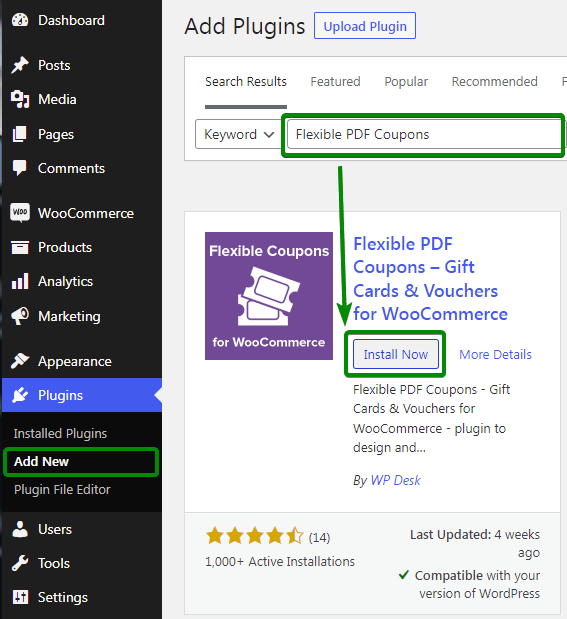
Start by installing Flexible PDF Coupons – Gift Cards & Vouchers for WooCommerce and Custom Price for WooCommerce. Both free versions are available from the WordPress plugin repository.
- Download or install Flexible PDF Coupons from your WordPress dashboard.
- Activate the plugin in your WooCommerce store.
- Download or install Custom Price for WooCommerce.
- Activate the second plugin.
- Configure the PDF coupon and customer-defined price settings.

Configure Flexible PDF Coupons for a gift card
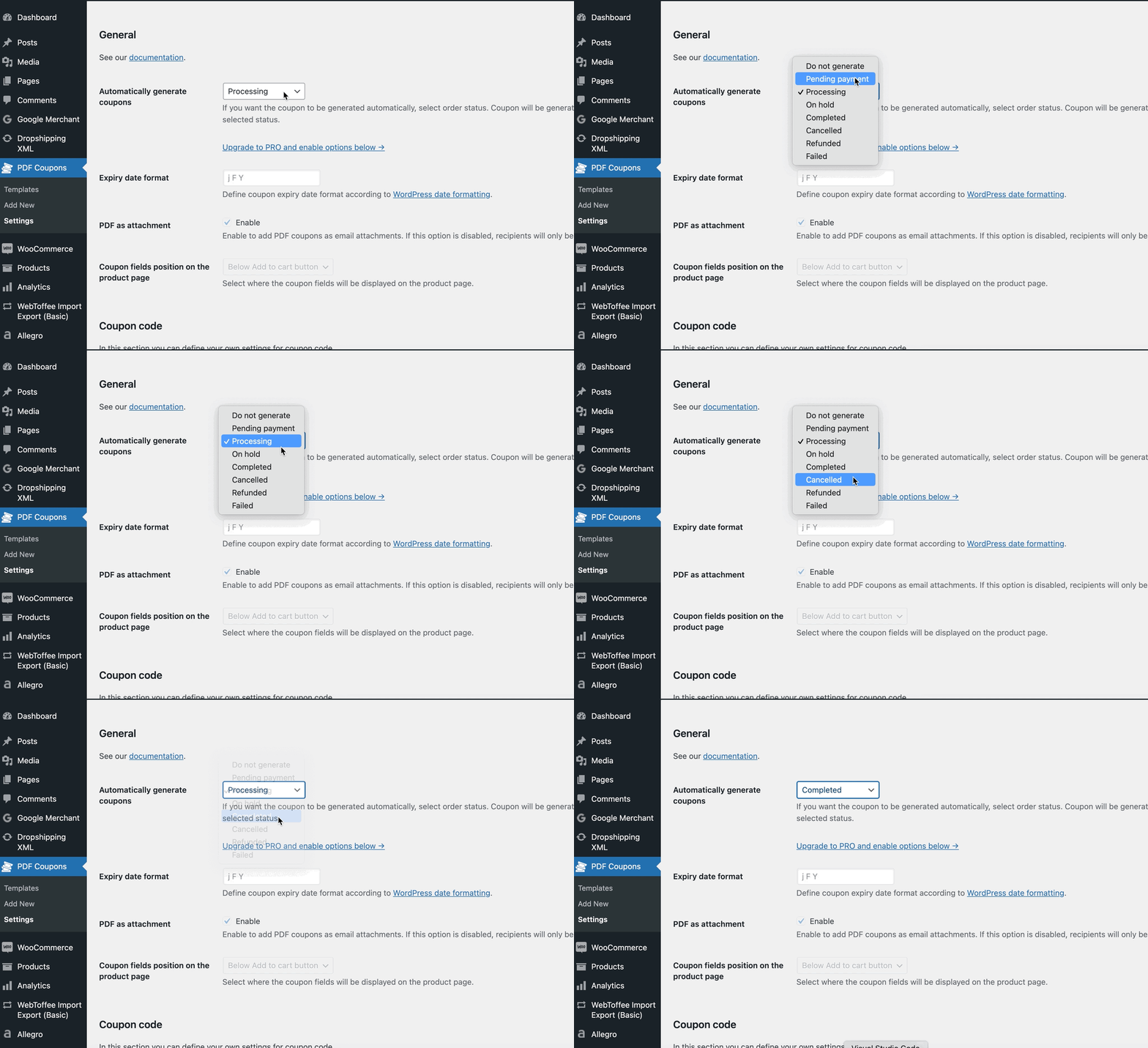
After activation, configure when our plugin should generate the coupon. In the settings, select the WooCommerce order status that will trigger coupon generation and delivery. This gives you control over the point at which the PDF voucher is created.
For example, you may want the voucher to be generated only after the order reaches the status selected in the plugin settings. Review this choice carefully so it matches your normal payment and order-processing workflow.
Create a PDF coupon template
Next, create a coupon template or use the default template as your starting point. The template determines how the generated PDF gift card will look.
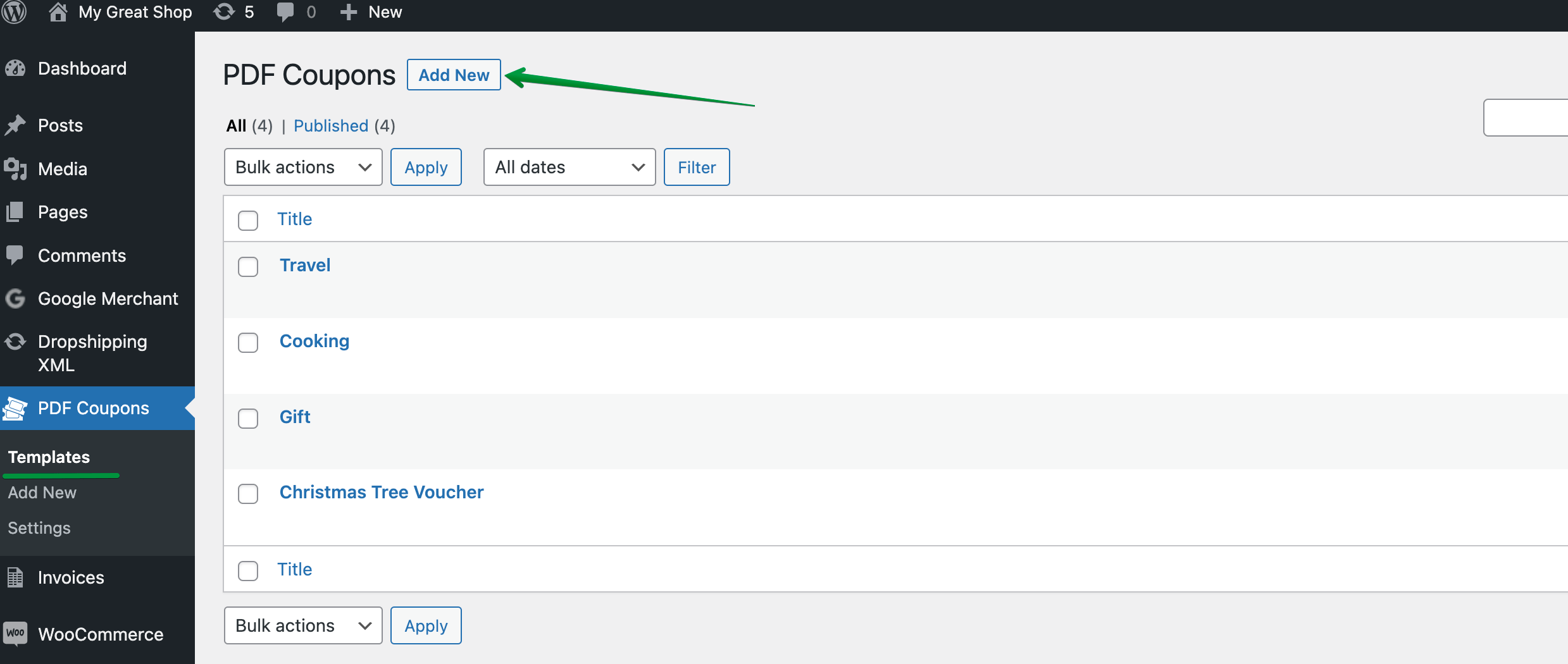
When preparing the template, you can choose its format and page orientation, add an image and text, and insert the available shortcodes for the coupon code and value. These dynamic elements ensure that the generated document contains the information associated with the purchased voucher.

A clear template should make the voucher value, coupon code, and redemption information easy to find. It is also worth adapting the image and wording to your brand rather than placing too much text on the PDF.
Flexible PDF Coupons PRO for WooCommerce
Create branded PDF coupons and use them as gift cards, service vouchers, or tickets. Choose the version and optional add-ons that match your delivery and personalization requirements.
Flexible Coupons
You can also explore the plugin workflow in the free demo.
Configure Custom Price for WooCommerce
Without a custom-price plugin, the gift card product uses the fixed product price entered in WooCommerce. The free Custom Price for WooCommerce plugin adds a field in which the customer can define the amount.
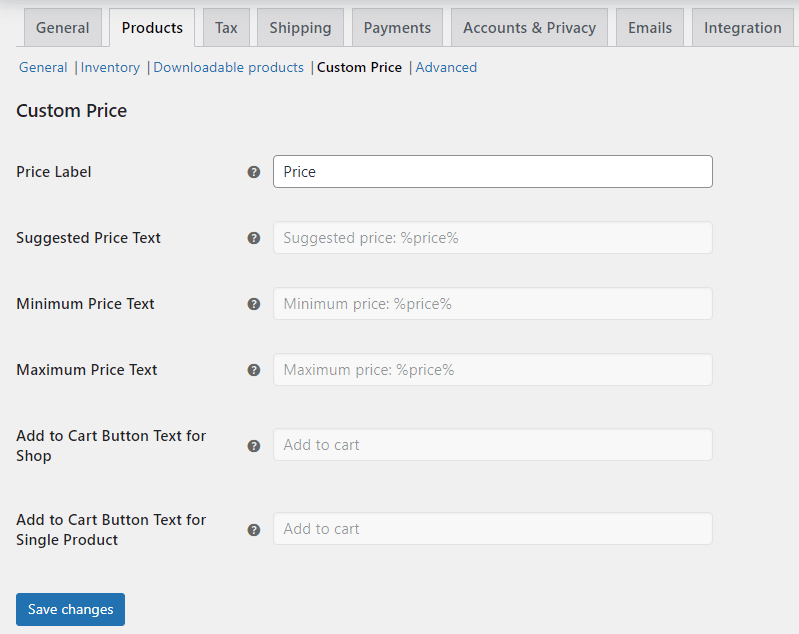
Set the custom price label
Open the plugin settings and choose a clear label for the price field. For a gift card, customer-friendly wording such as “Enter voucher value” explains the purpose of the field more clearly than a generic price label.
Enable user input for the voucher product
- Go to Products in the WordPress dashboard.
- Edit the WooCommerce product used as your gift card or voucher.
- Enable the custom-price option.
- Enter the minimum permitted value.
- Enter the maximum permitted value.
- Update the product.
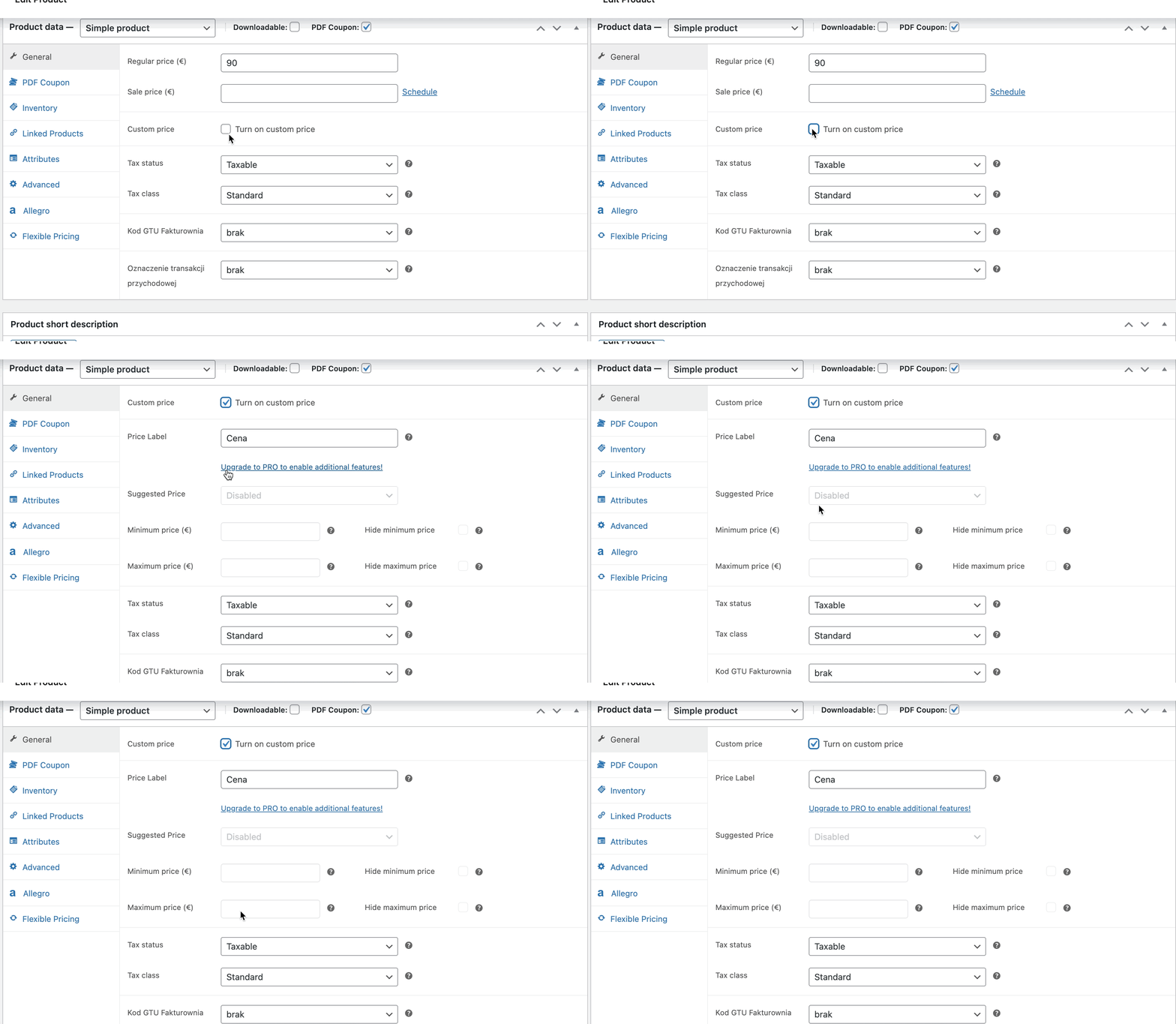
Choose sensible minimum and maximum values
The minimum and maximum amounts are business controls, not just technical settings. A minimum prevents orders with impractically low voucher values, while a maximum helps manage unusually large amounts and gives customers a clear purchasing range.
Choose limits that suit what your store sells. A toy shop, for example, can base its range on typical product prices. A salon or spa may instead use the usual cost of treatments, while a gym can align the range with classes, passes, or service packages.
Once the product is updated, customers will see the new value field on its product page.
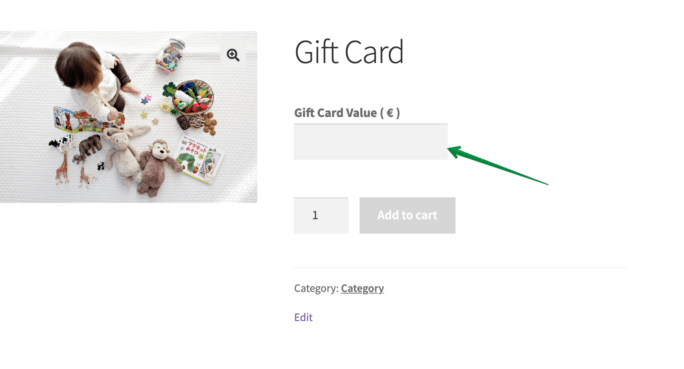
Test the WooCommerce custom-price voucher workflow
Before publishing the gift card, place a test order and check the complete customer journey:
- Open the voucher product page.
- Enter an amount within the permitted range.
- Add the product to the cart.
- Confirm that the entered amount appears correctly in the cart and checkout.
- Complete the test order.
- Move the order to the status selected for coupon generation.
- Open the generated PDF and verify its value, code, text, image, and layout.
- Check how the voucher is delivered and confirm that the coupon can be redeemed as intended.
Also test a value below the minimum and above the maximum. This helps you confirm that the product rules are understandable and that customers receive appropriate validation before checkout.
Where customer-defined voucher values are useful
A custom price based on user input in WooCommerce can support more than toy-store gift cards. The same product model may be useful for:
- Retail shops: flexible gift cards when customers do not know which product the recipient would prefer.
- Salons and spas: credit toward a treatment or service selected later.
- Gyms and fitness businesses: flexible credit for sessions, classes, or passes.
- Service providers: prepaid credit that can be applied to an eligible service.
- Experience businesses: gift vouchers when the buyer wants the recipient to choose the final option.
In a toy store, this approach can be particularly practical for birthdays, Christmas, or other family occasions. The buyer chooses the budget, while the recipient can later select an appropriate product.
Optional Custom Price PRO settings
If you need additional product-page controls, Custom Price for WooCommerce PRO offers extra settings such as a suggested price and editable Add to Cart button text for a single product. You can review the available options in the demo.
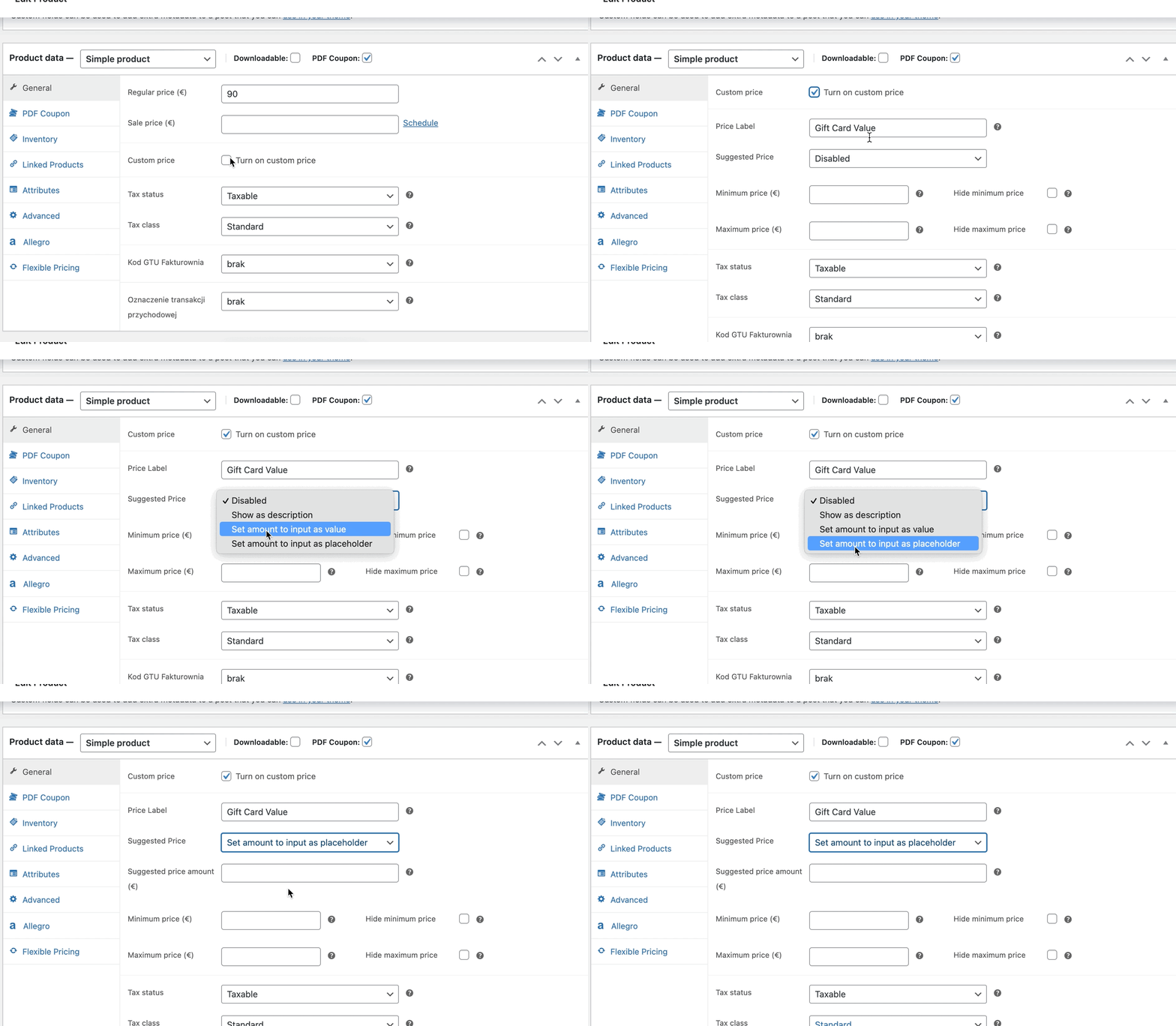
Visit the Custom Price for WooCommerce PRO page to compare its additional options with the free version.
Key takeaways
- Flexible PDF Coupons can create a PDF gift card connected to a WooCommerce product.
- Custom Price for WooCommerce lets the customer enter the product value.
- Minimum and maximum limits keep customer input within a range selected by the store owner.
- One flexible-value product can replace multiple gift card products with fixed denominations.
- The coupon generation status should match your WooCommerce order-processing workflow.
- A test order should verify the entered price, generated PDF, coupon details, delivery, and redemption.
- PRO versions are optional and should be considered only when their additional features match your requirements.
Summary
Combining two free plugins gives you a practical way to create a WooCommerce gift card with a custom price based on user input. Flexible PDF Coupons handles the voucher and PDF generation, while Custom Price for WooCommerce lets the buyer choose an amount within your defined limits.
This setup reduces the need for separate fixed-value products and gives customers more freedom when choosing a gift. If you need more advanced coupon functionality, compare Flexible Coupons PRO and the available add-ons before expanding the workflow.
FAQ
Can customers enter any price they want for a WooCommerce product?
You can define minimum and maximum values in Custom Price for WooCommerce. Customers choose their amount within the permitted range rather than entering an unrestricted value.
Does custom price input work with WooCommerce gift cards?
Yes. In the workflow described above, Custom Price for WooCommerce collects the amount and Flexible PDF Coupons generates the corresponding PDF voucher.
Do I need to create a separate product for every gift card value?
No. A customer-defined price lets you offer multiple values through one voucher product, provided they remain within the minimum and maximum limits you set.
Are both plugins free?
Both Flexible PDF Coupons and Custom Price for WooCommerce have free versions that support the core process covered in this guide. Their PRO versions provide additional options and should not be confused with the free functionality.
Why should I test the generated PDF before selling the voucher?
A test order allows you to check the value, coupon code, template layout, generation status, delivery process, and redemption rules before customers begin placing orders.
